In-Game Options
Introduction#
FusionFix adds new options to the in-game menu that can be easily changed in real time and it also improves some of the games original options as well.
GTA IV's menus are quite limited, so the mod can only add so much to the menus before they run out of space. So a few options might not be in ideal locations.
The options below are labelled whether they're New or Improved.
Other sections of the Fusion Fix Wiki.
Controls Tab#
These are the options added or improved in the "Controls" tab.
This tab contains submenus for Keyboard/Mouse Options and Controller Options.
Keyboard/Mouse Options Submenu#
These are the options added or improved in the "Keyboard/Mouse Options" submenu.
This options only apply when using keyboard/mouse controls.
Mouse Look Sensitivity (Improved/New)#
This option allows you to adjust the camera sensitivity when not aiming a weapon.
If you need to change the minimum/maximum sensitivity of this slider, you can change MouseLookSensitivityRange in the Fusion Fix config file.
This option replaces the original "Mouse Sensitivity" option, which only controlled both the mouse sensitivty when looking around and aiming.
Mouse Aim Sensitivity (Improved/New)#
This option allows you to adjust the camera sensitivity when aiming a weapon.
If you need to change the minimum/maximum sensitivity of this slider, you can change MouseAimSensitivityRange in the Fusion Fix config file.
This option replaces the original "Mouse Sensitivity" option, which only controlled both the mouse sensitivty when looking around and aiming.
On Foot Camera Centering Delay (New)#
This option allows you to adjust the time it takes for the camera to center back to its original position while on foot.
Higher means it takes longer to center again, lower means the camera will center quicker.
Vehicle Camera Centering Delay (New)#
This option allows you to adjust the time it takes for the camera to center back to its original position while in a vehicle.
Higher means it takes longer to center again, lower means the camera will center quicker.
Vehicle Camera Turn Speed (New)#
This option allows you to adjust the time it takes for the camera to catch up with your vehicle as it takes turns.
Higher means the camera will stick to the vehicle more as it turns, lower means the camera will remain at its position before the turn longer before trying to center.
Raw Input (New)#
This option enables raw input (not actually raw input, but very similar) which significantly improves mouse input so it's less jumpy/stuttery.
Controller Options Submenu#
These are the options added or improved in the "Controller Options" submenu.
This options only apply when using a controller.
Look-Around Sensitivity (New)#
This option allows you to adjust the camera sensitivity when not aiming a weapon.
If you need to change the minimum/maximum sensitivity of this slider, you can change MouseLookSensitivityRange in the Fusion Fix config file.
Vanilla GTA IV doesn't have a way to change controller look-around sensitivity.
Aiming Sensitivity (Improved/New)#
This option allows you to adjust the camera sensitivity when aiming a weapon.
If you need to change the minimum/maximum sensitivity of this slider, you can change MouseAimSensitivityRange in the Fusion Fix config file.
This option replaces the original "Aim Sensitivity" option, which only had preset options to choose from.
On Foot Camera Centering Delay (New)#
This option allows you to adjust the time it takes for the camera to center back to its original position while on foot.
Higher means it takes longer to center again, lower means the camera will center quicker.
Vehicle Camera Centering Delay (New)#
This option allows you to adjust the time it takes for the camera to center back to its original position while in a vehicle.
Higher means it takes longer to center again, lower means the camera will center quicker.
Vehicle Camera Turn Speed (New)#
This option allows you to adjust the time it takes for the camera to catch up with your vehicle as it takes turns.
Higher means the camera will stick to the vehicle more as it turns, lower means the camera will remain at its position before the turn longer before trying to center.
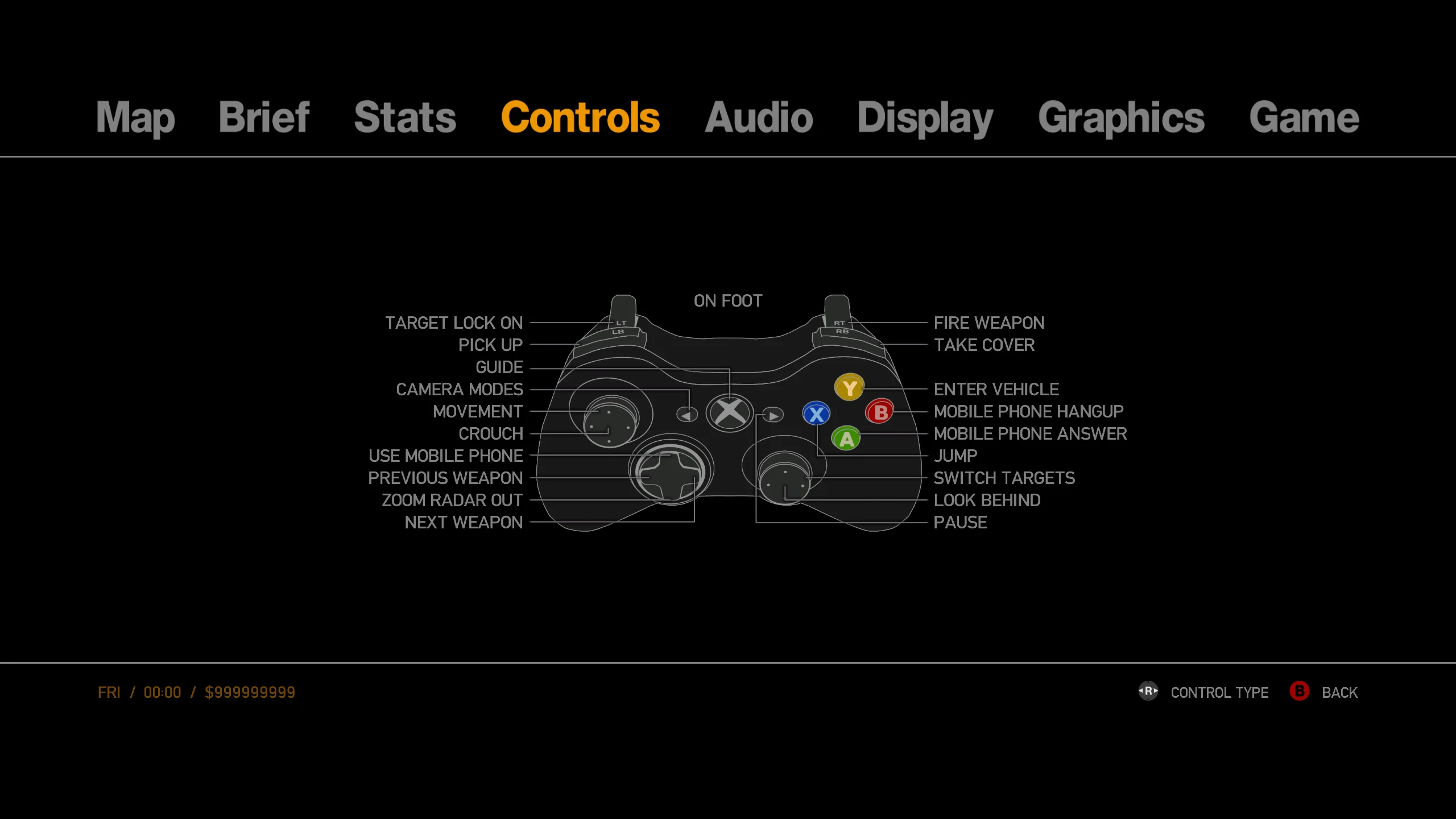
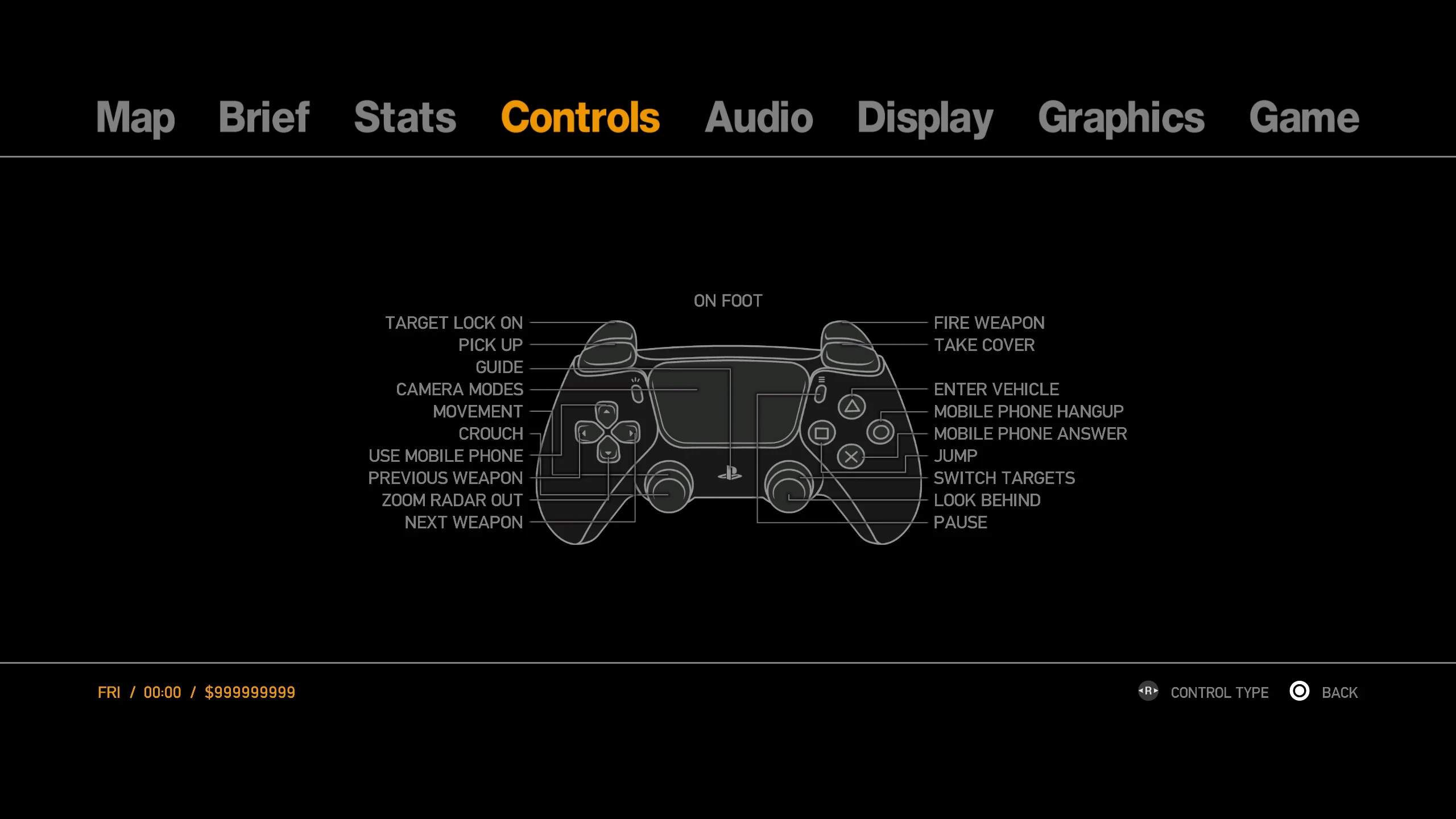
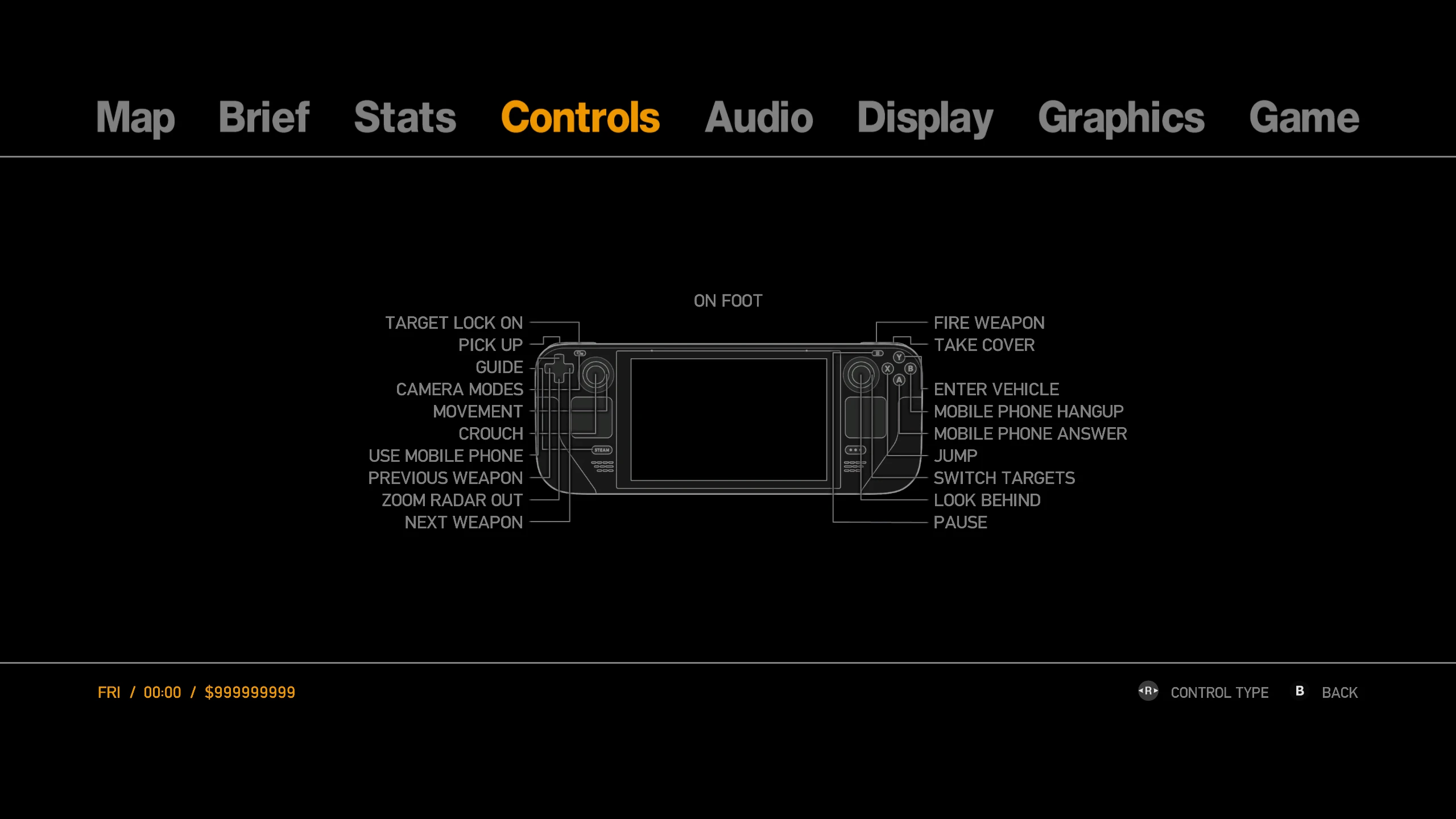
Gamepad Icons (New)#
This options allows you to switch between various different controller icons added by Fusion Fix.
Options include Xbox 360, Xbox One, Playstation 3, Playstation 4, Playstation 5, Nintendo Switch 1, Steam Deck and Steam Controller (Original).
Always Run (New)#
This options allows the player to run by default and it also enables sprinting in interiors.
Press the sprint button to toggle between walk and run.
Allow Movement When Zoomed (New)#
This option allows the player to move while aiming with a sniper rifle.
Extended Sniper Controls (New)#
This option allows the player to aim with the sniper rifle without using the scope.
Press the jump button to toggle between third-person aim and the scope.
Camera Shake (New)#
This option enables and disables the camera shake effect when the player is running/jogging.
This effect was always enabled in the vanilla game, but it became weaker at higher frame rates. See camera shake fix for more information.
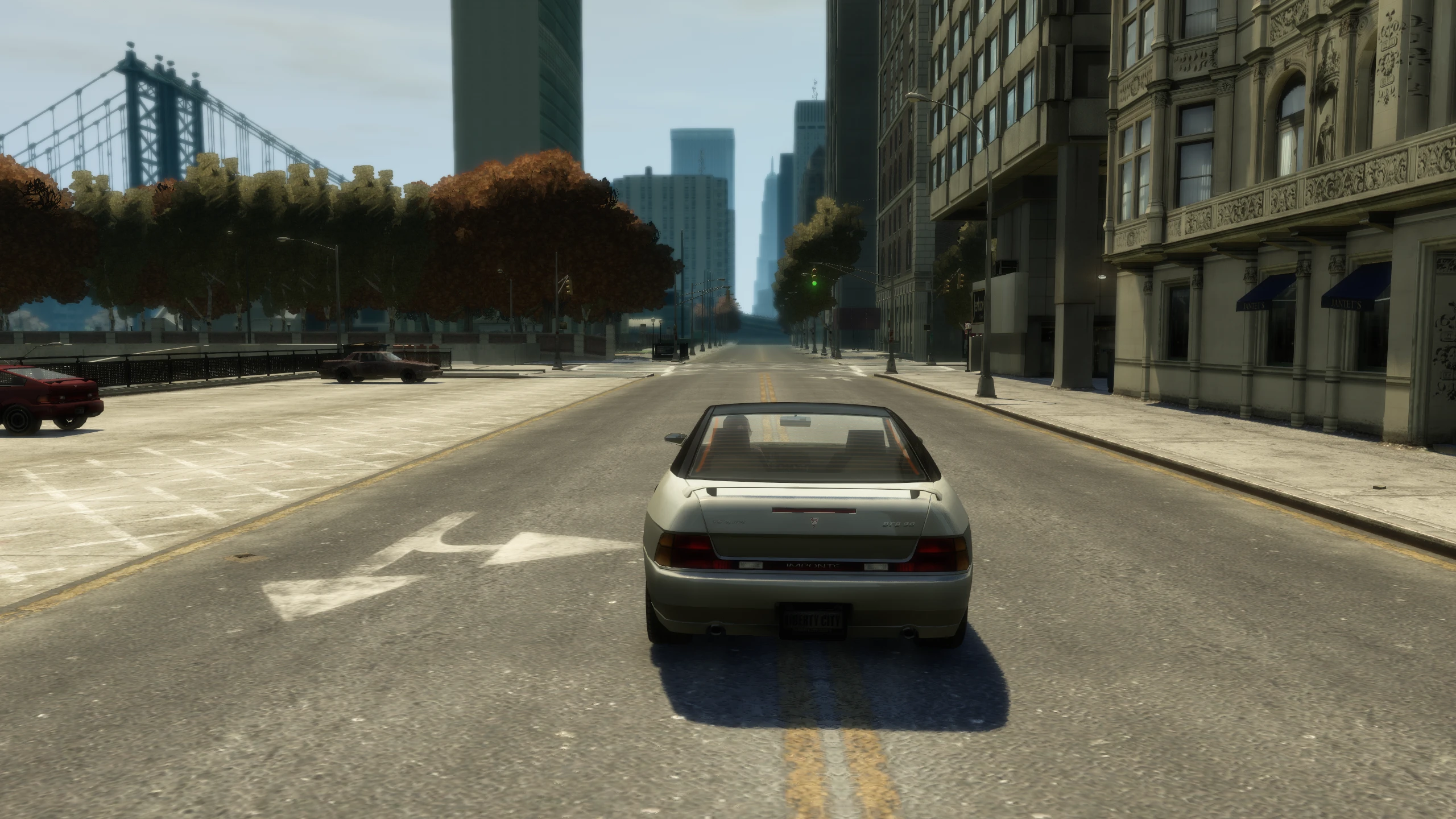
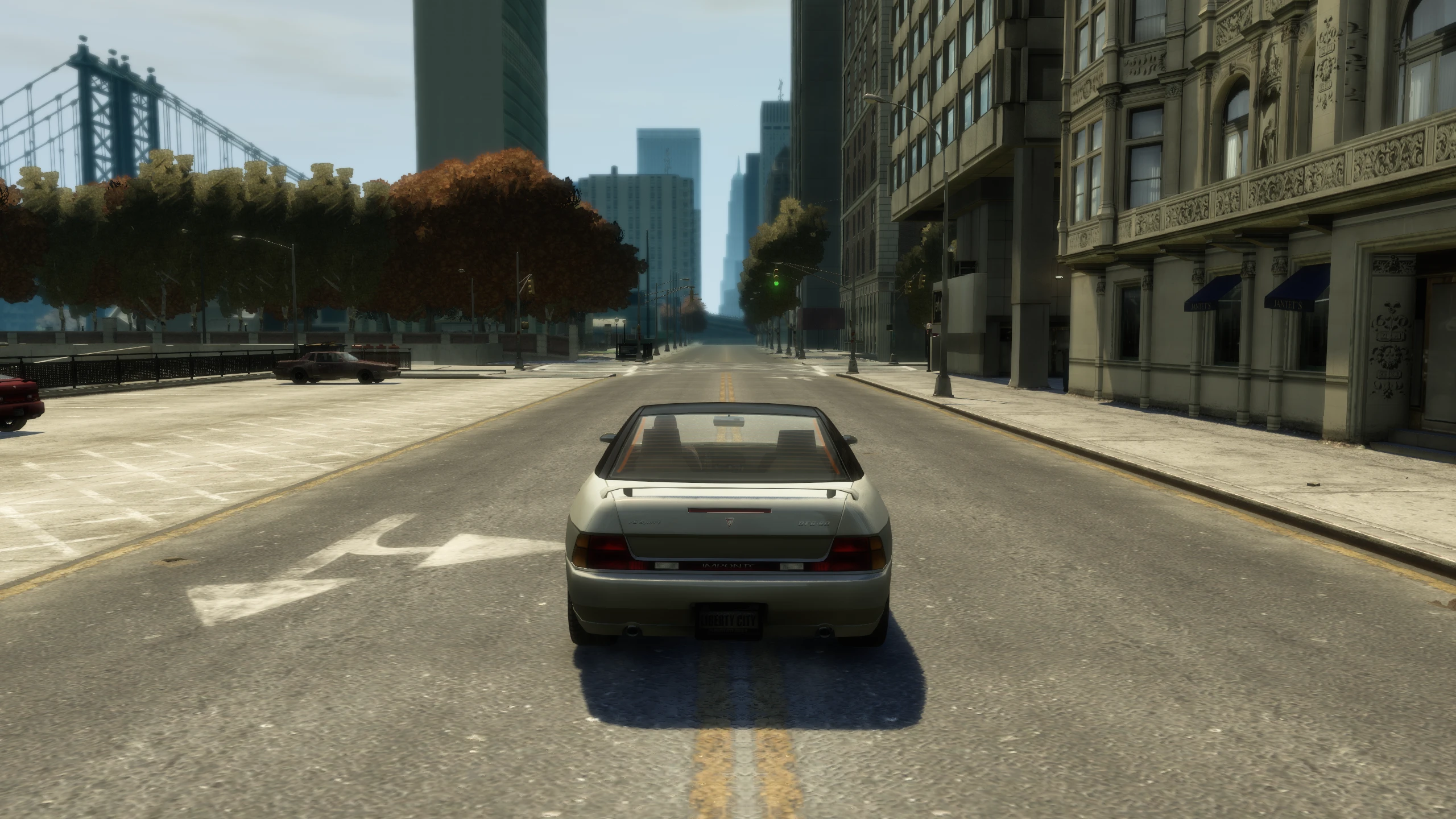
Centered Vehicle Camera (New)#
This option centers the camera when the player is in vehicles.
If you want more options related to the camera, use the original Centered Vehicle Cam mod.
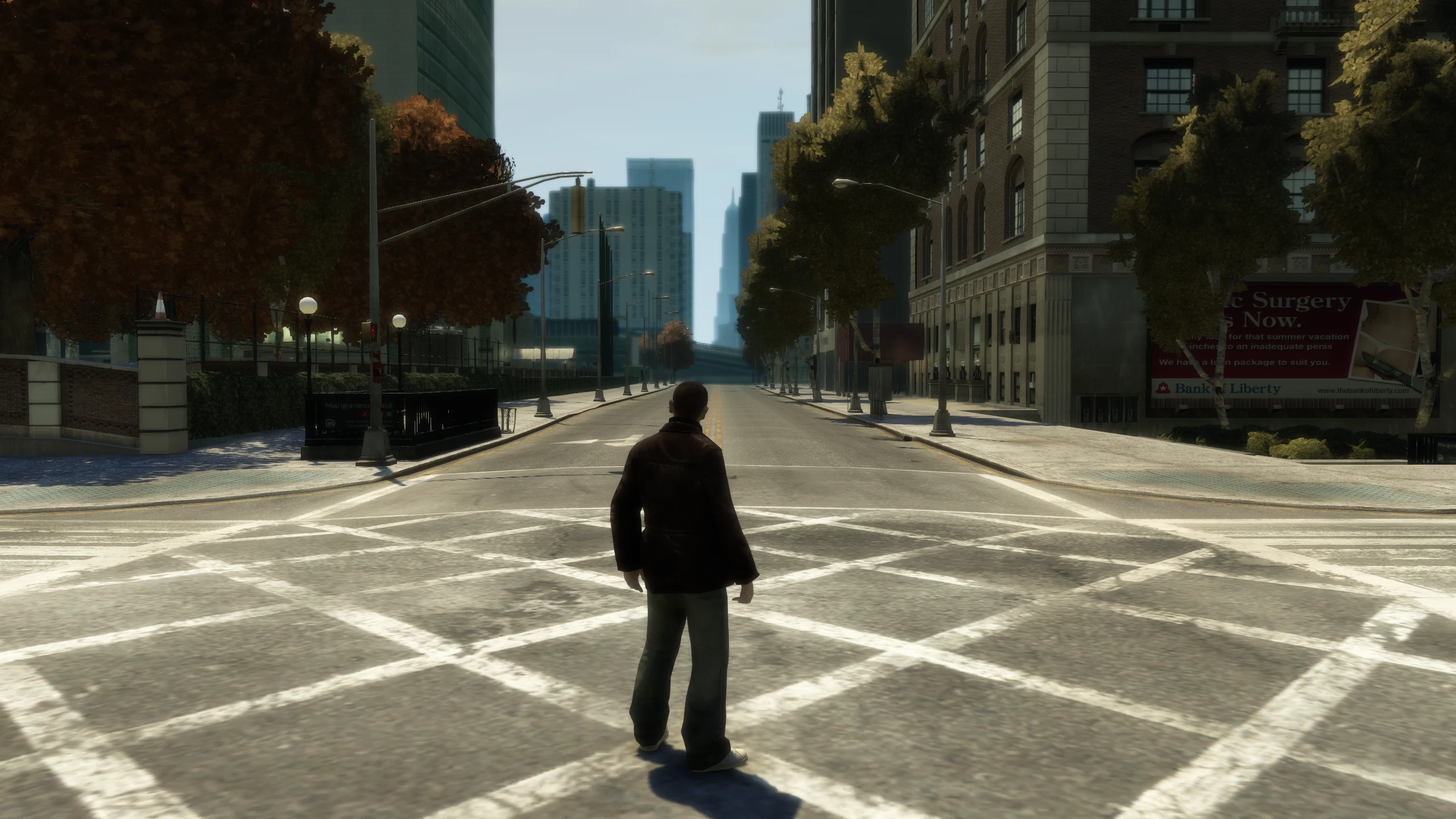
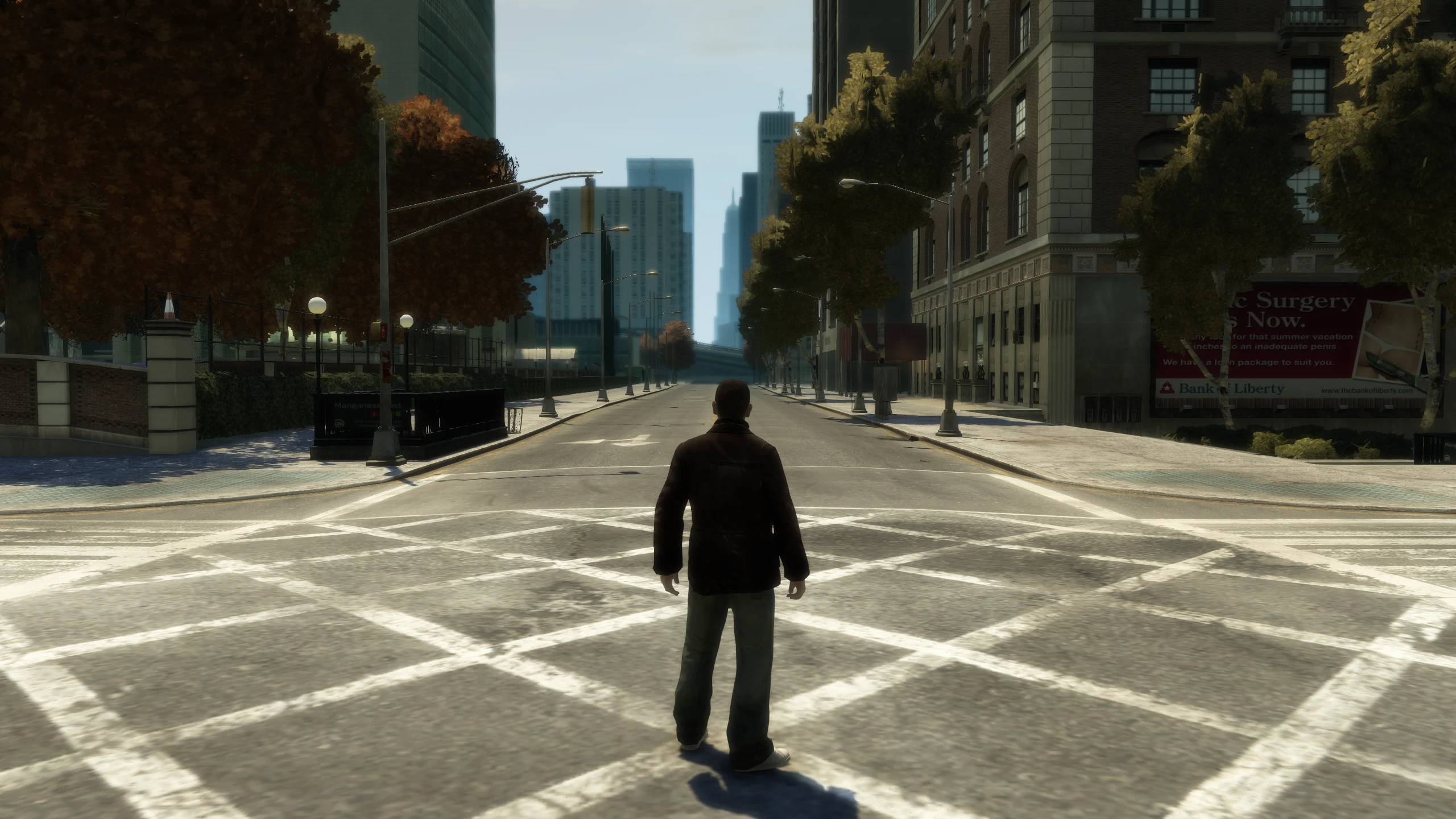
Cenetered On Foot Camera (New)#
This option centers the camera when the player is on foot.
If you want more options related to the camera, use the original Centered OnFoot Cam mod.
Stunt Jump Camera (New)#
This option enables and disables the cinematic camera that happens when the player does a stunt jump.
Fence Climb and Car Jack Camera (New)#
This option enables and disables the cinematic camera that can happen when the player climbs fences or pulls someone out of a car.
Turn Indicators (New)#
This options will make the player use turn indicators when turning left or right in vehicles.
By default this happens automatically, but you can enable manual turn indicators in the Fusion Fix config file.
Always Show Bullet Traces (New)#
This option makes every bullet shot show tracers instead of some bullets having tracers and some not.
Disable Wardrobe Transition (New)#
This option disables the screen fading in/out when changing clothes in safehouse wardrobes or when buying clothes in clothing shops.
Instant Taxi Stop (New)#
This option makes taxis stop immediately when you skip the taxi journey, instead of allowing them to drive for a few seconds which can sometimes result in them hitting pedestrians.
Auto Climb Ladders (New)#
This options will make the player automatically climb ladders once they're close, similar to GTA V. You can change the distance this will take effect by editing AutoClimbLaddersRange in the Fusion Fix config file.
Audio Tab#
Cutscene Audio Sync#
This option should only be used if you experience audio desync during cutscenes. If you don't experience desync, leave this option off as it will disable Fusion Fix's cutscene improvements.
If you have audio desync, give the "Alternative" option a try. If you still have issues, use the "On" option, but you will completely lose the cutscene improvements Fusion Fix provides.
These options can be toggled in real time by pressing the up arrow on your keyboard during cutscenes.
Alternative Dialogues#
This option allows you to enable alternative unused dialogue in some missions.
Display Tab#
These are the options added or improved in the "Display" tab.
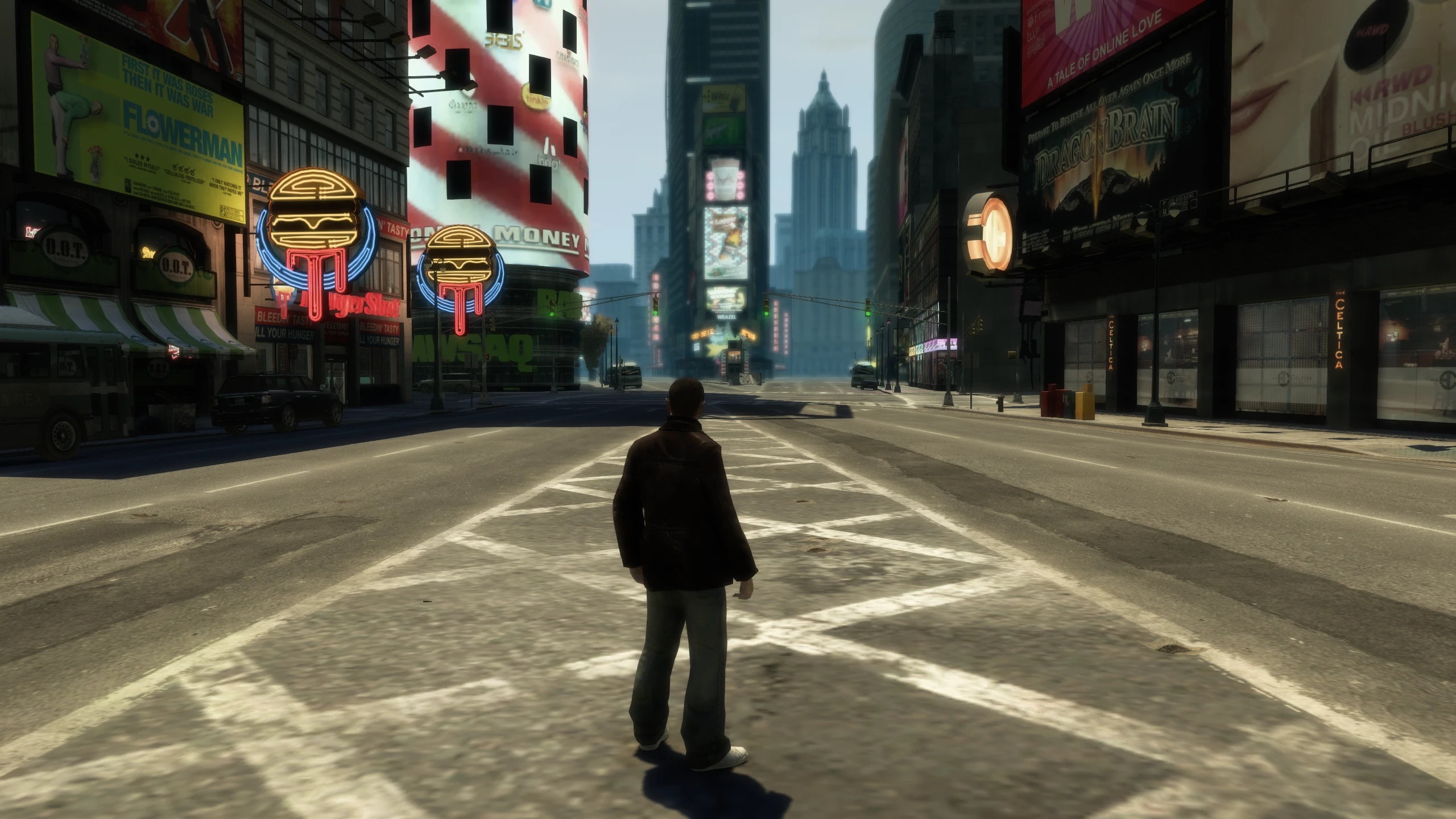
FOV (New)#
Changes the field-of-view.
Language (New)#
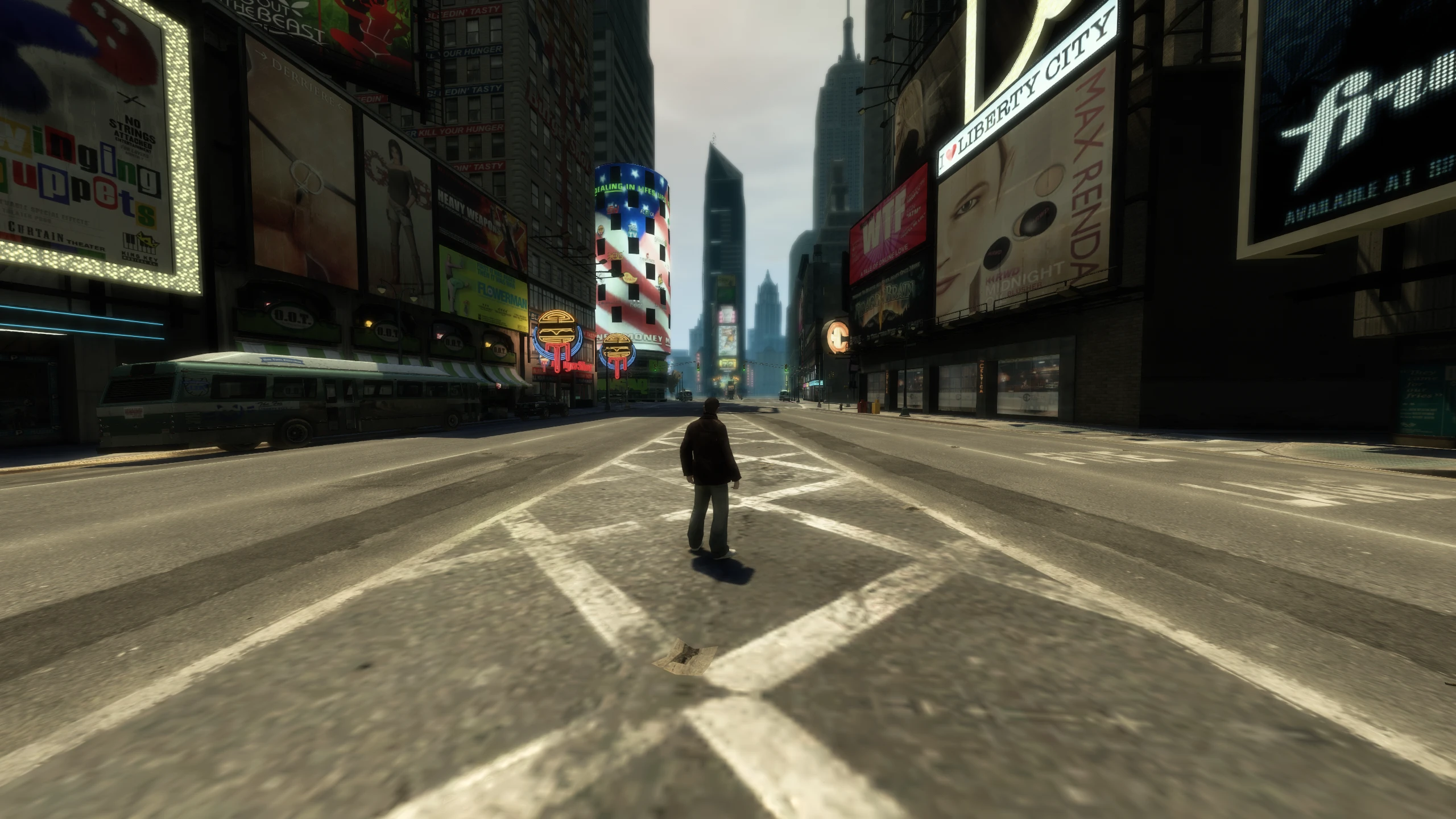
Changes the language in-game for text. This was in previous GTA IV versions, but Rockstar removed it in The Complete Edition and instead tied it to your language settings in the Rockstar Games Launcher.
Definition (Improved)#
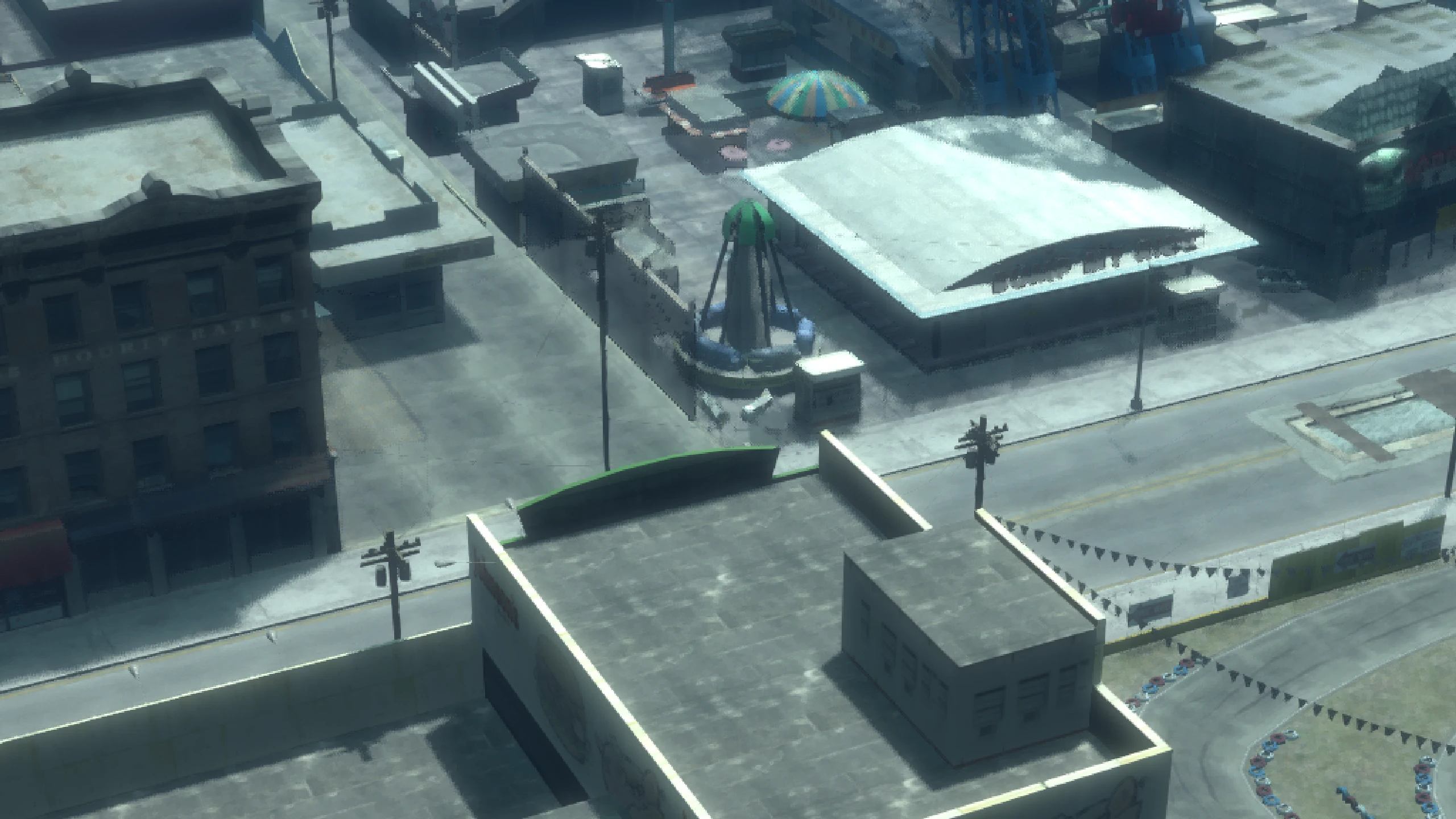
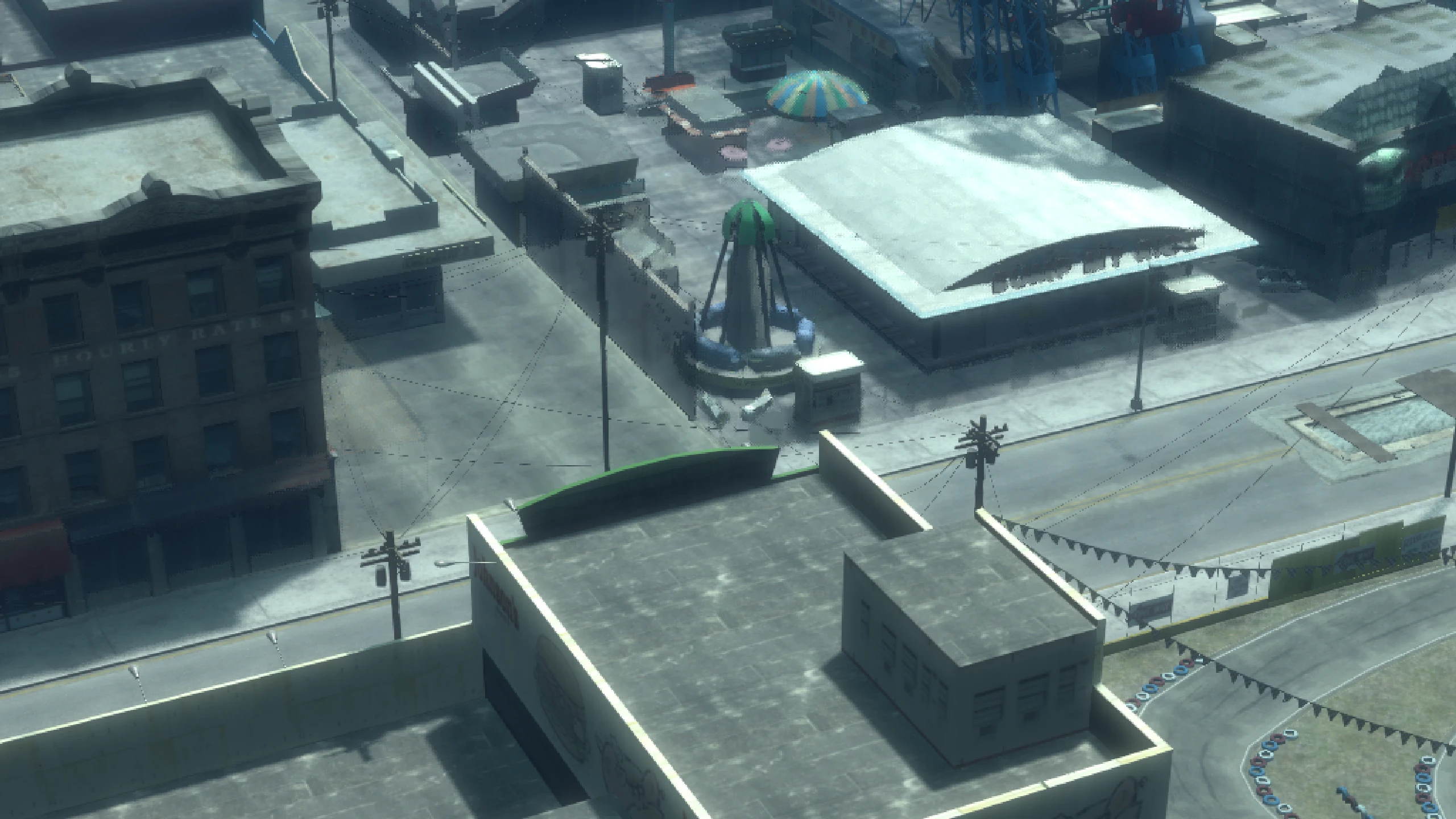
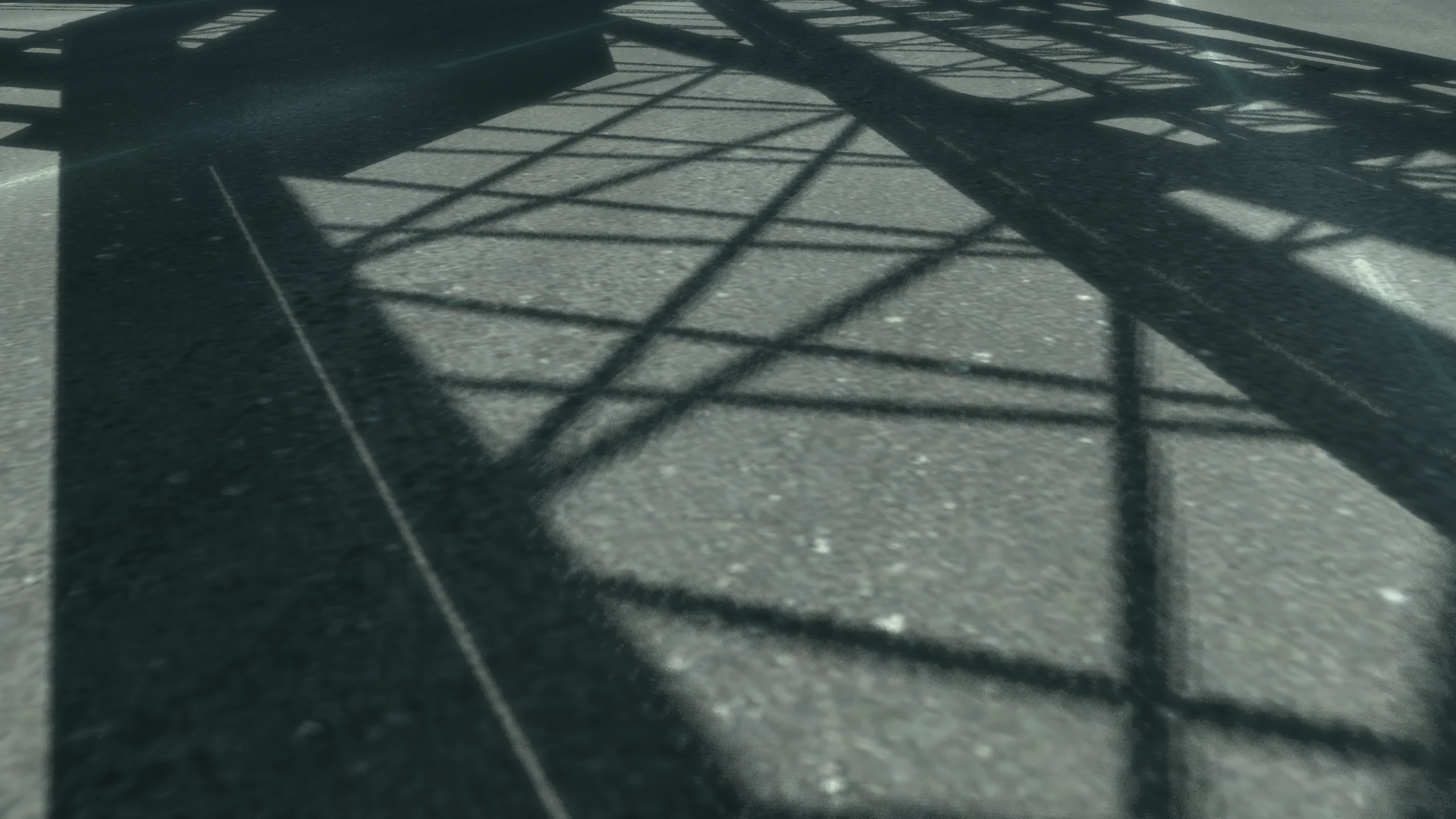
This alters the behaviour of the blur used to hide screen-door transparency artifacts on objects fading and it also changes the shadow filter (unrelated to the Shadow Filter option).
Settings this to On will use the new Fusion Fix implementation which is similar to GTA V, this means the blur effect will only apply to objects which contain these artifacts (sharpest and cleanest image for GTA IV possible out of all the platforms). It will also enable Fusion Fix's higher quality shadow filter.
Setting this to Off will apply the blur effect to the entire screen, similar to Xbox 360. It will also enable the lower quality shadow filter used on Xbox 360/early PC versions.
This option was in the original game, but it's basically been completely reworked in Fusion Fix. See the dedicated Fusion Fix Definition section in the Fixes & Improvements page for more information.
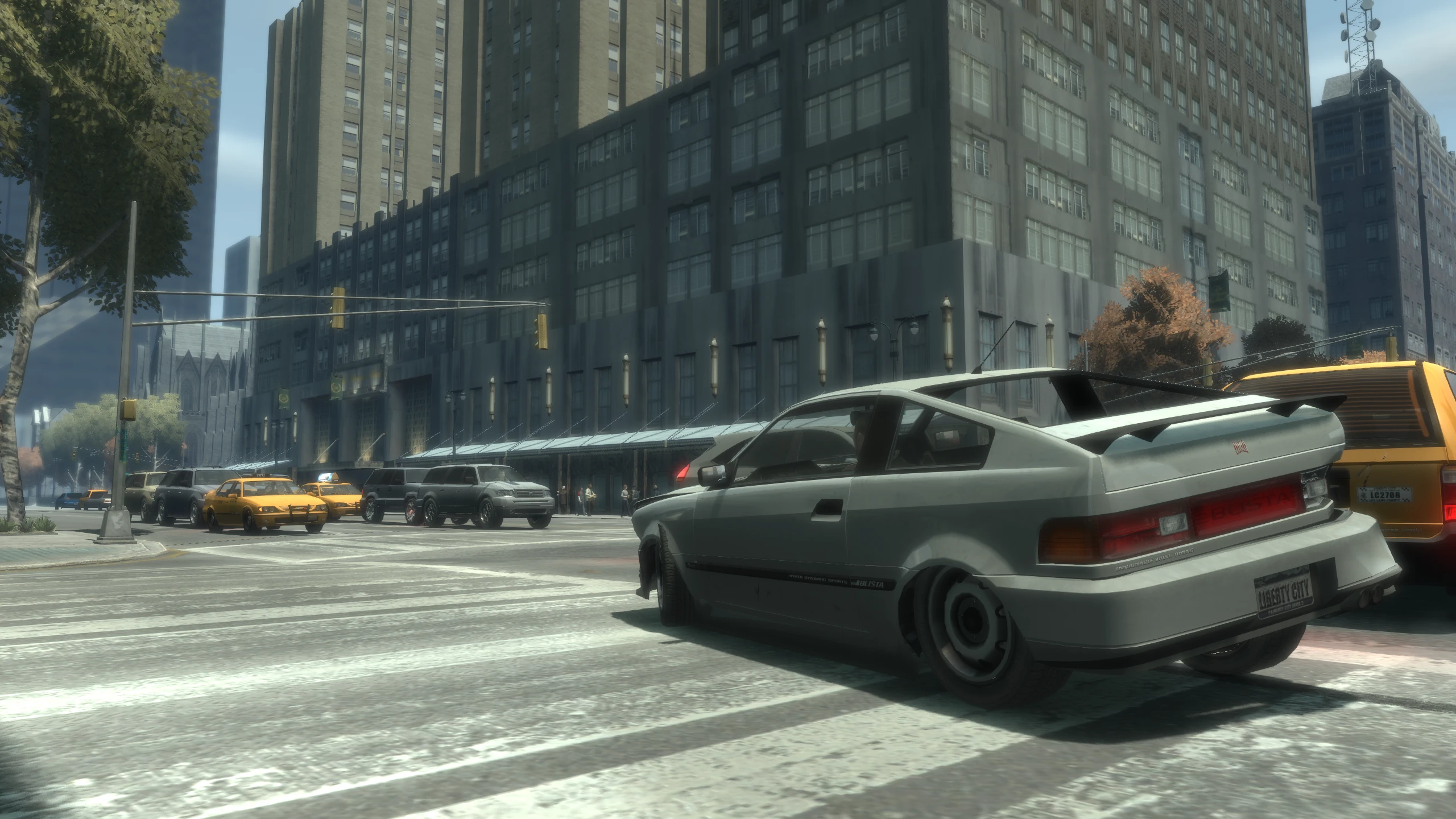
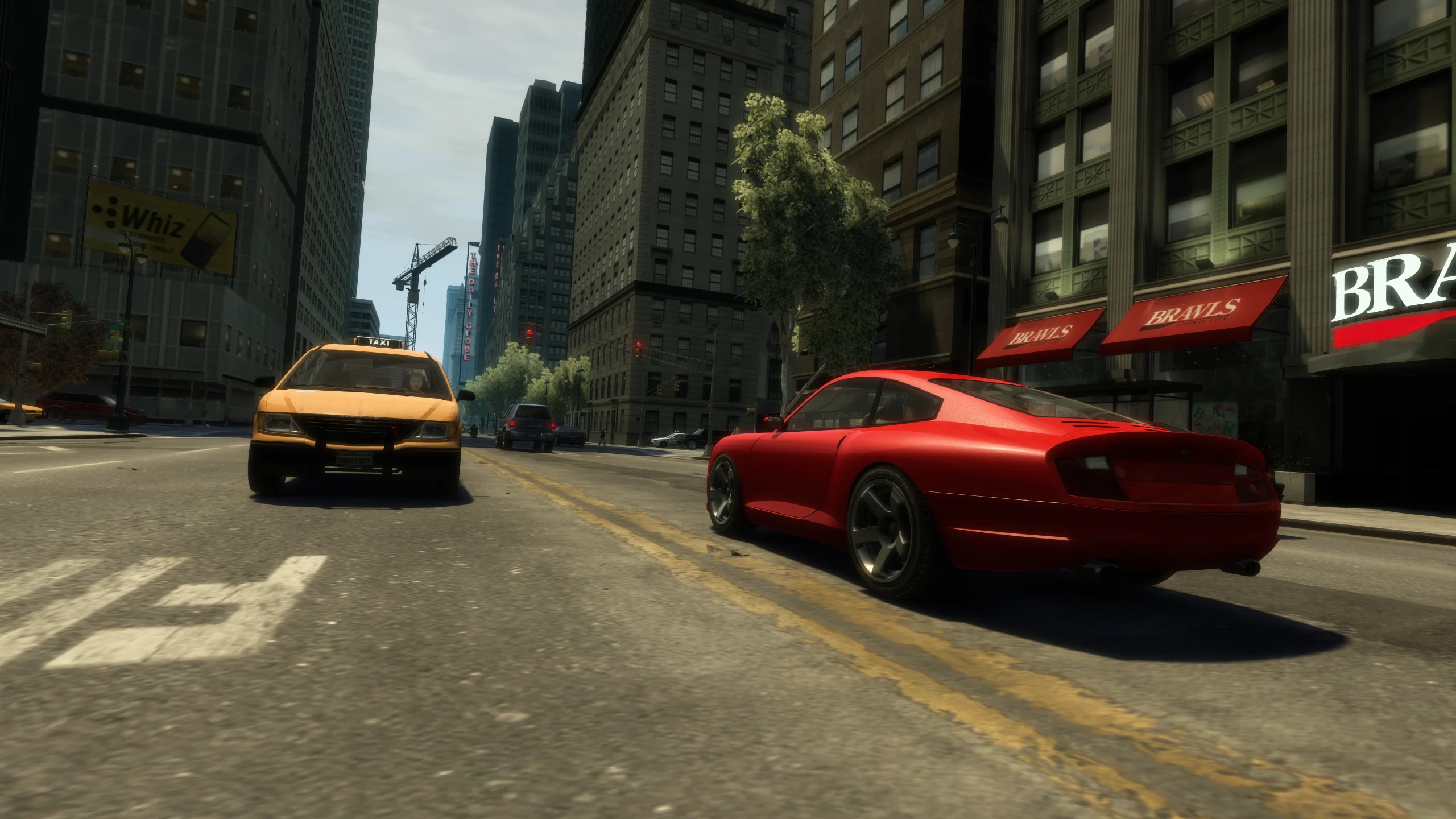
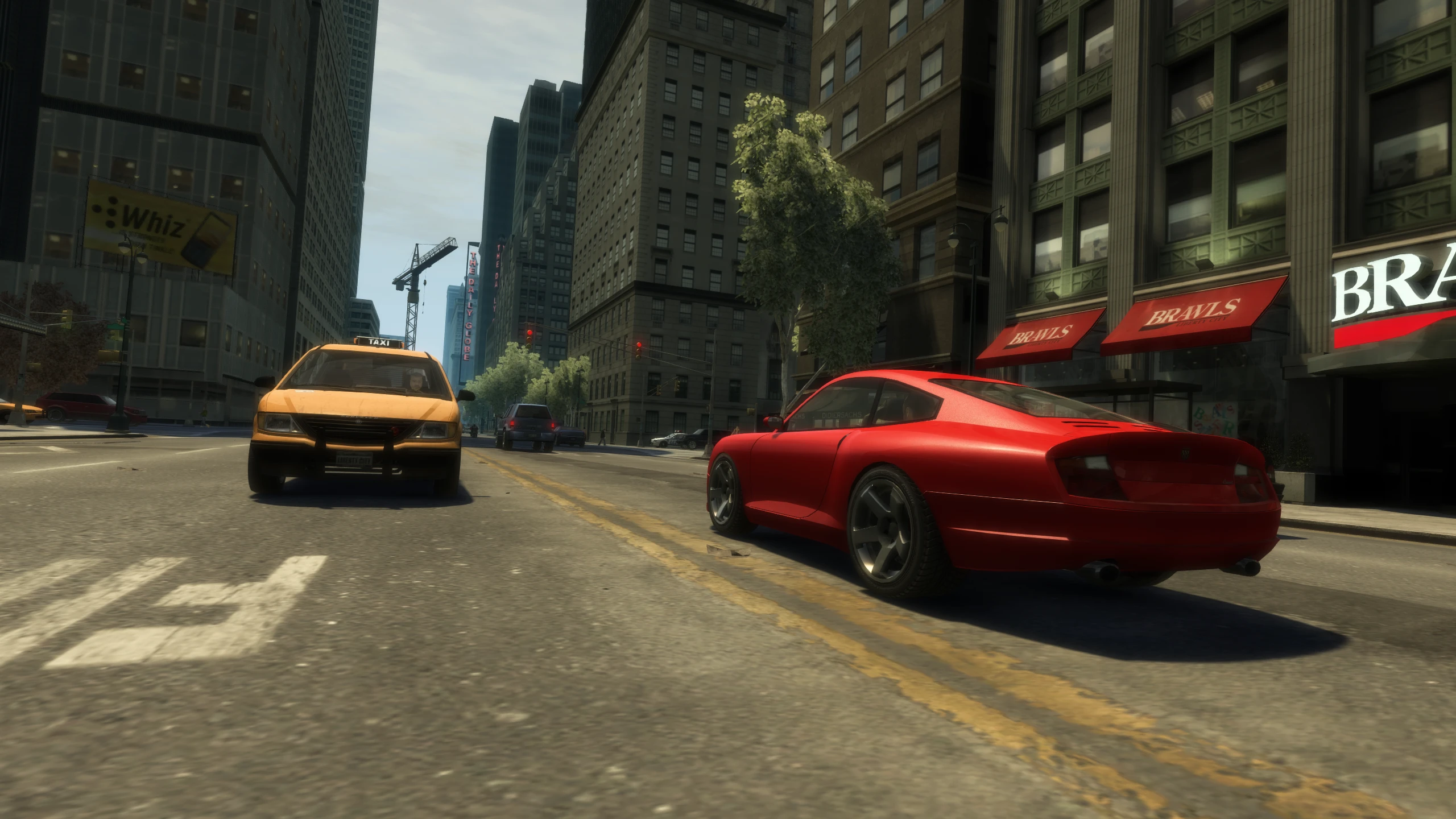
Console Gamma (New)#
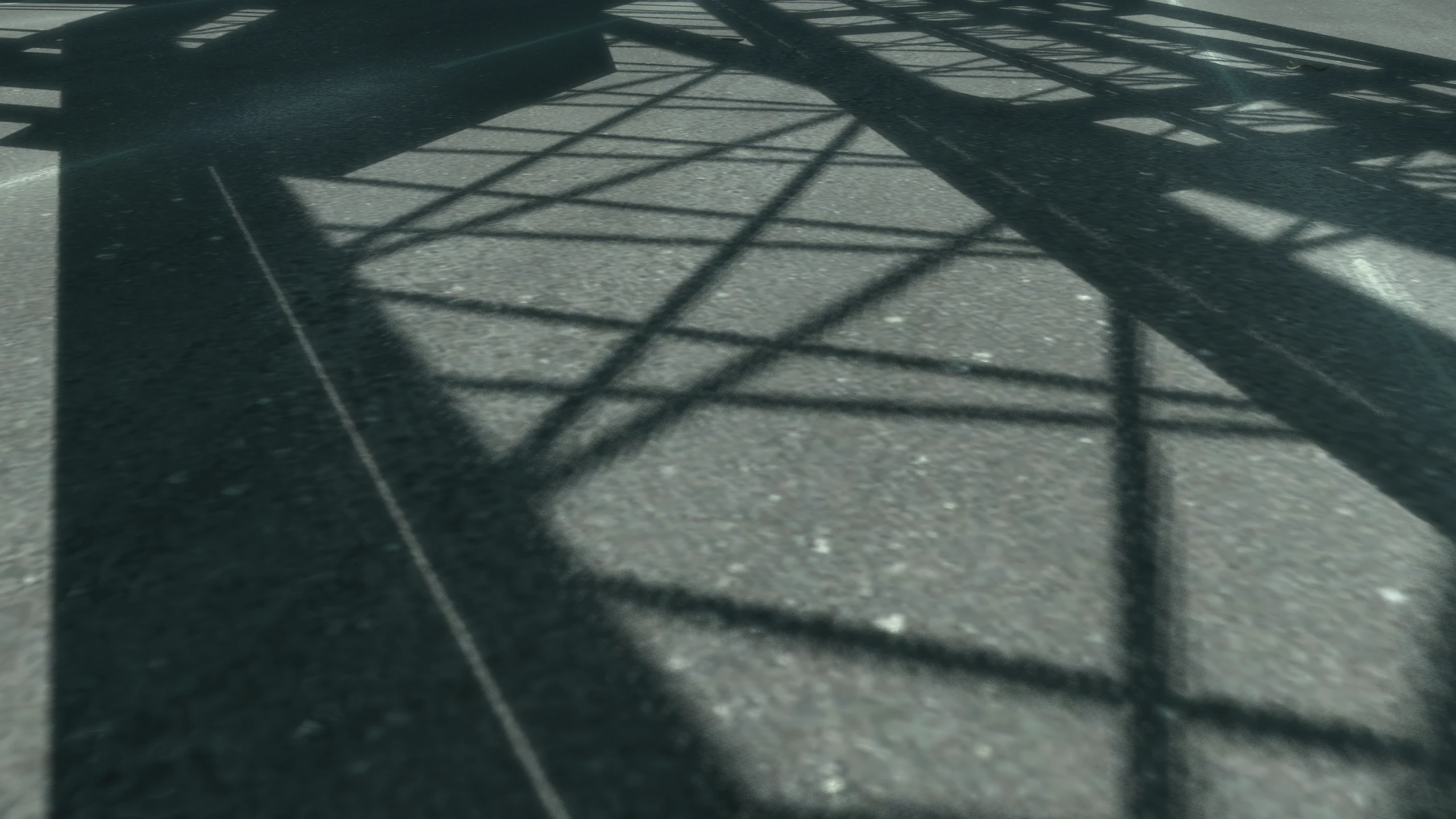
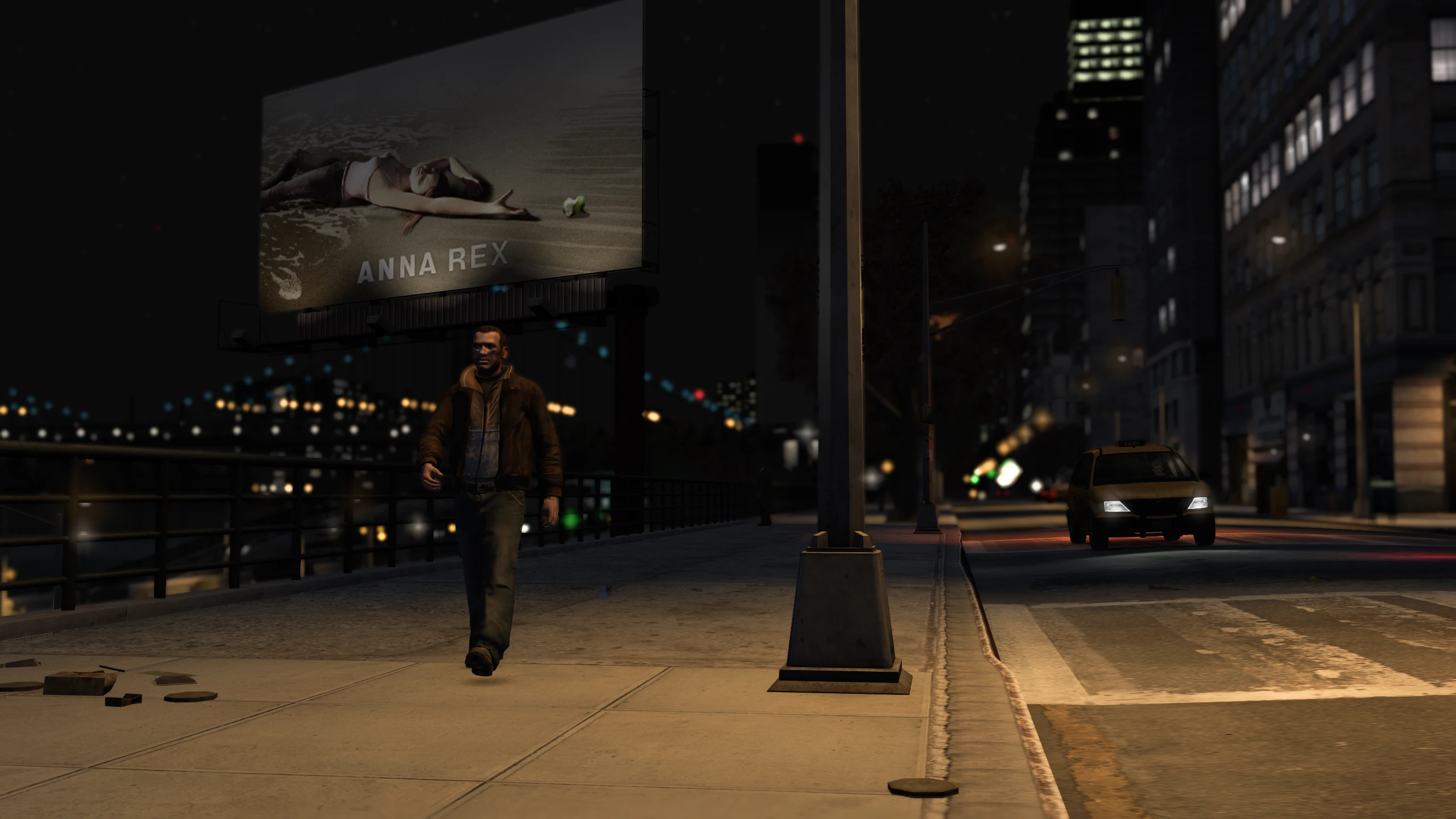
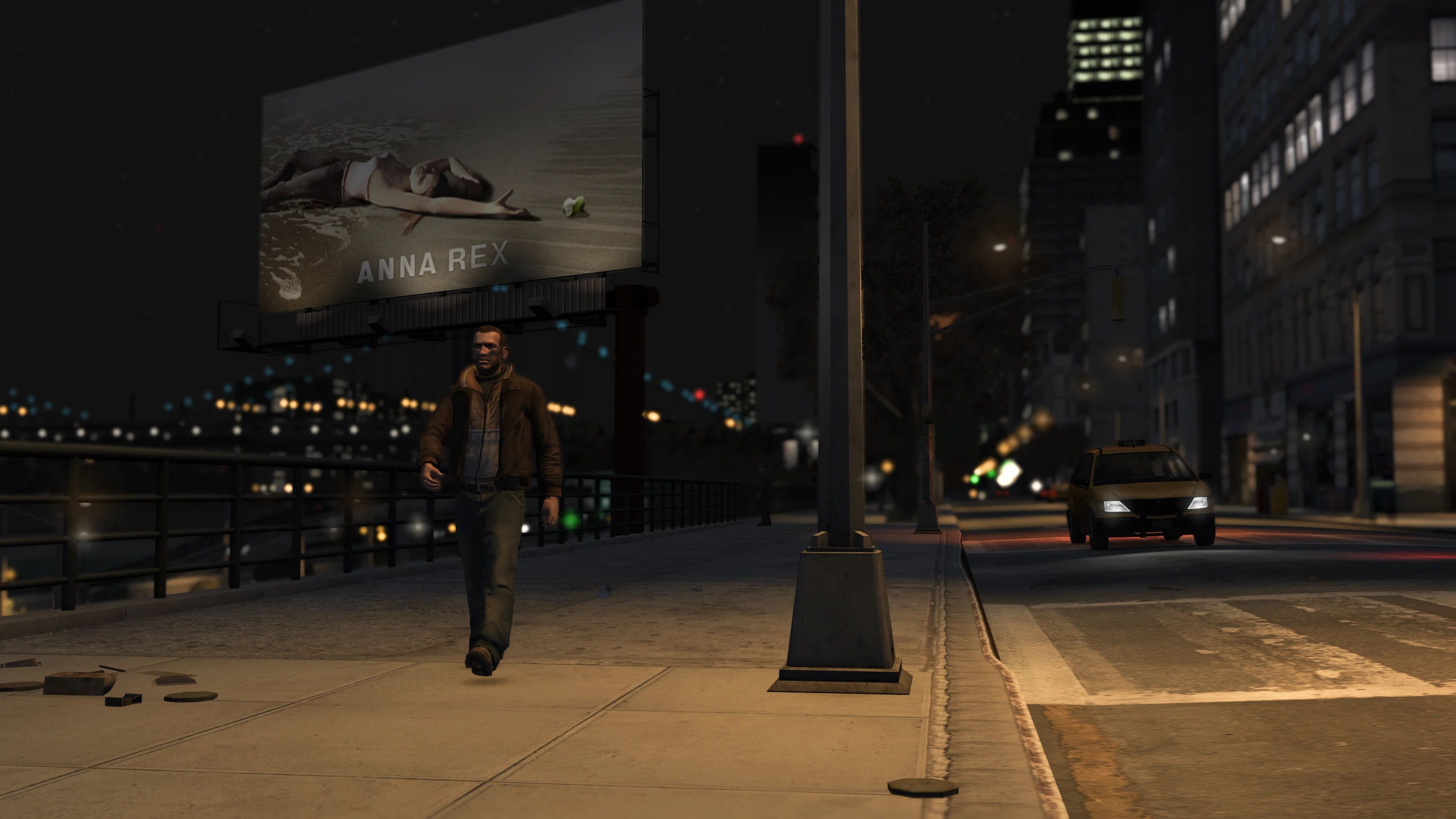
This allows you to use the gamma curve from either the Xbox 360 version or PS3 version of GTA IV. These can makes the game look less washed out and more contrasty.
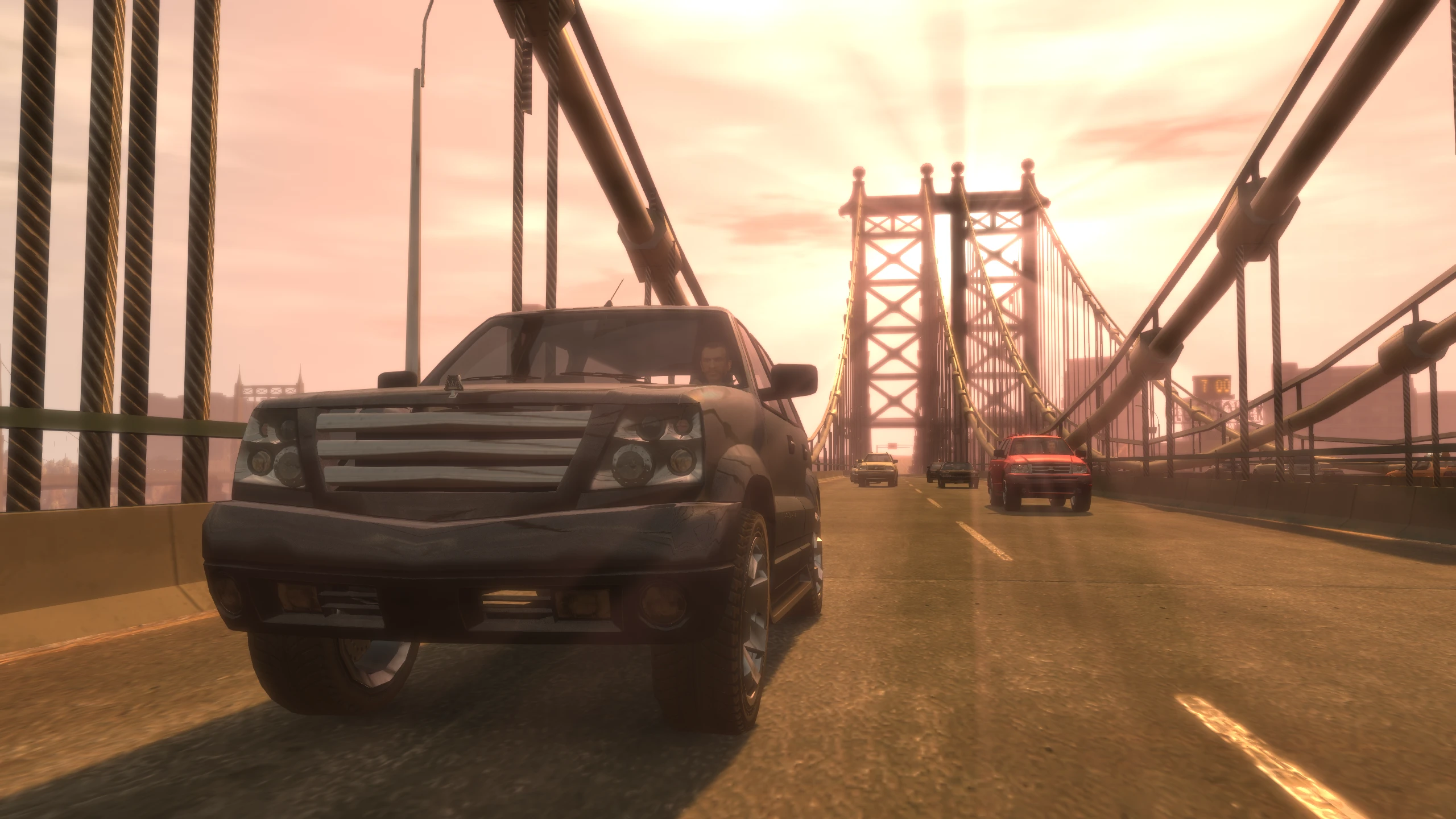
Console Auto Exposure (New)#
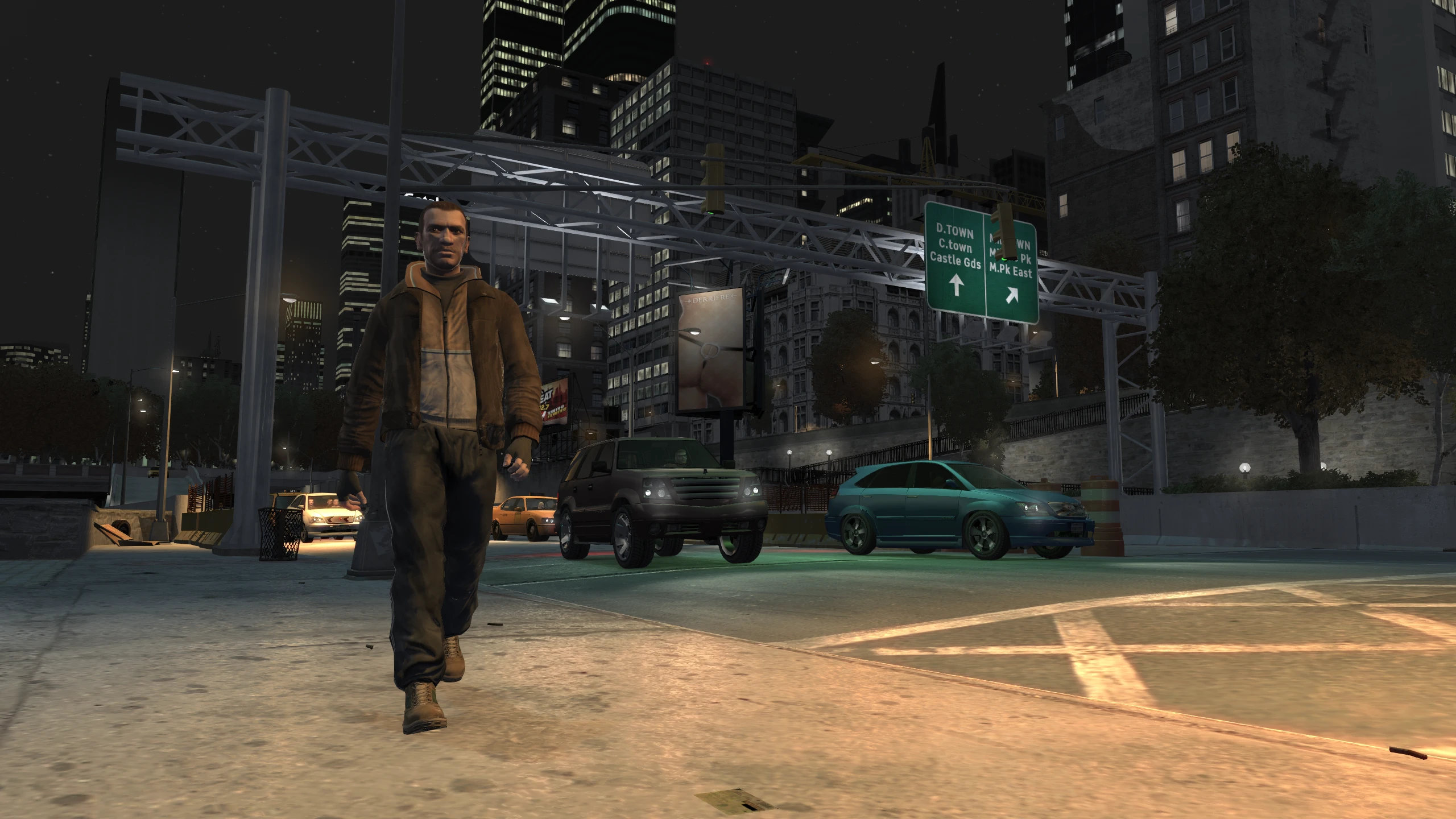
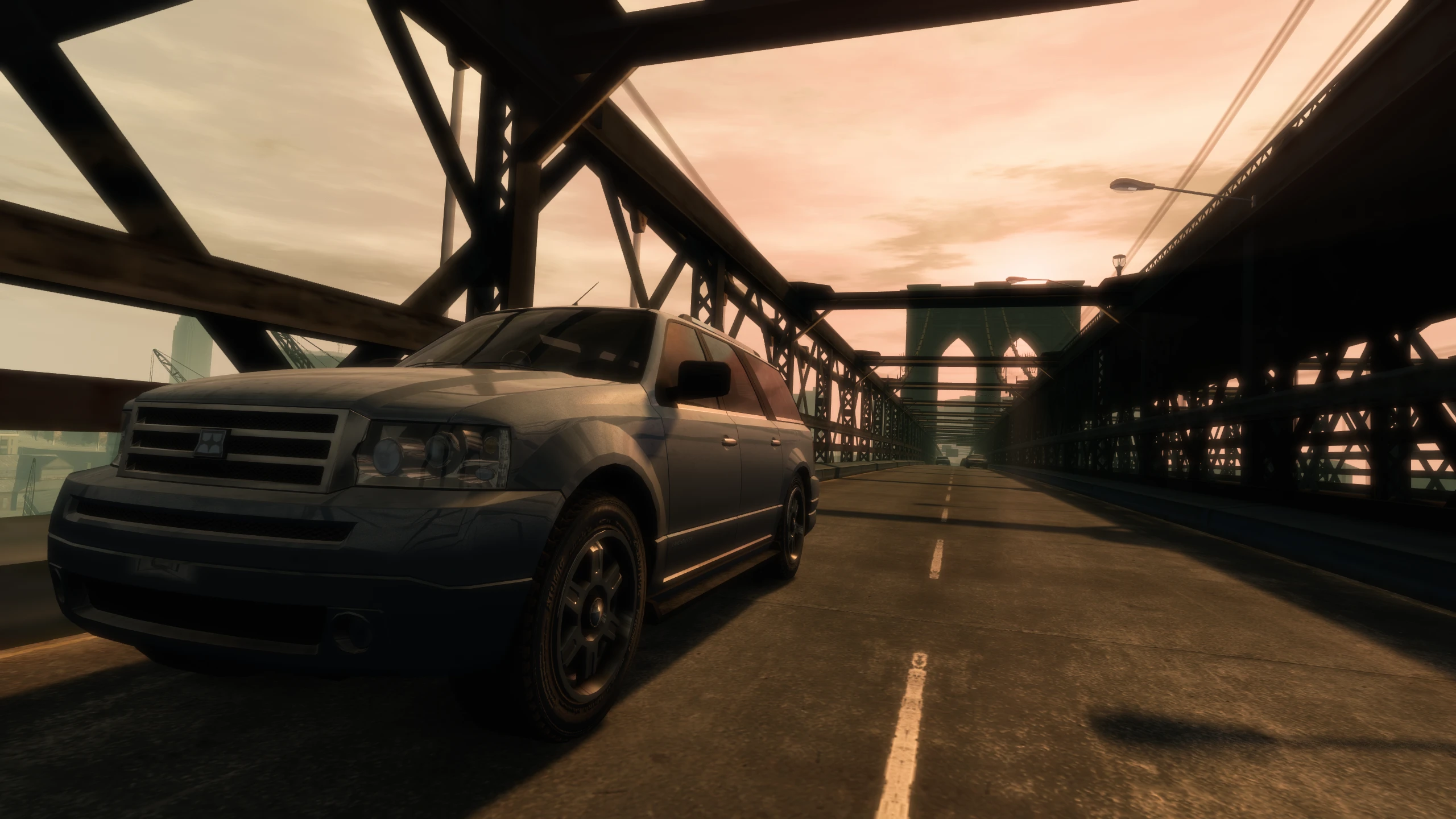
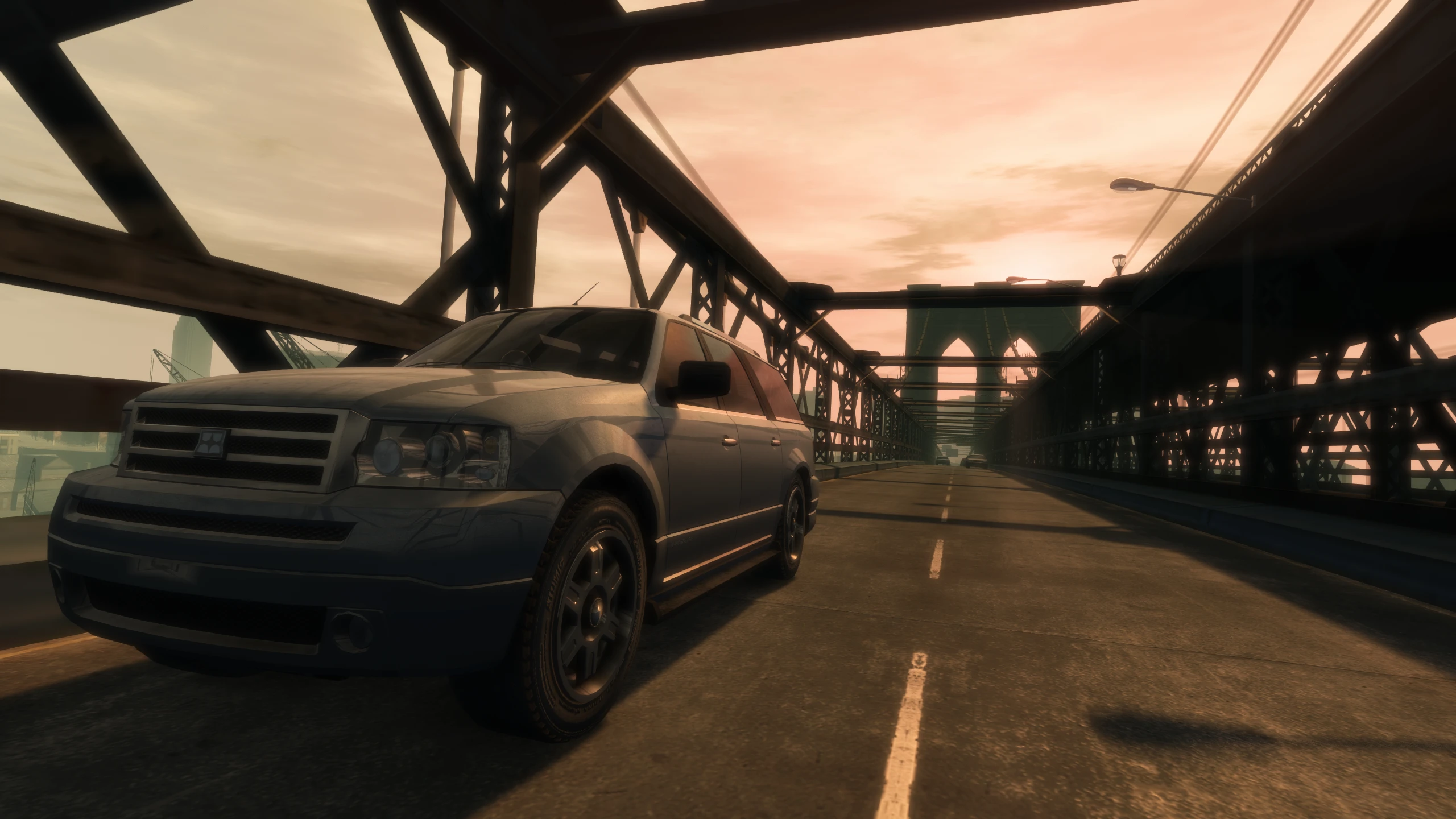
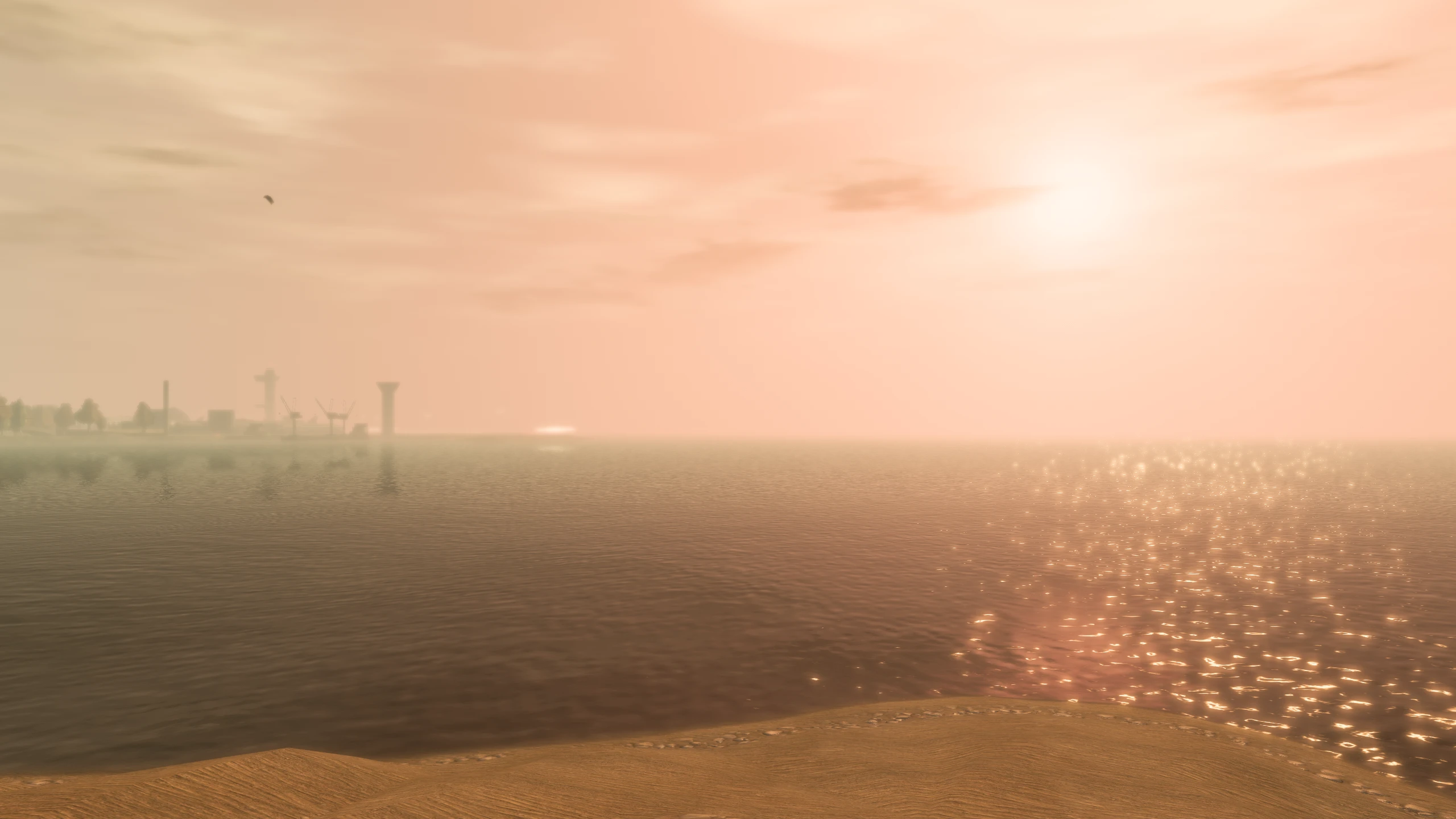
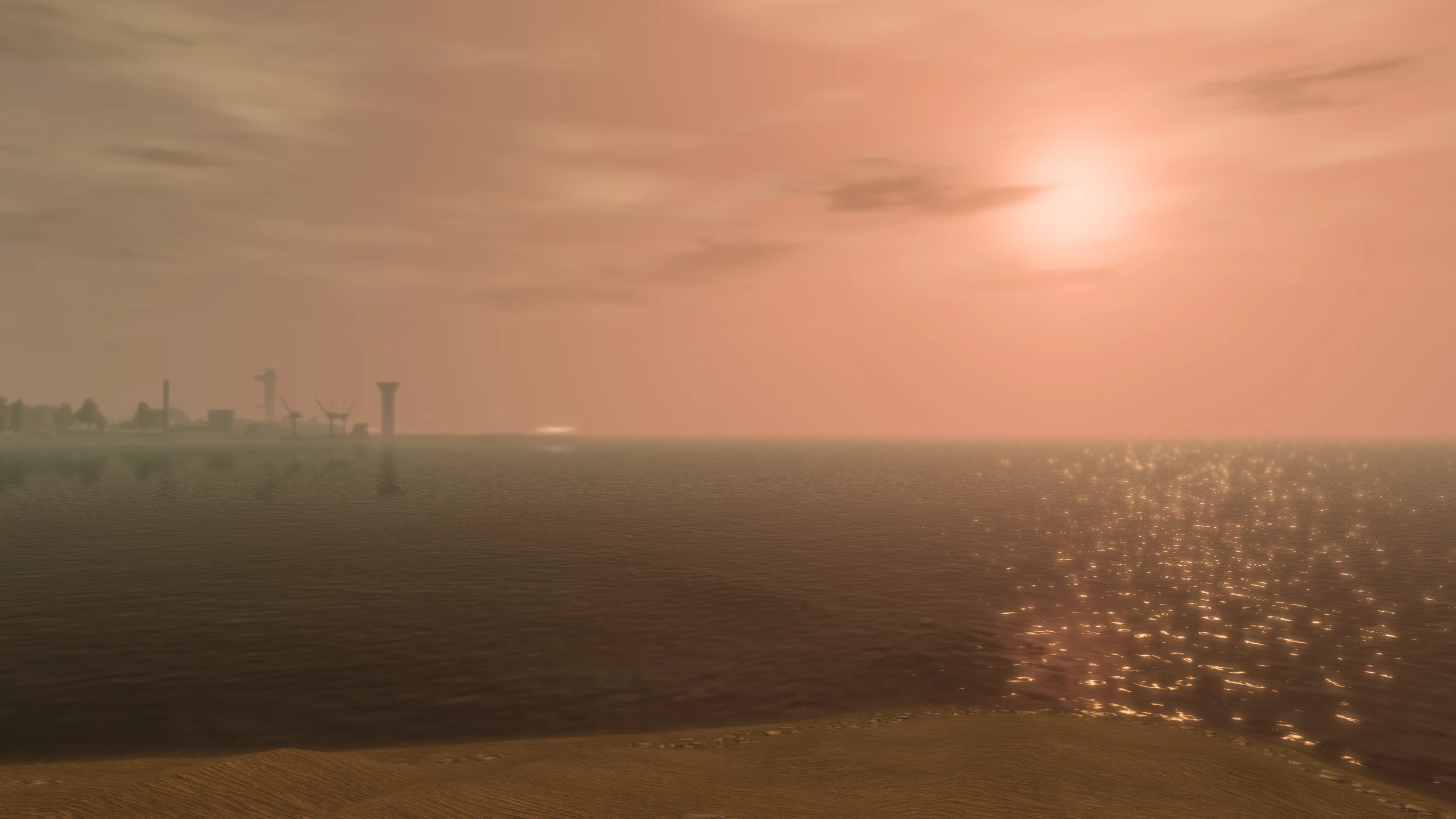
This enables the auto exposure effect seen on the console versions of GTA IV. This is intended to simulate the camera adjusting to different light levels, e.g. looking at the sun will cause the image to dim a bit, allowing more detail to be visible.
Motion Blur (New)#
This allows you to enable/disable/change the intensity of the motion blur seen when driving fast in vehicles.
In the vanilla game, motion blur is tied to the original Defintion option and the intensity of the effect was weaker at higher frame rates.
Depth of Field (New)#
This allows you to enable/disable/change the intensity of the depth of field effect (objects blurred that are out of focus/in the distance).
Keep in mind, depth of field is also controlled by the games time cycle (timecyc.dat file). Certain weathers/times of day won't present any depth of field in the vanilla game and The Ballad of Gay Tony's time cycle has depth of field disabled entirely.
In the vanilla game, depth of field is tied to the original Defintion option and the intensity of the effect didn't scale correctly beyond 720p (blur got weaker at higher resolutions).
Tree Lighting (New)#
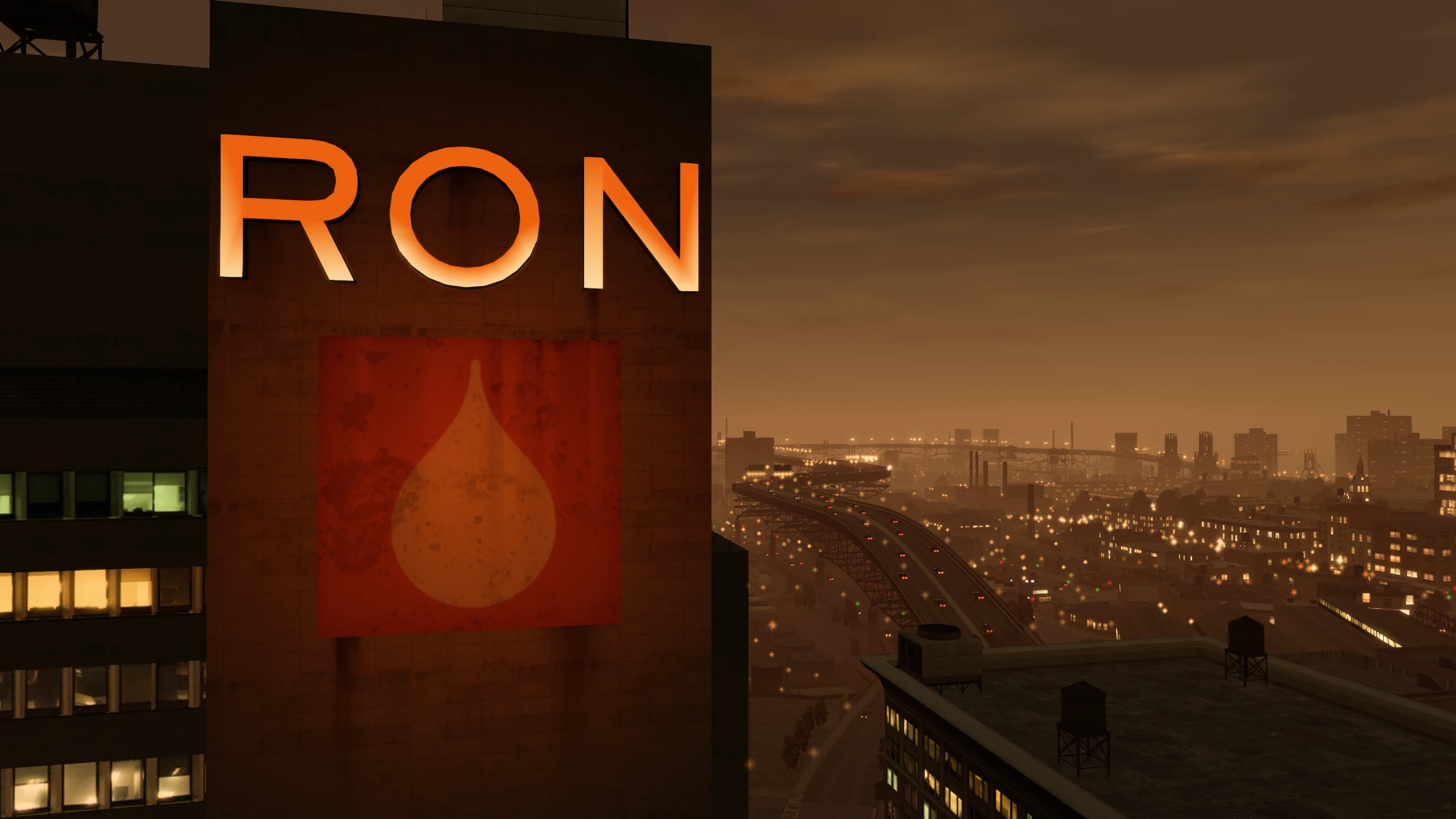
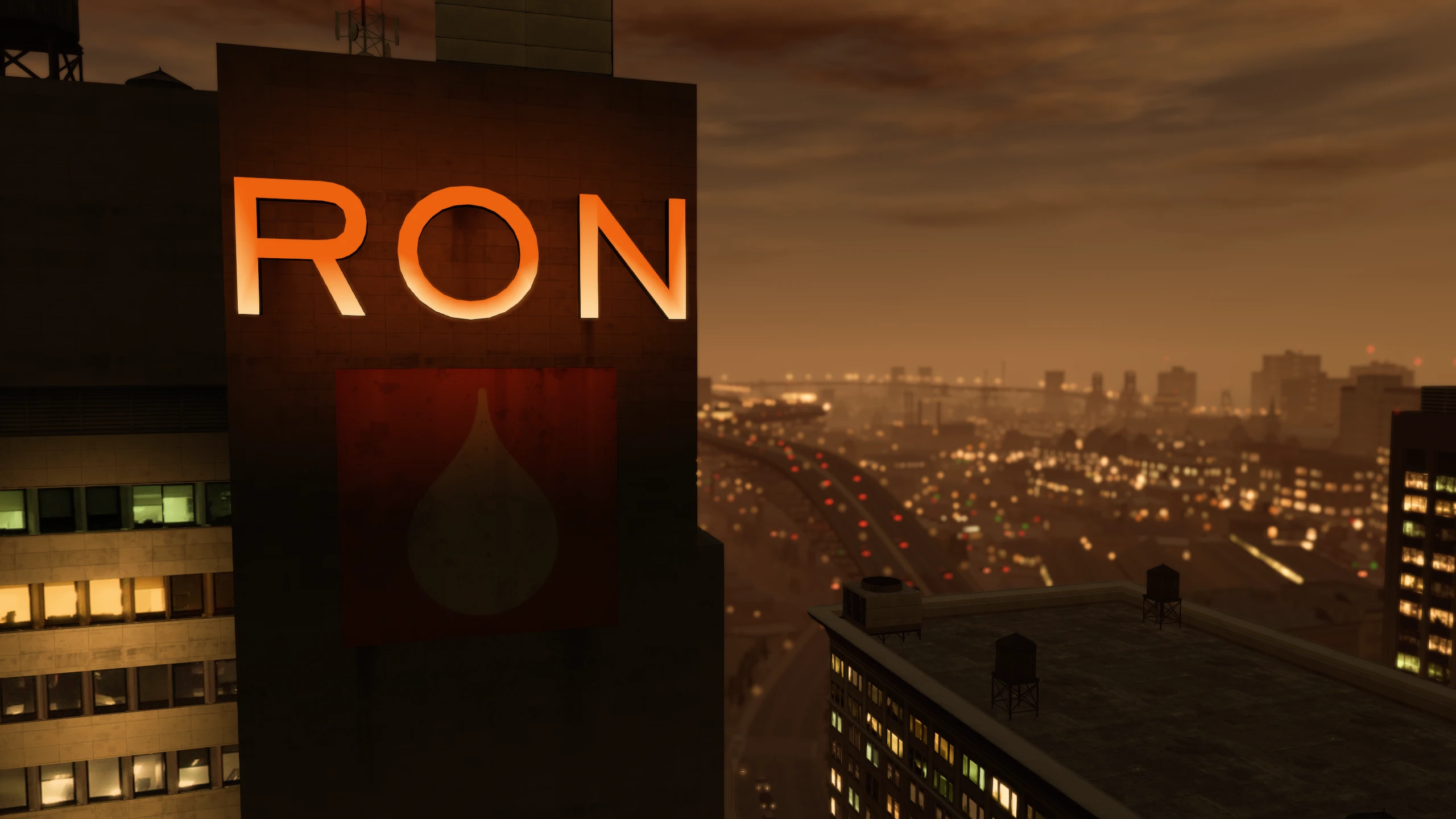
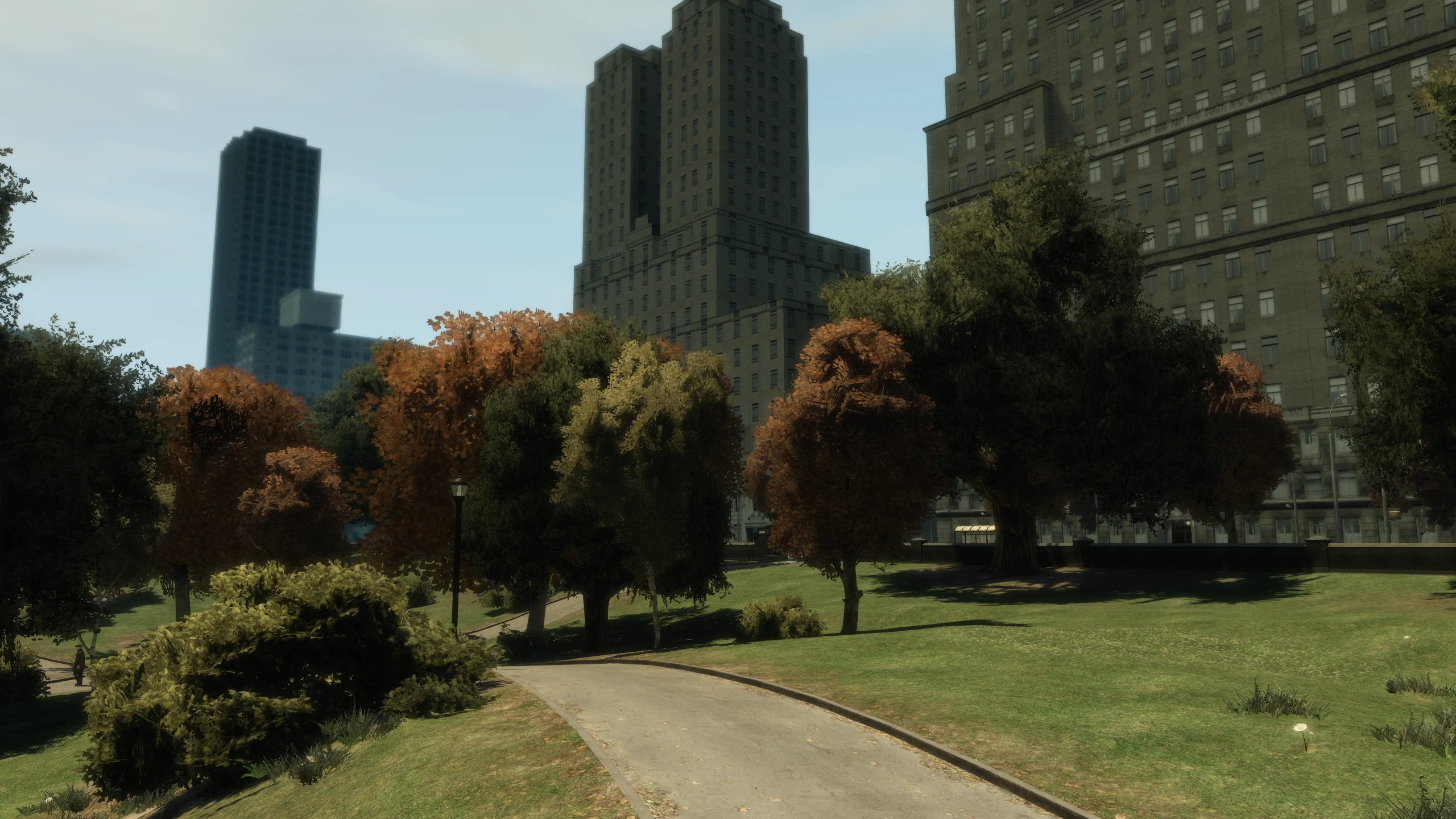
Trees were lit differently on console compared to PC. This option allows you to toggle between the console and PC lighting, as well as an additional "PC+" option that combines the best of both.
Tree Alpha (New)#
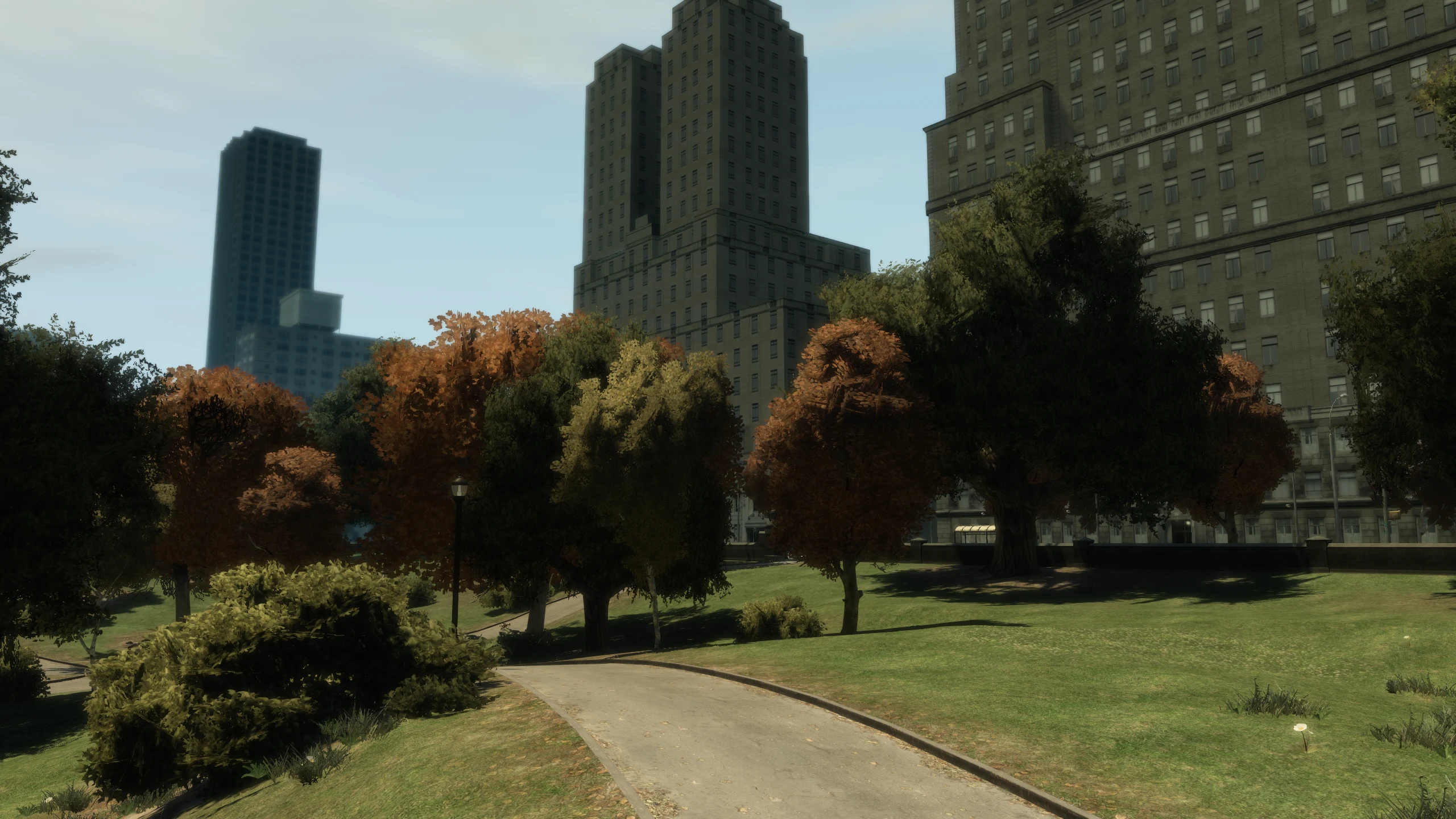
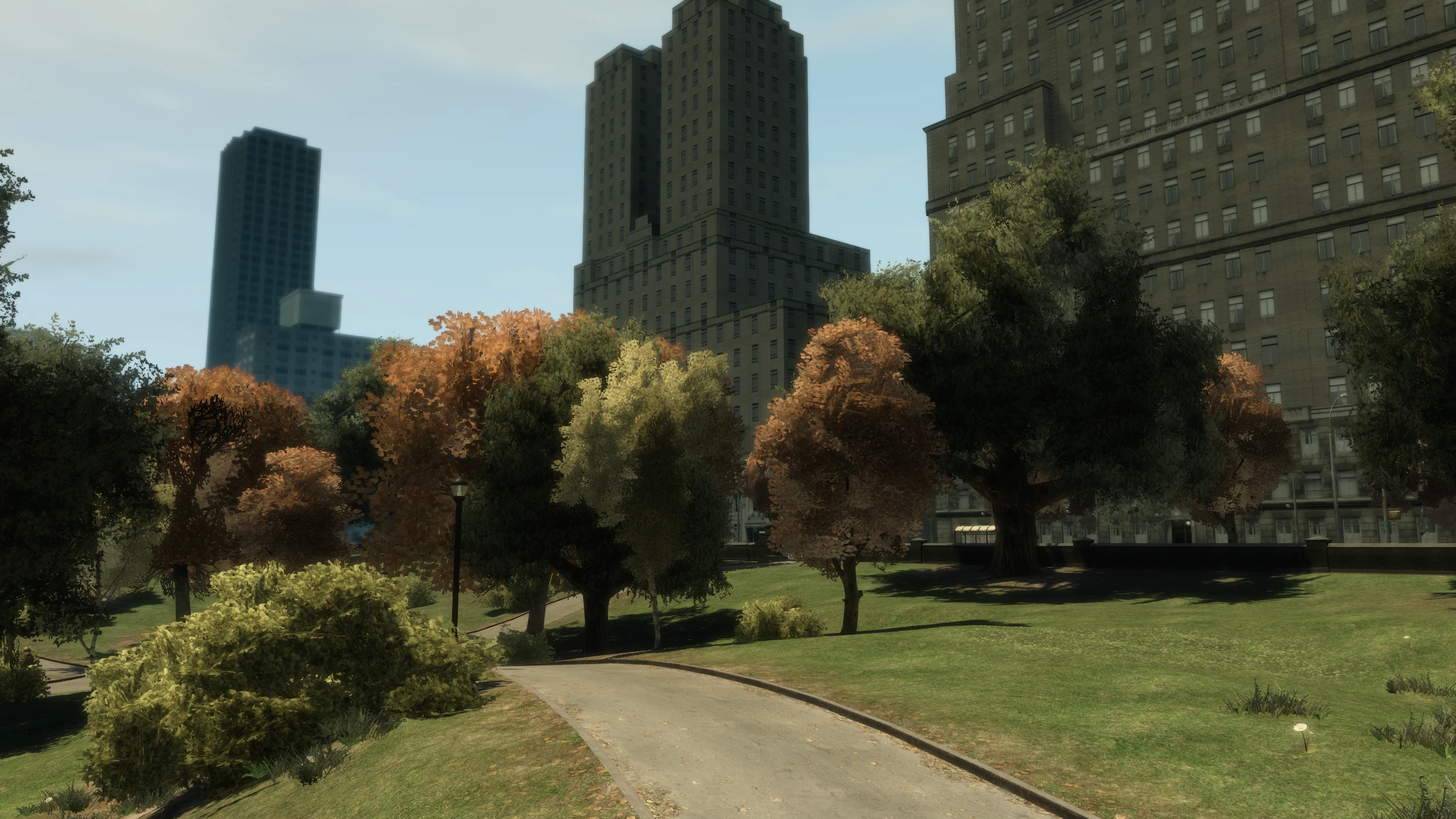
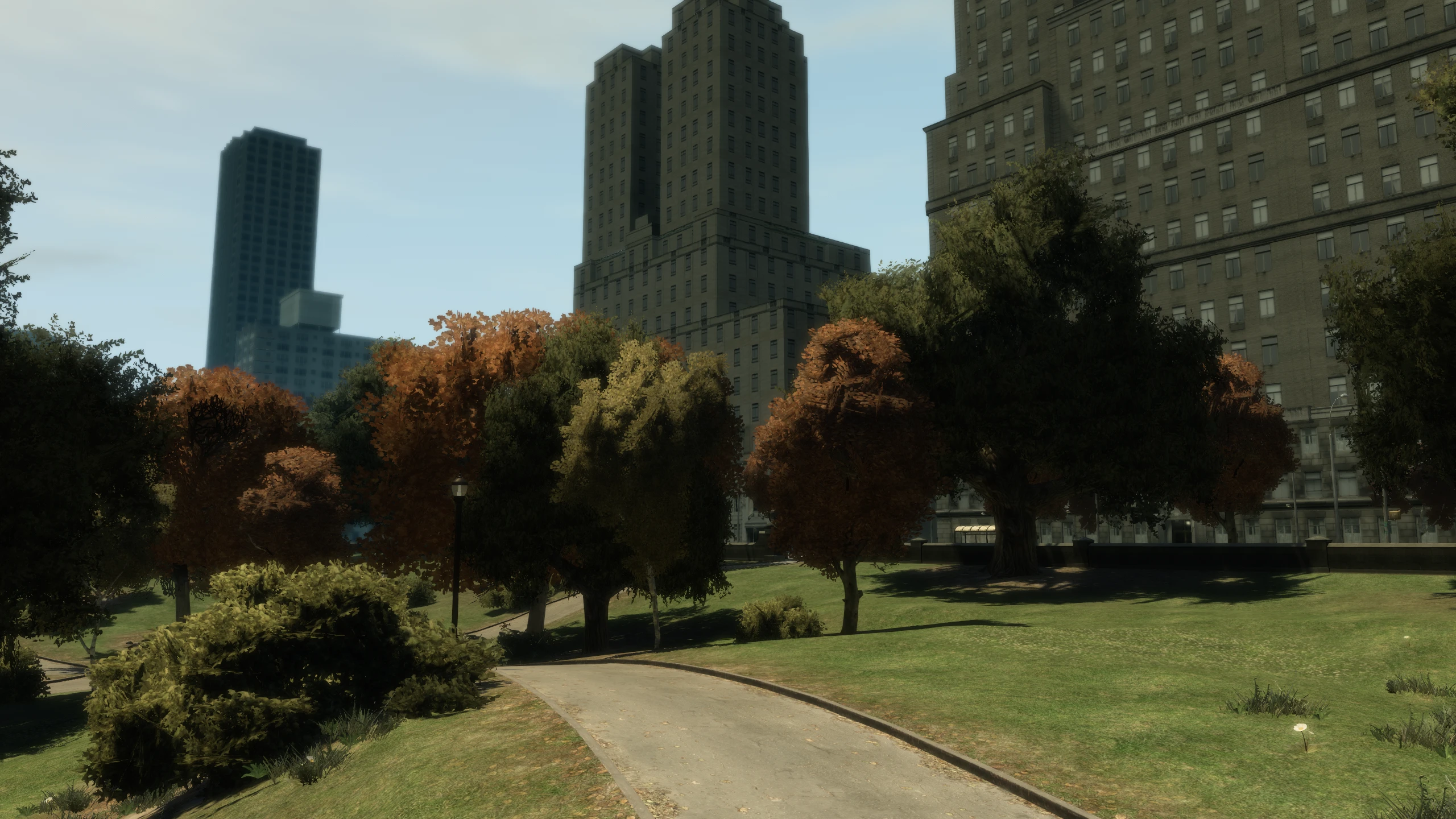
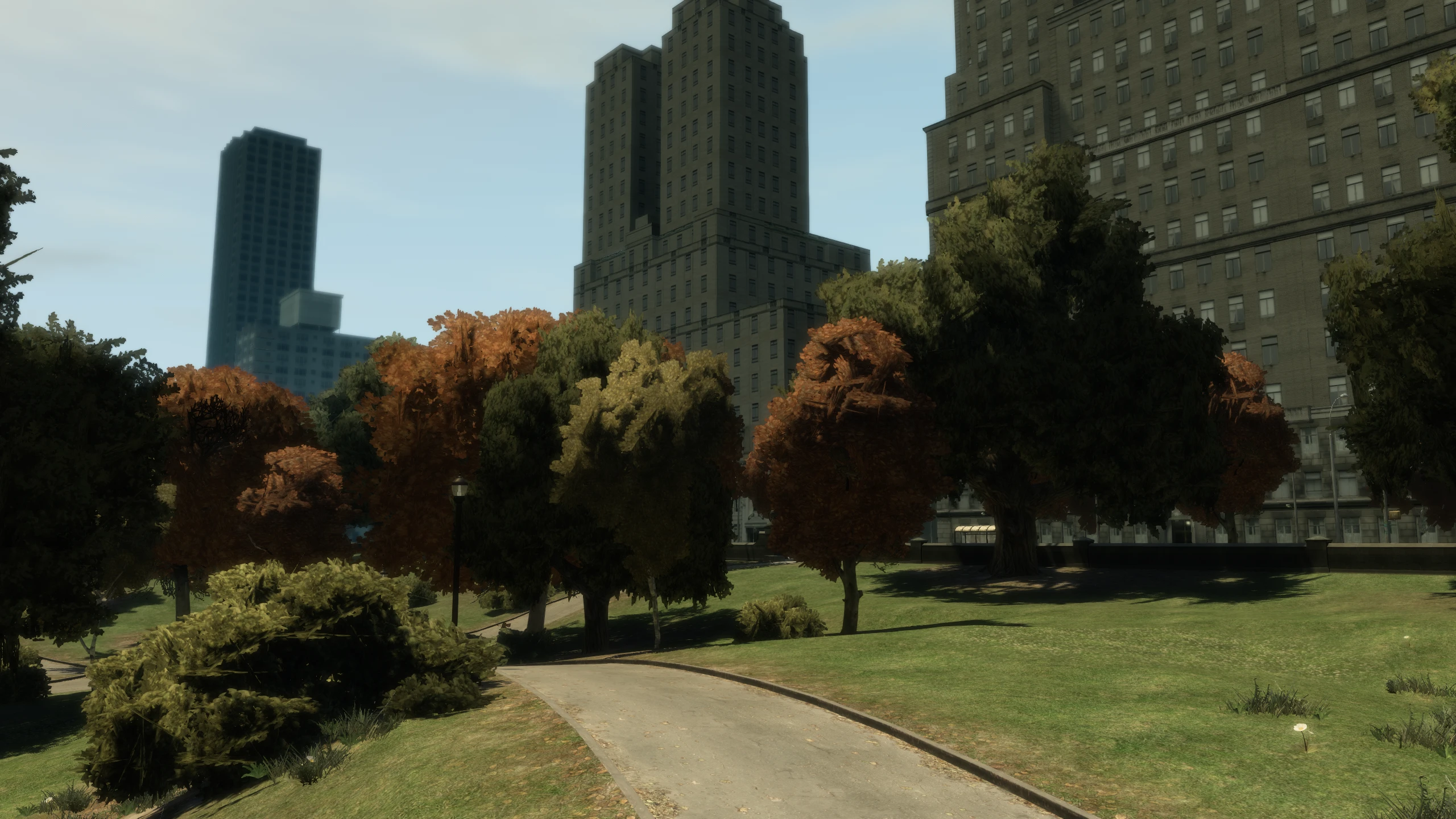
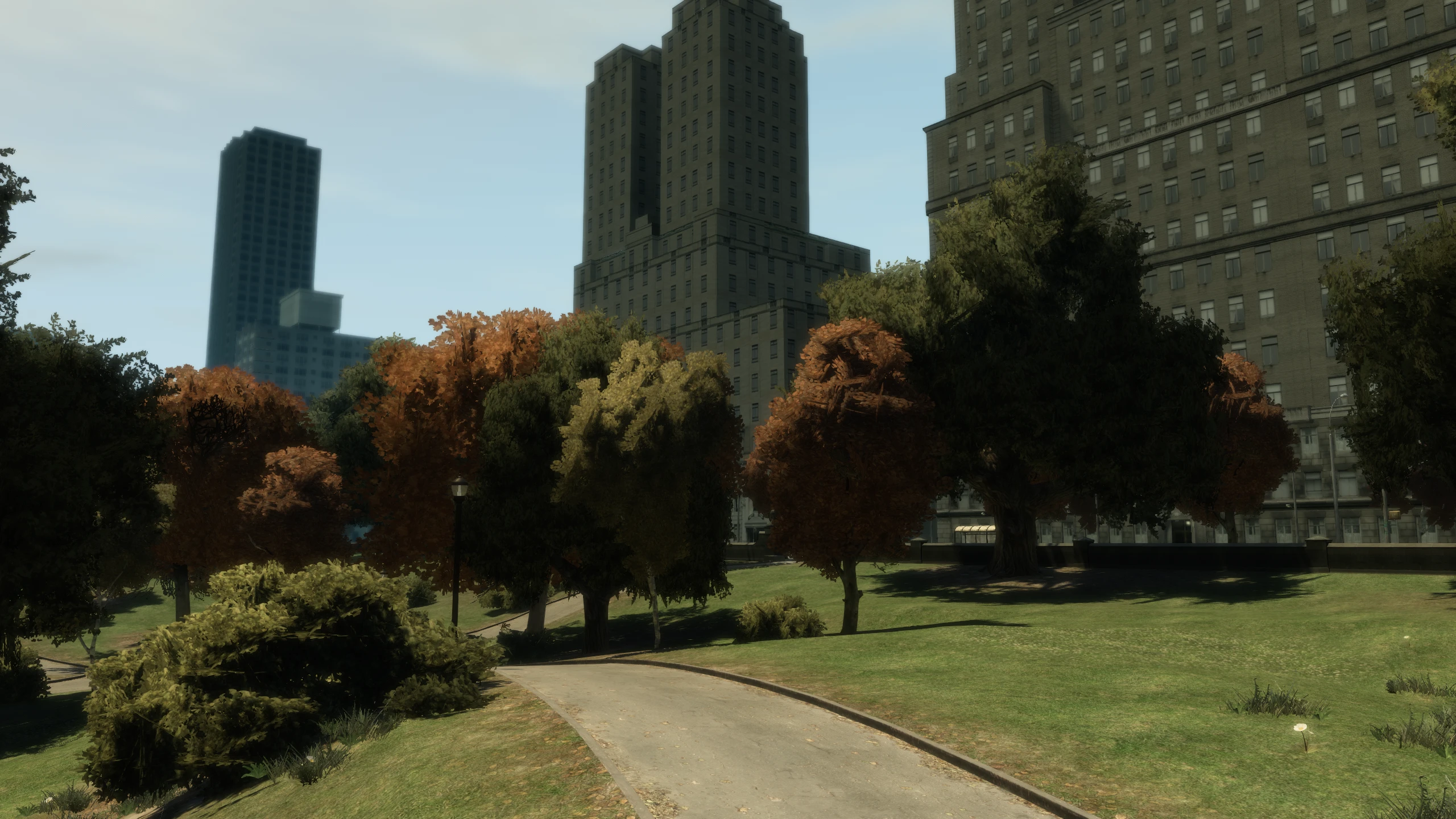
The threshold for the transparency of tree textures were different on console compared to PC, this basically changes how "full" tree leaves look. This option allows you to toggle between the console and PC alpha threshold, as well as an additional "PC+" option that combines the best of both.
You can overwrite this option by changing OverrideTreeAlpha in the Fusion Fix config file.
Bloom (New)#
This allows you to enable or disable the bloom effect. Fusion Fix also rewrites the code for bloom, fixing issues such as bloom getting less intense at higher resolutions.
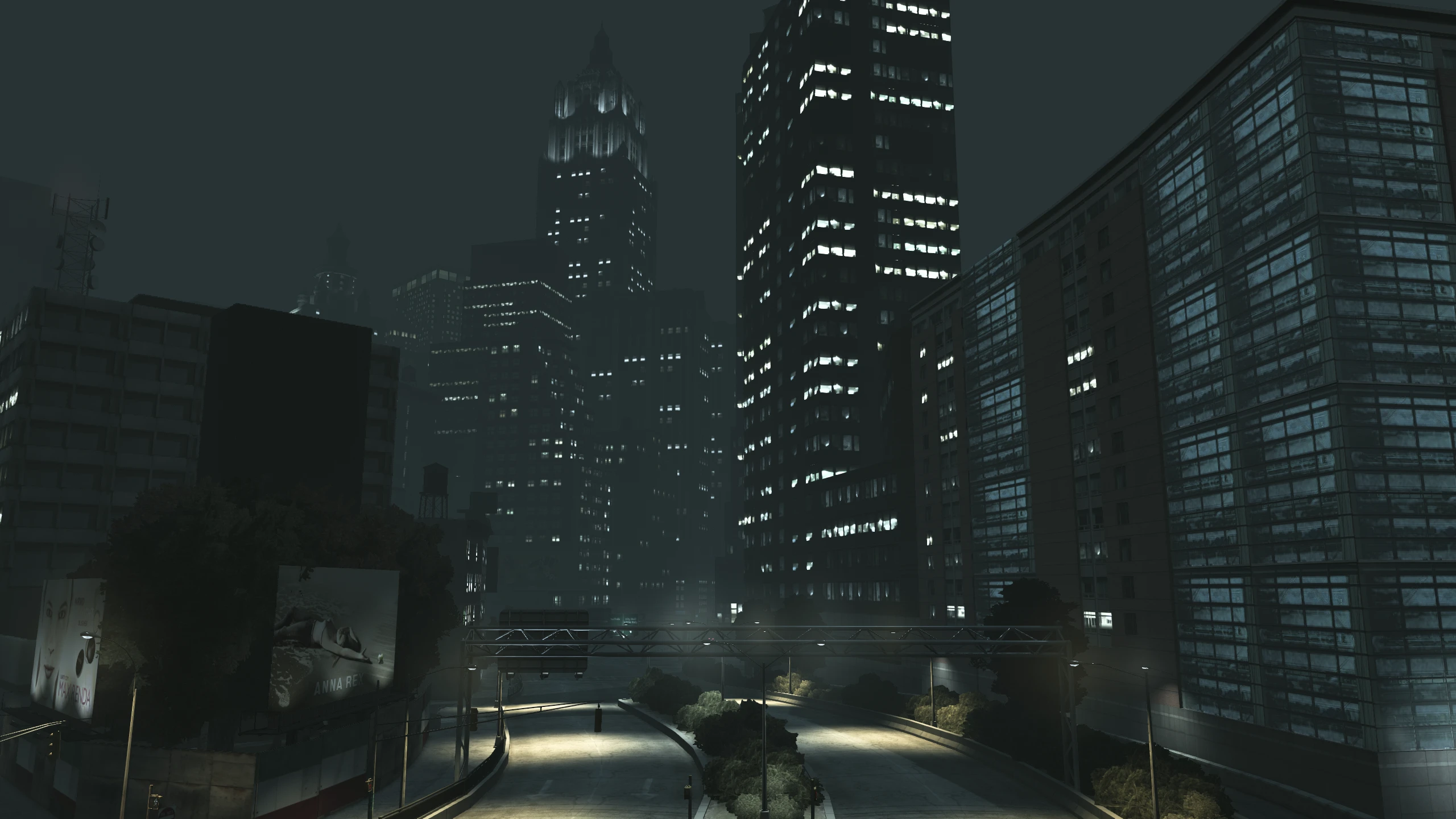
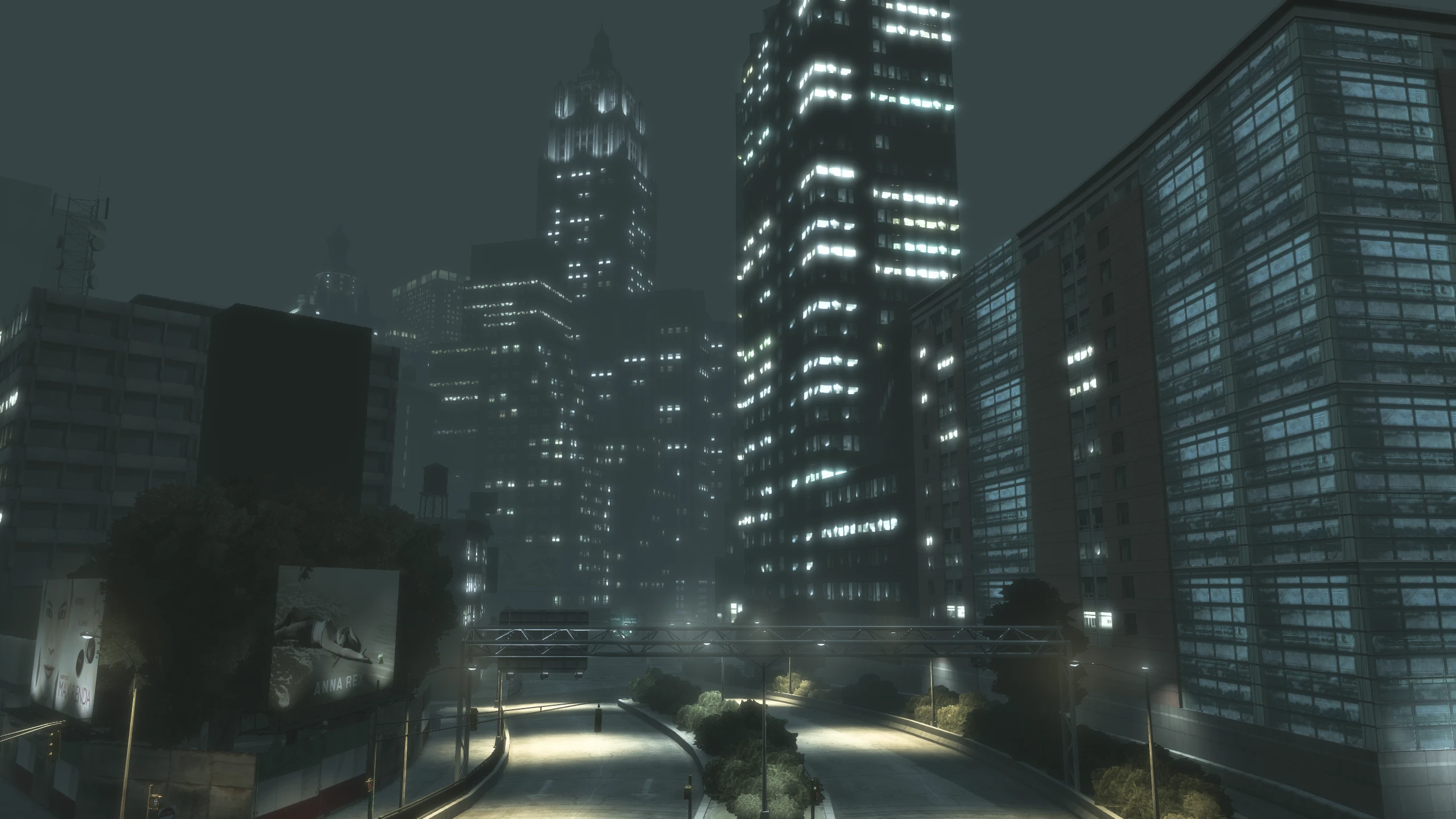
Screen Filter (New)#
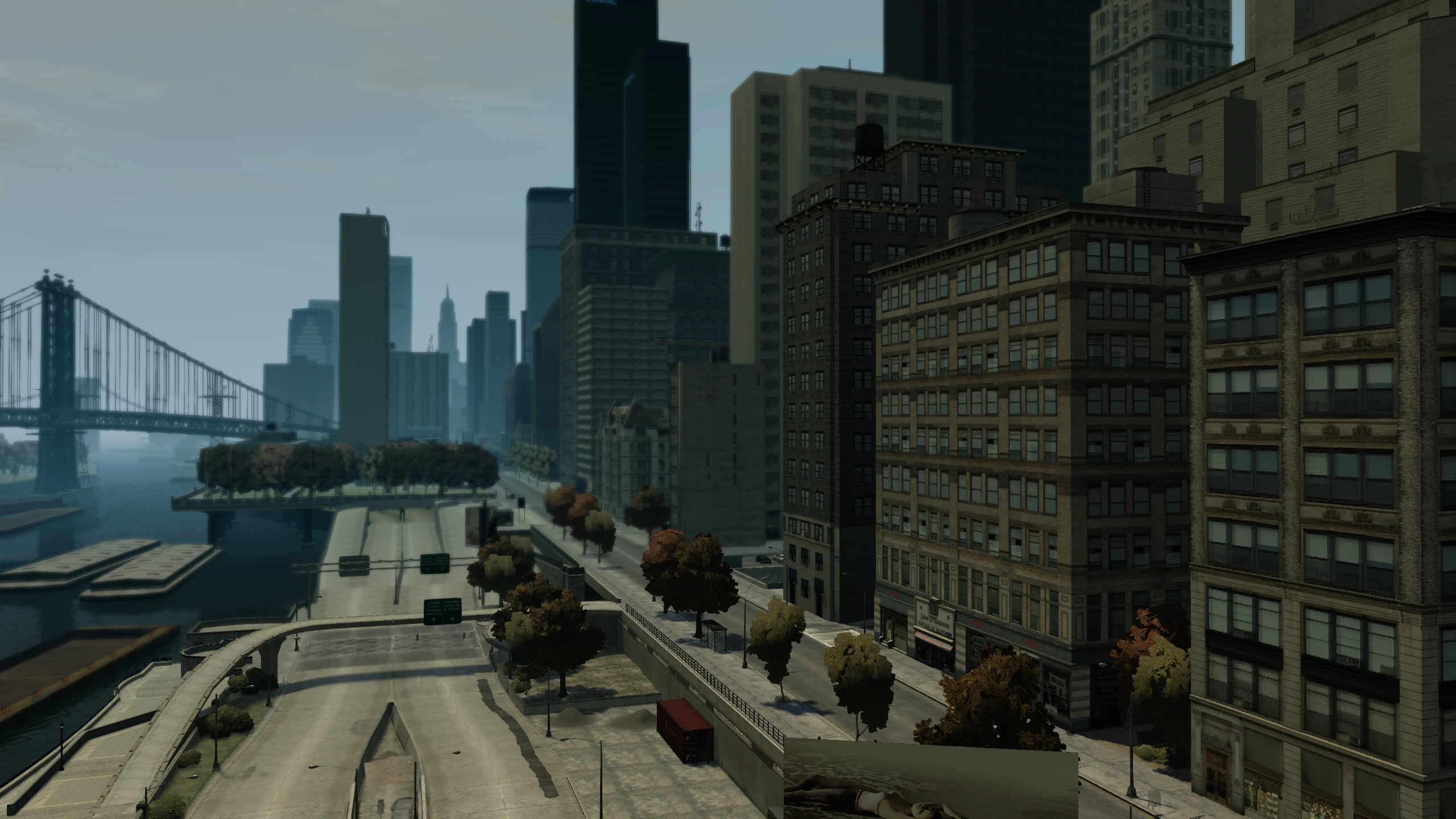
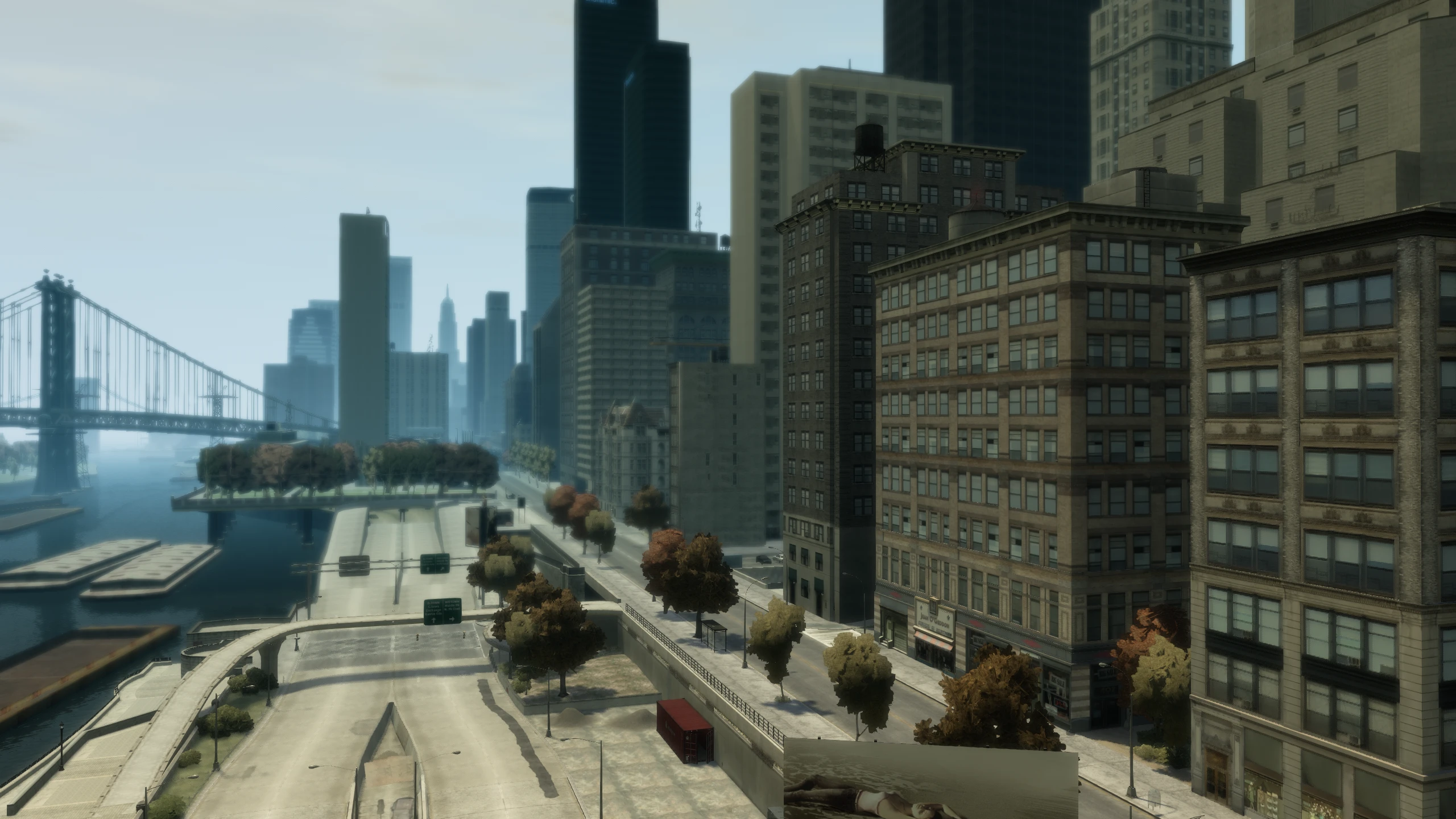
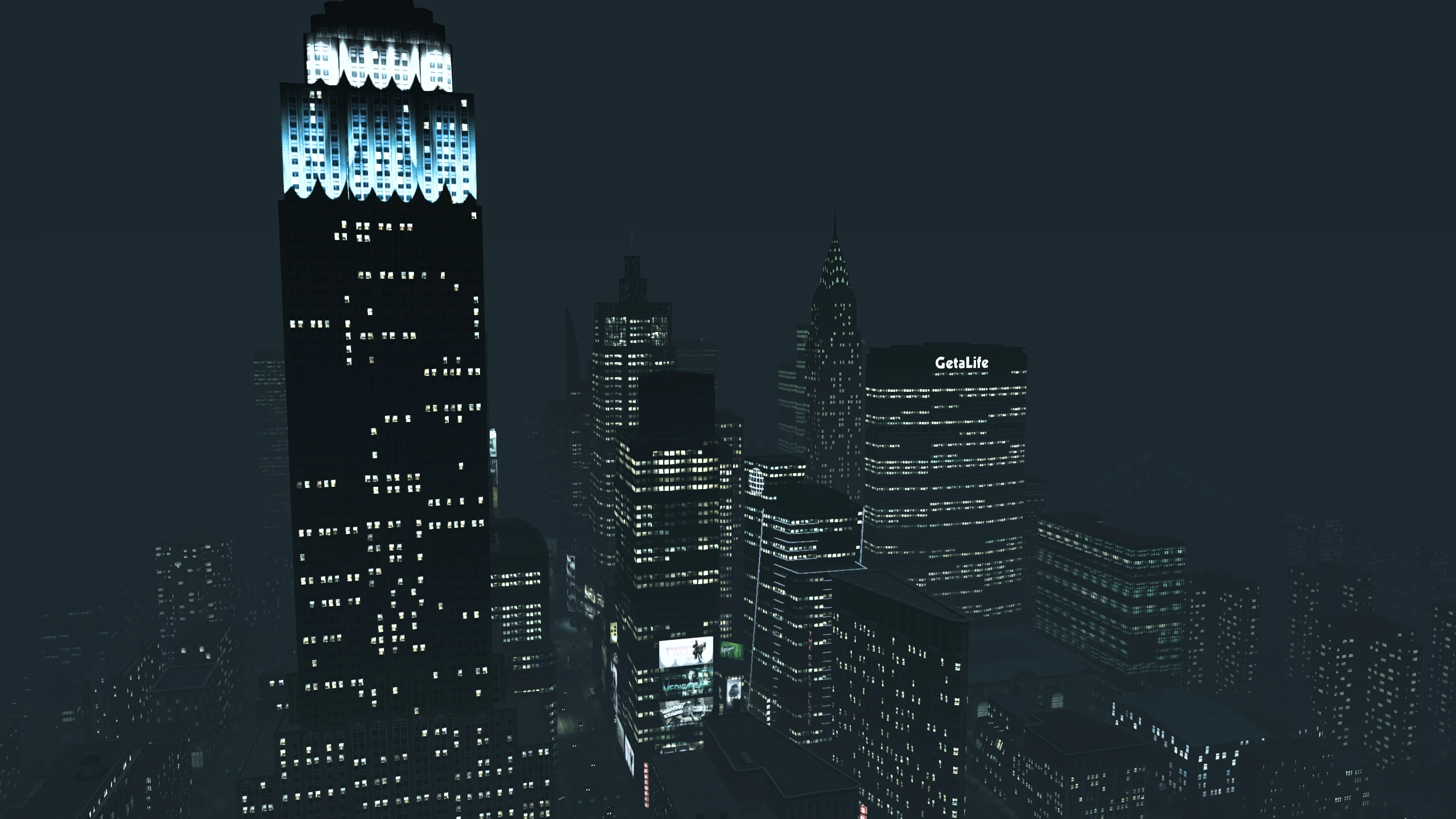
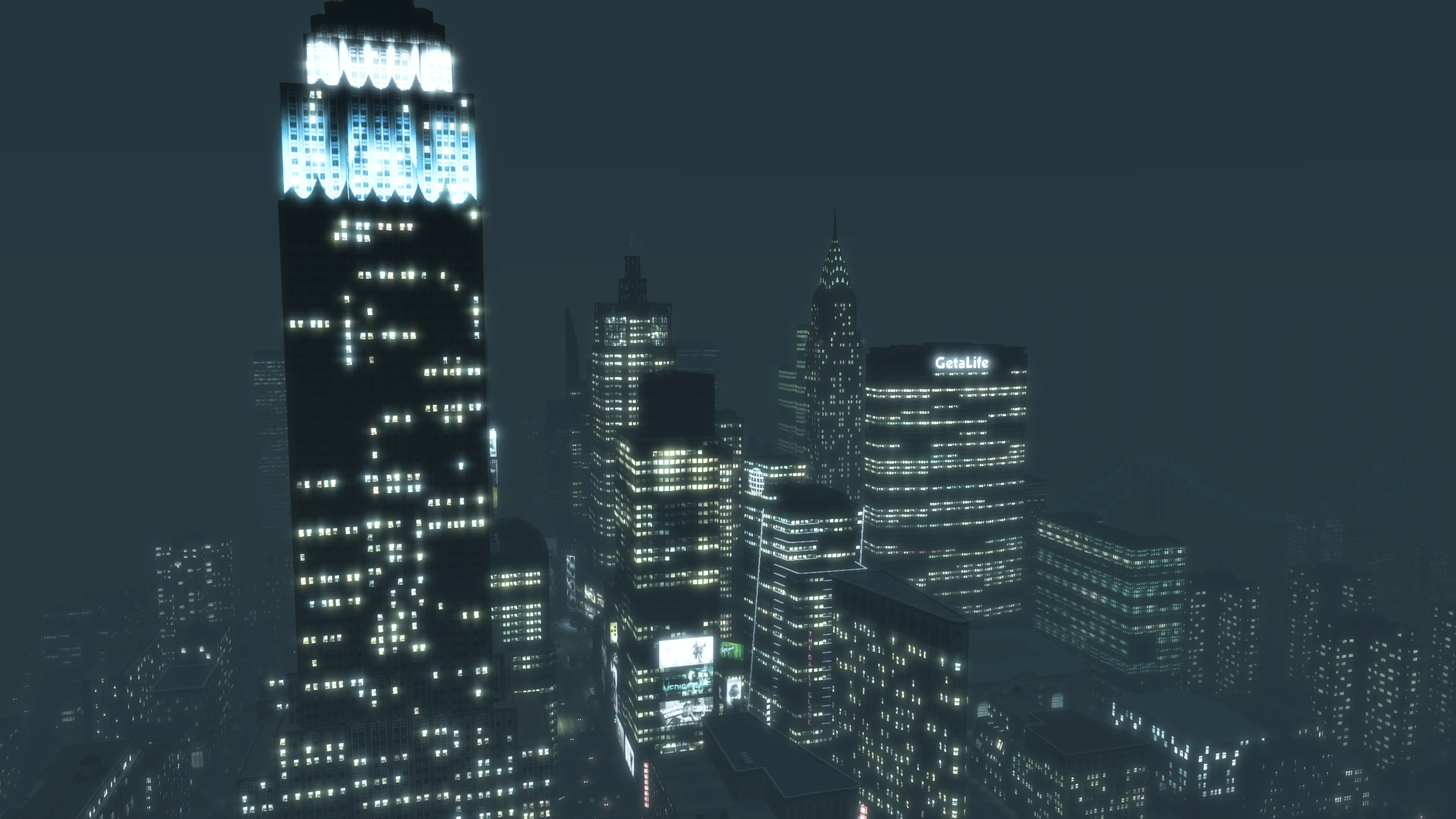
This allows you to switch between the three screen filters used in each episode of GTA IV or disable them entirely. If left to Default, the game will use the screen filter intended for that episode.
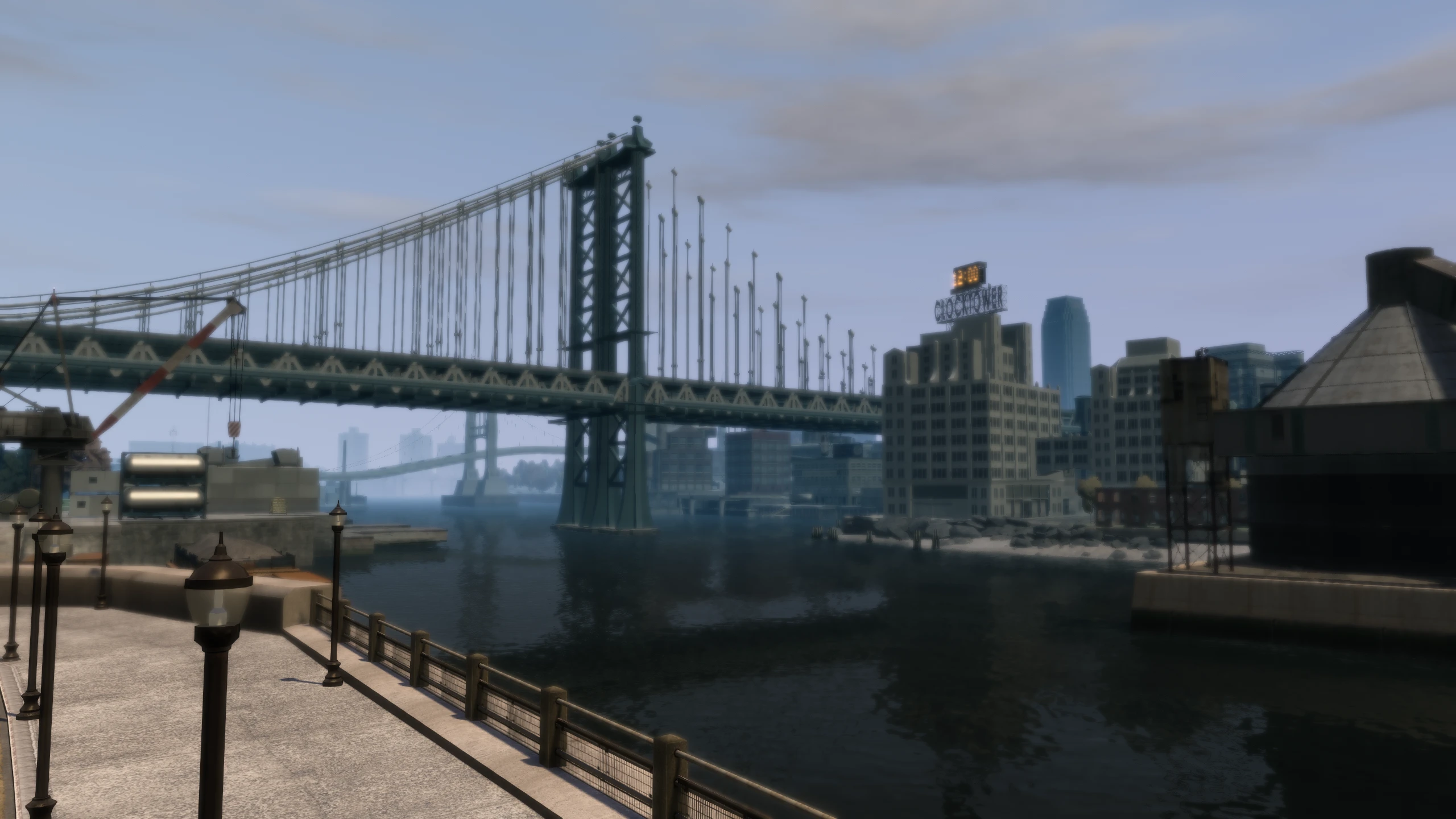
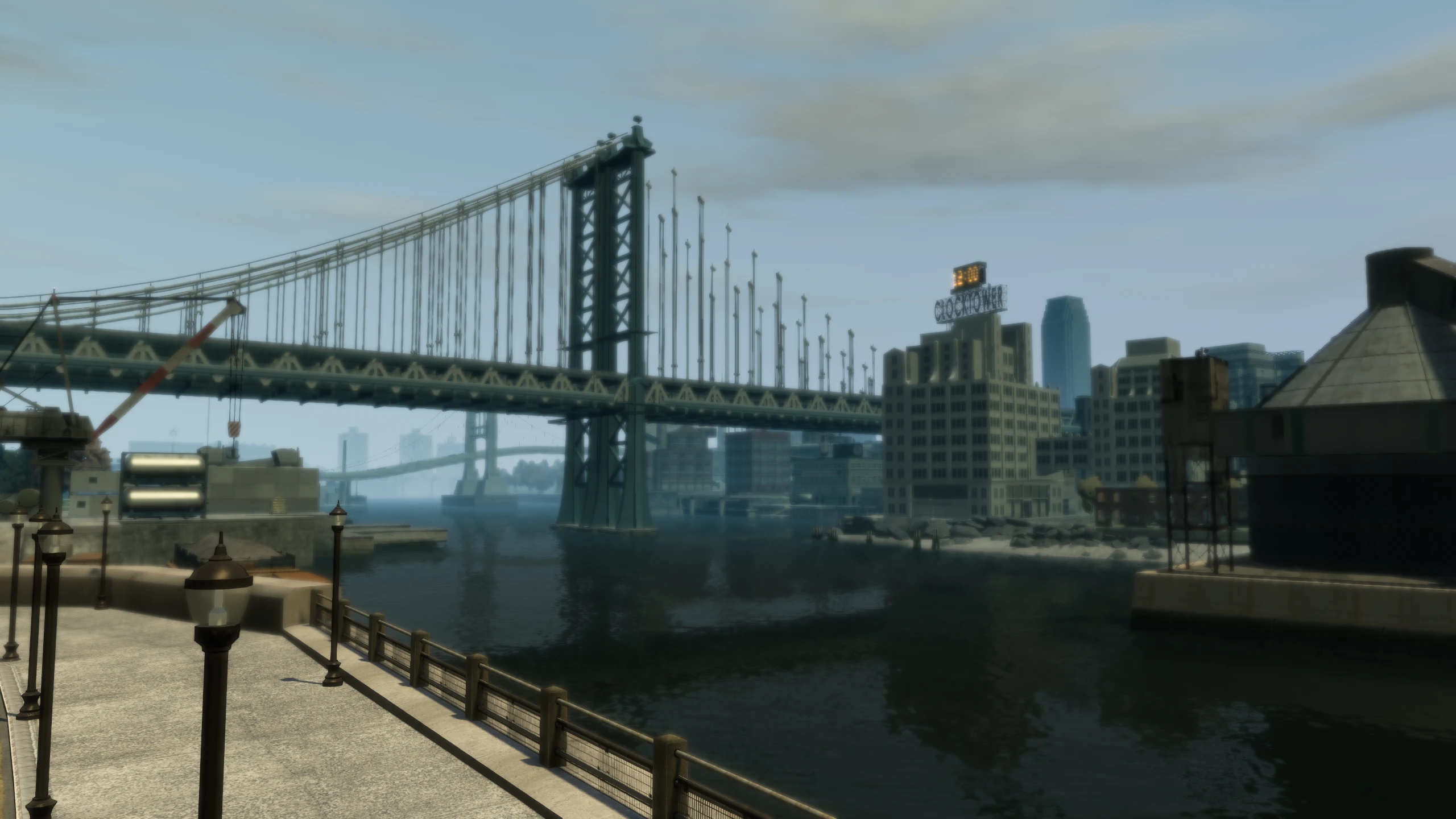
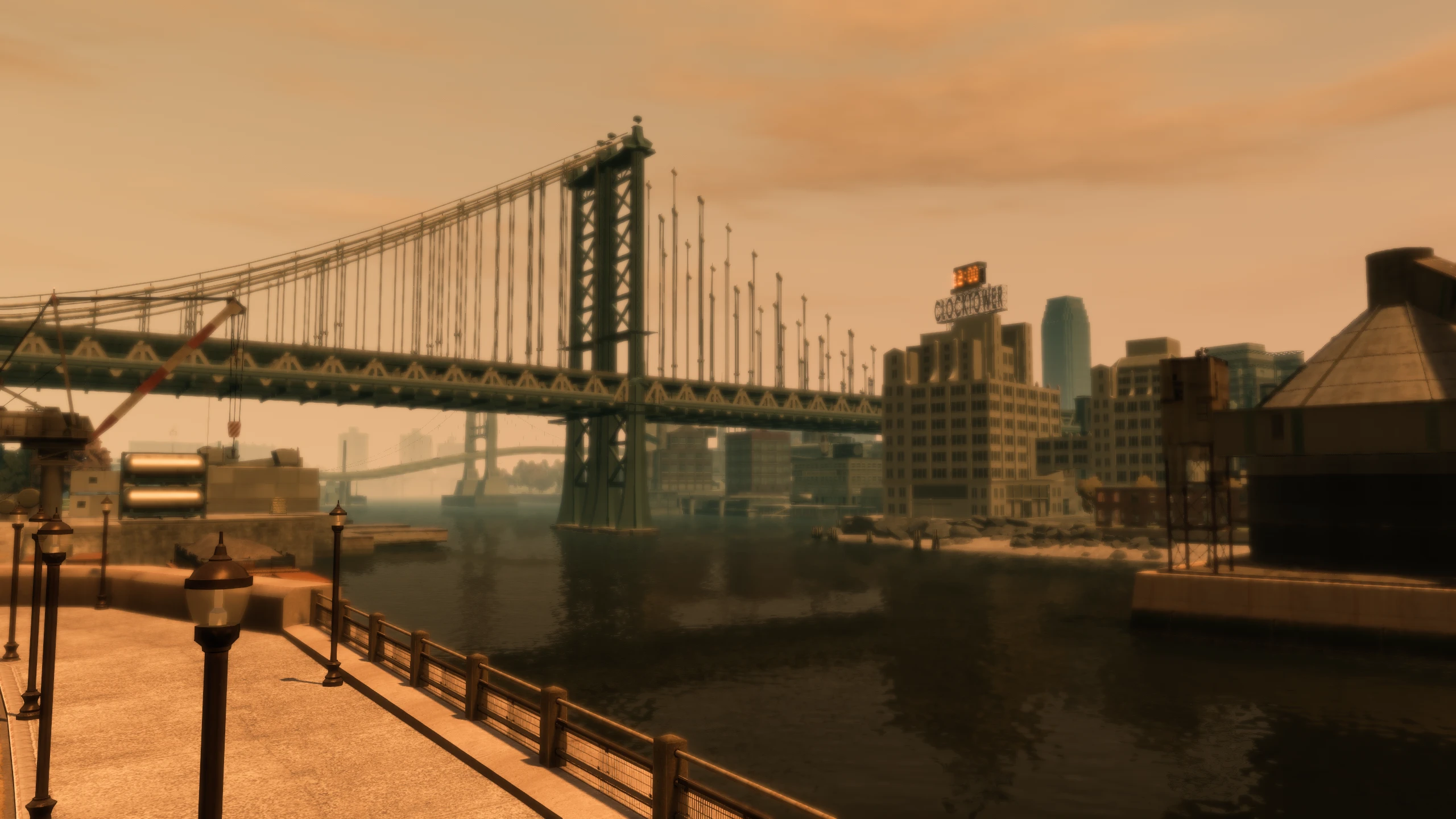
Distant Lights (New)#
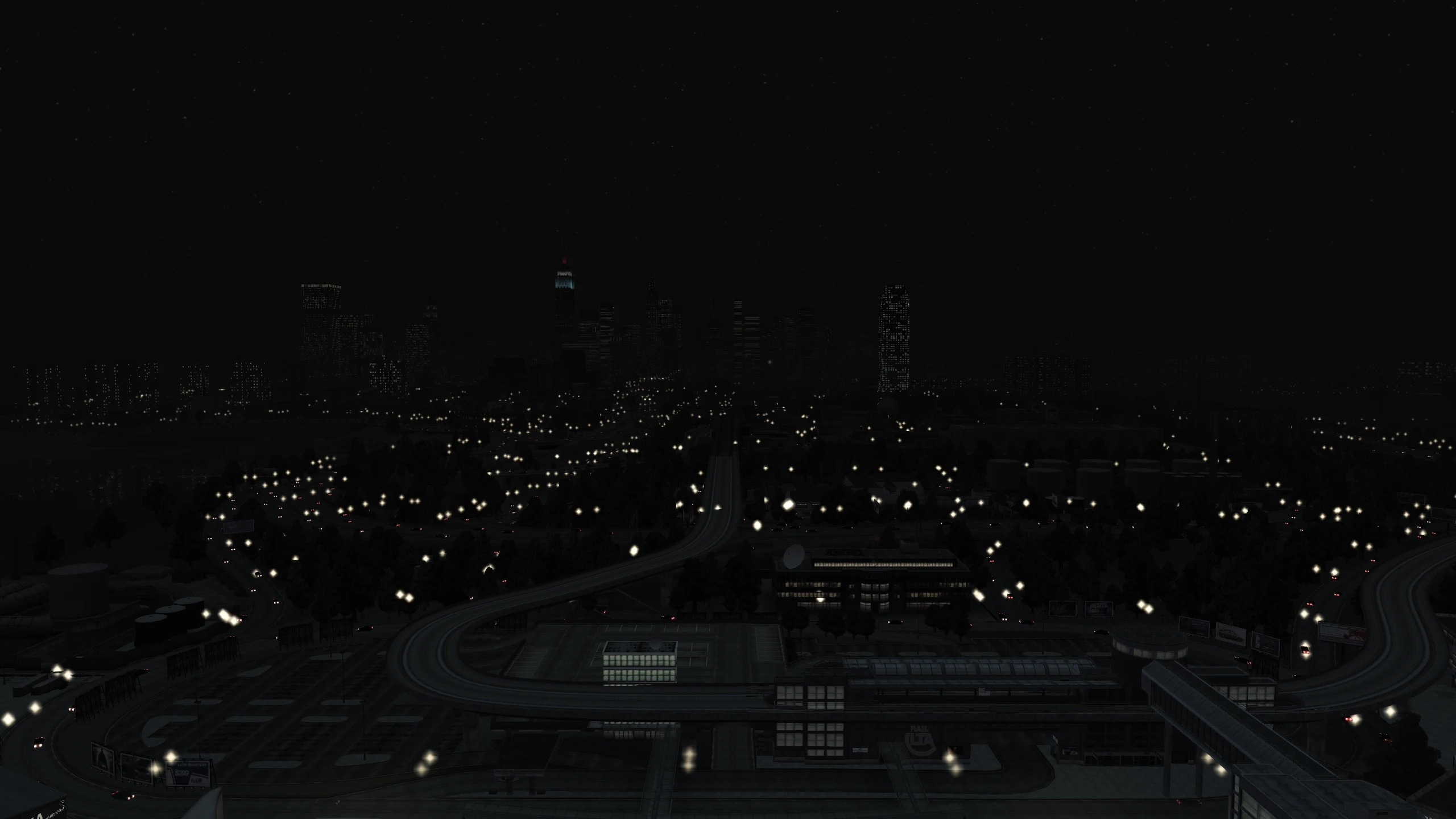
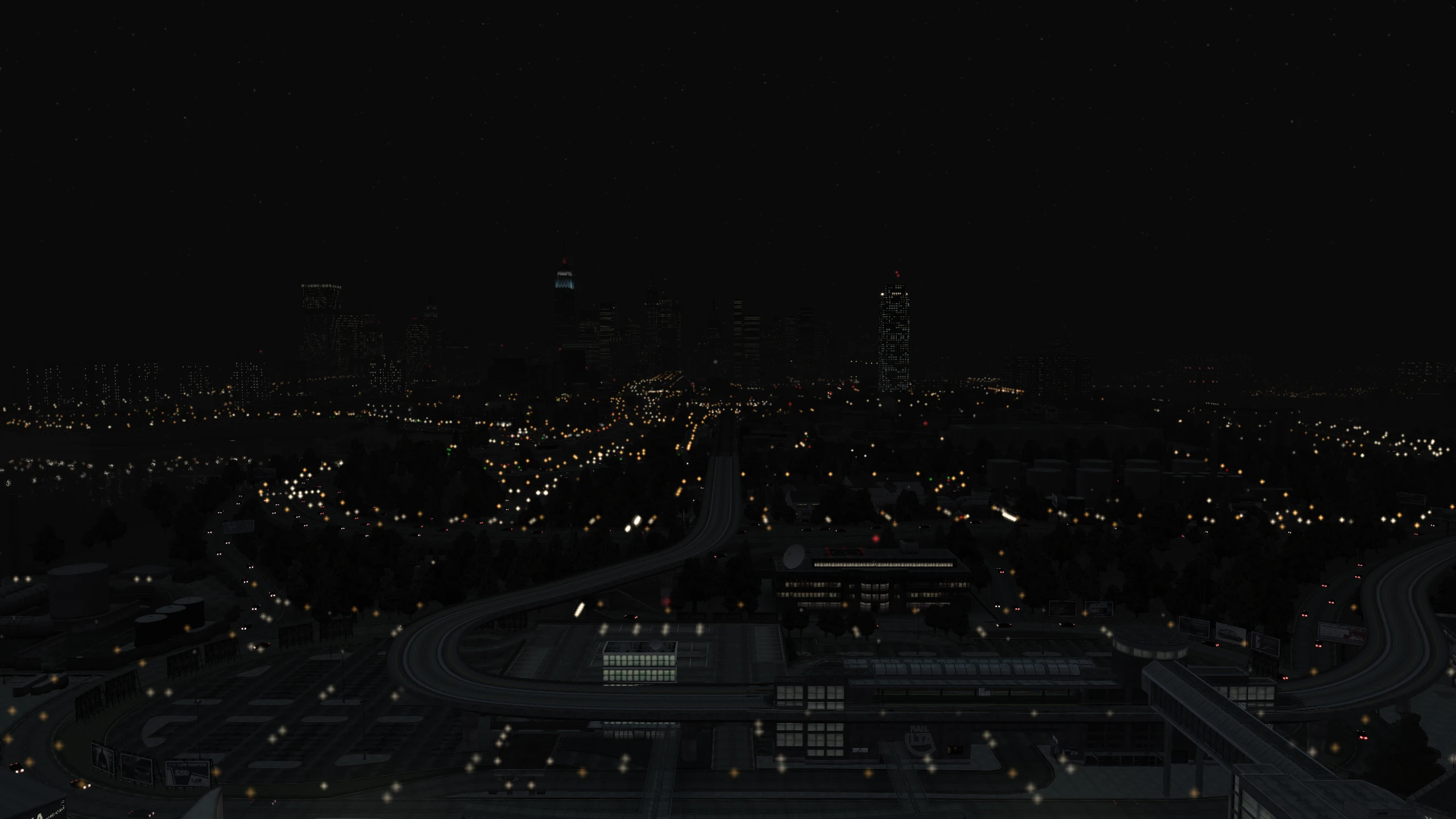
This allows you to switch between the games default distant lights or the Project 2DFX lights, which is integrated directly into Fusion Fix.
Graphics Menu#
These are the options added or improved in the "Graphics" tab.
FPS Limiter (New)#
This allows you to limit the frame rate in-game to several pre-set values or to a custom value by changing the FpsLimit setting in GTAIV.EFLC.FusionFix.ini.
Anti-Aliasing (New)#
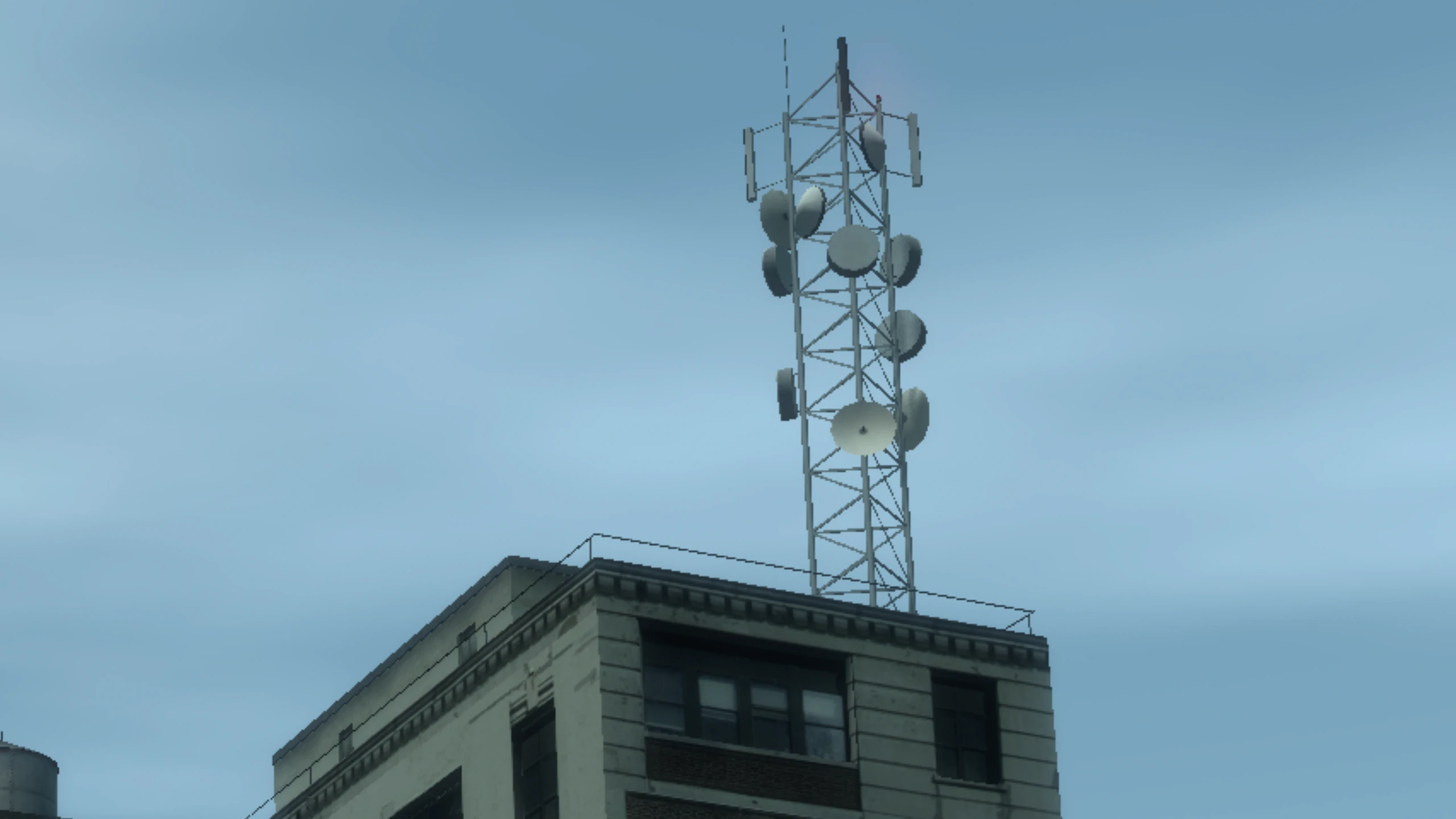
This allows you to enable two forms of anti-aliasing, SMAA or FXAA.
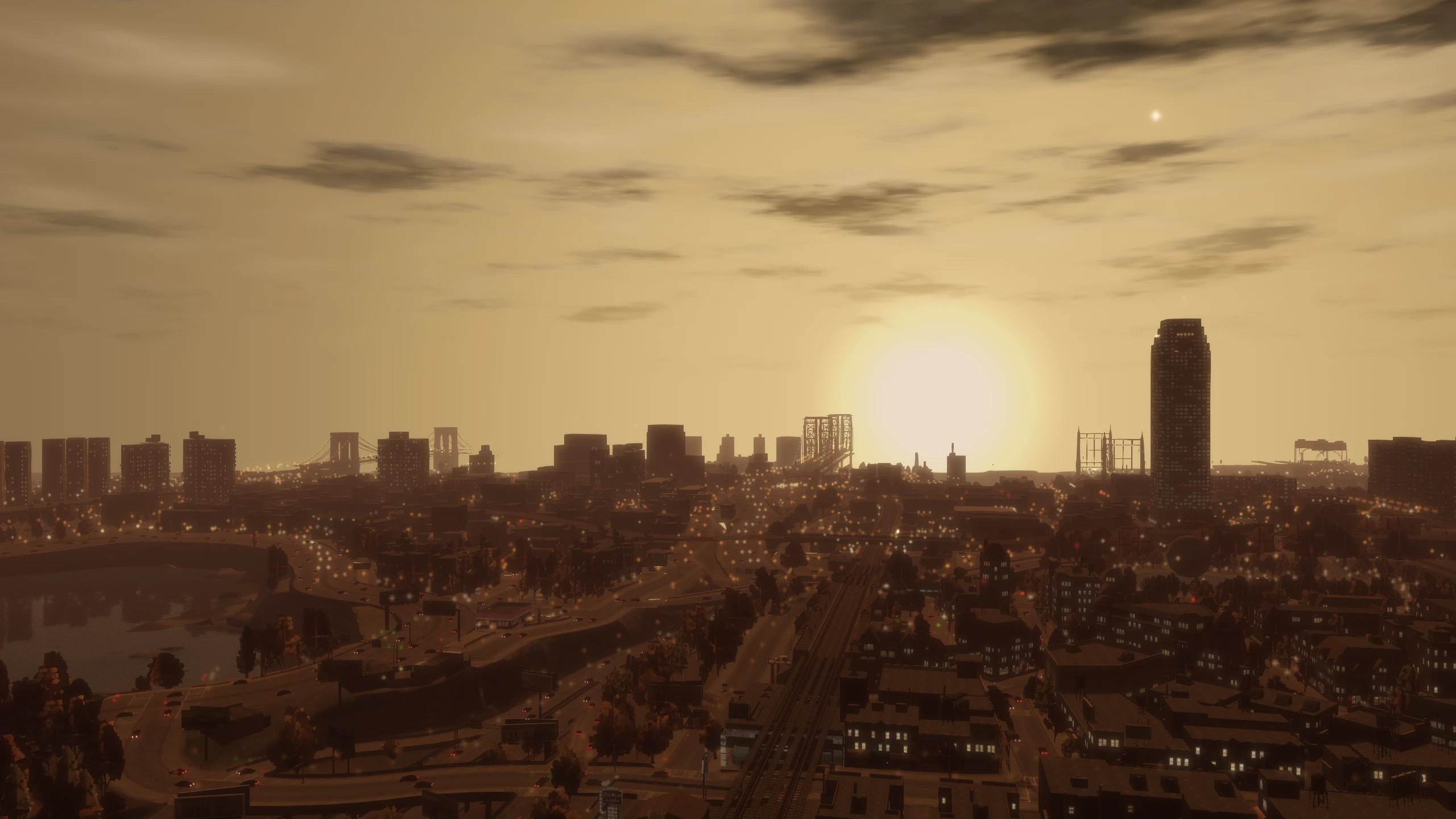
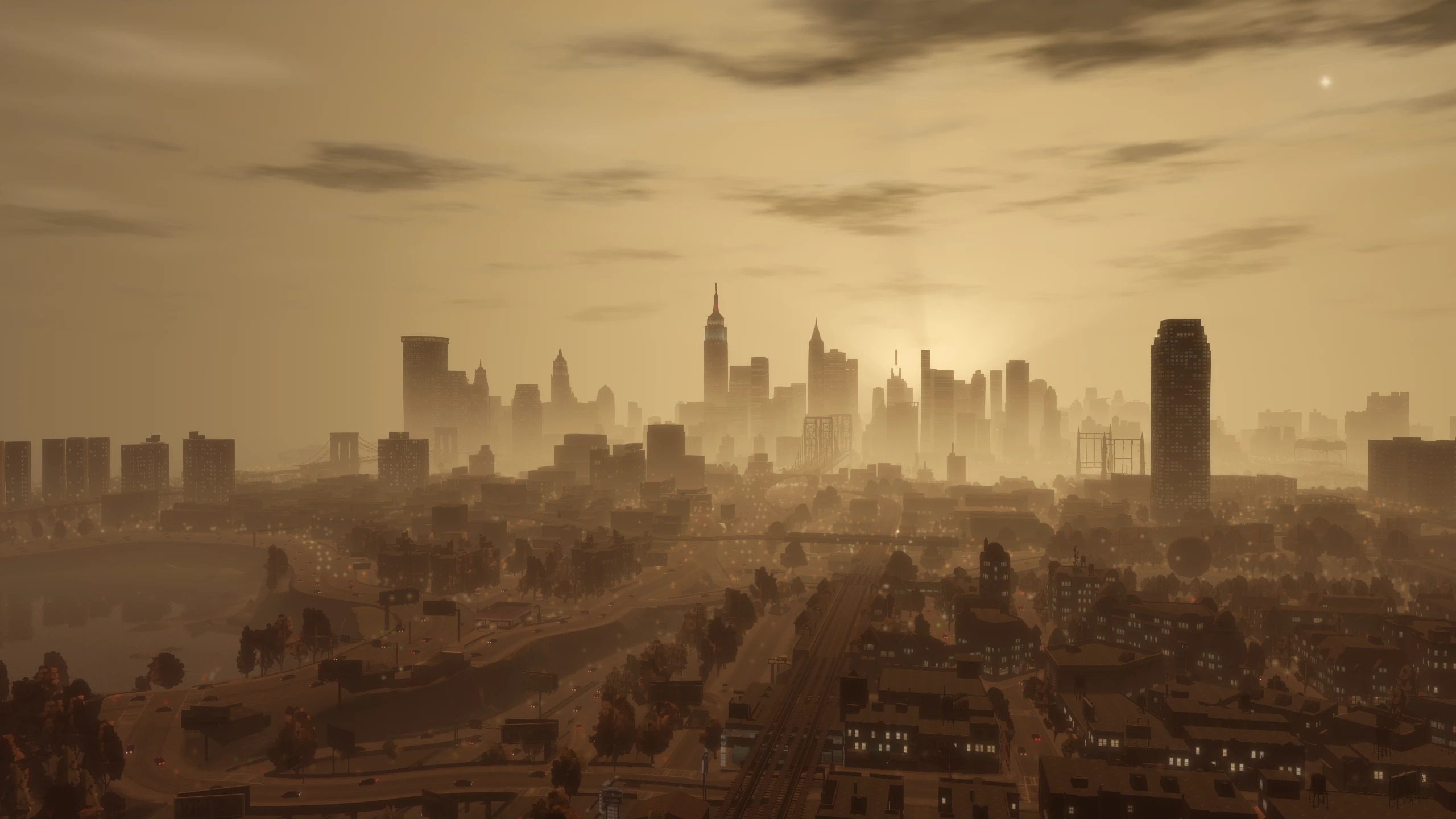
Volumetric Fog (New)#
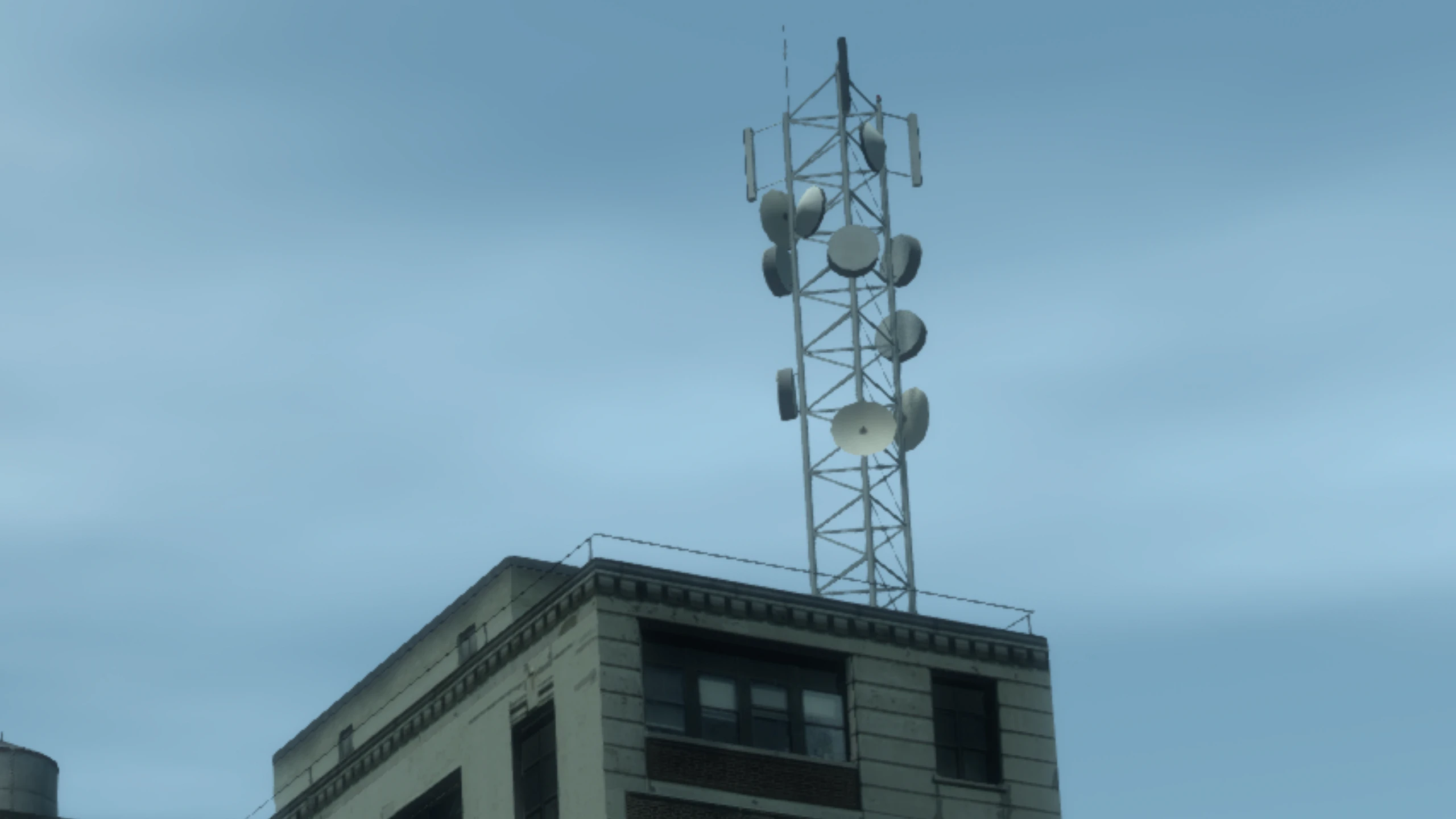
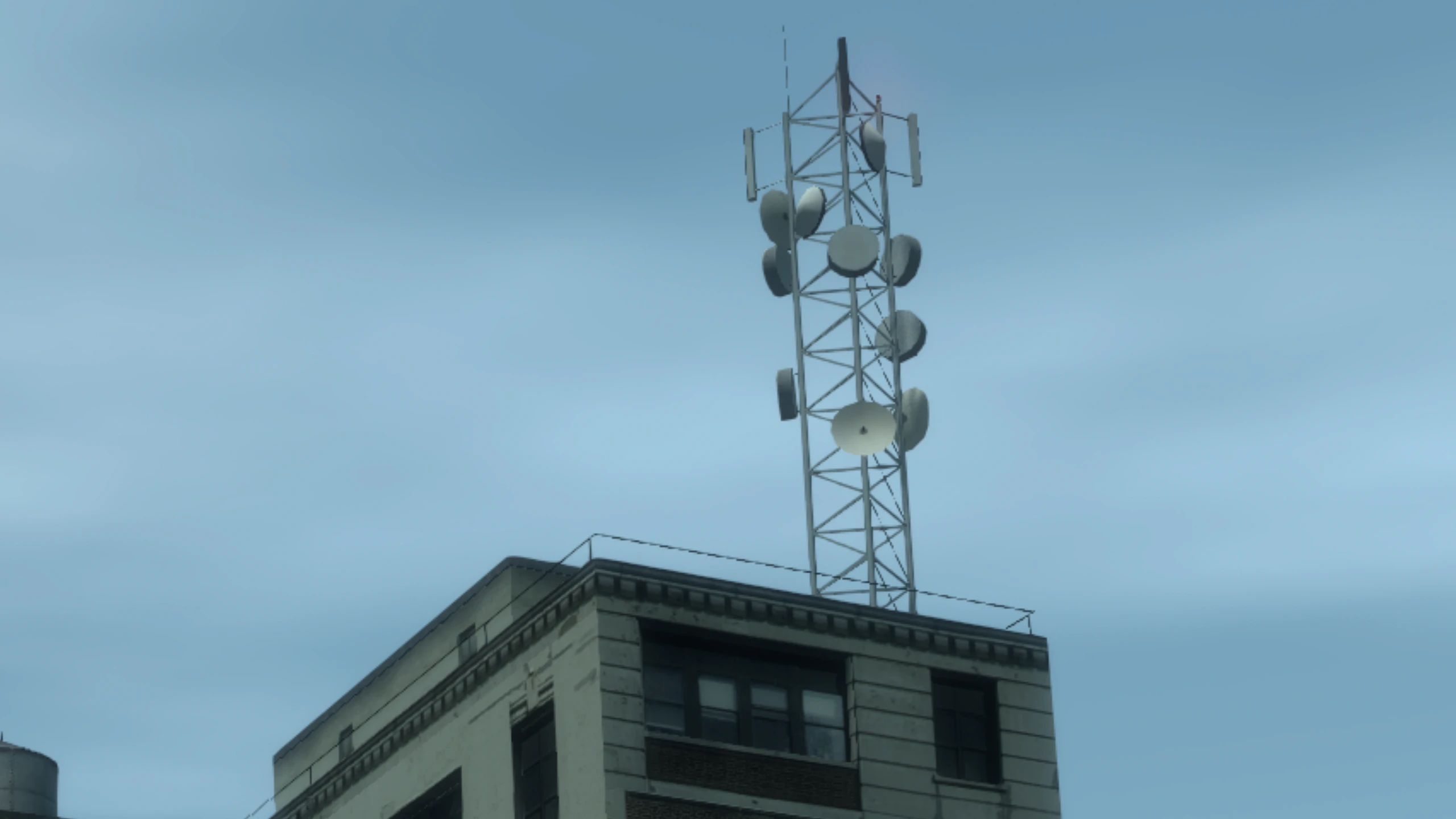
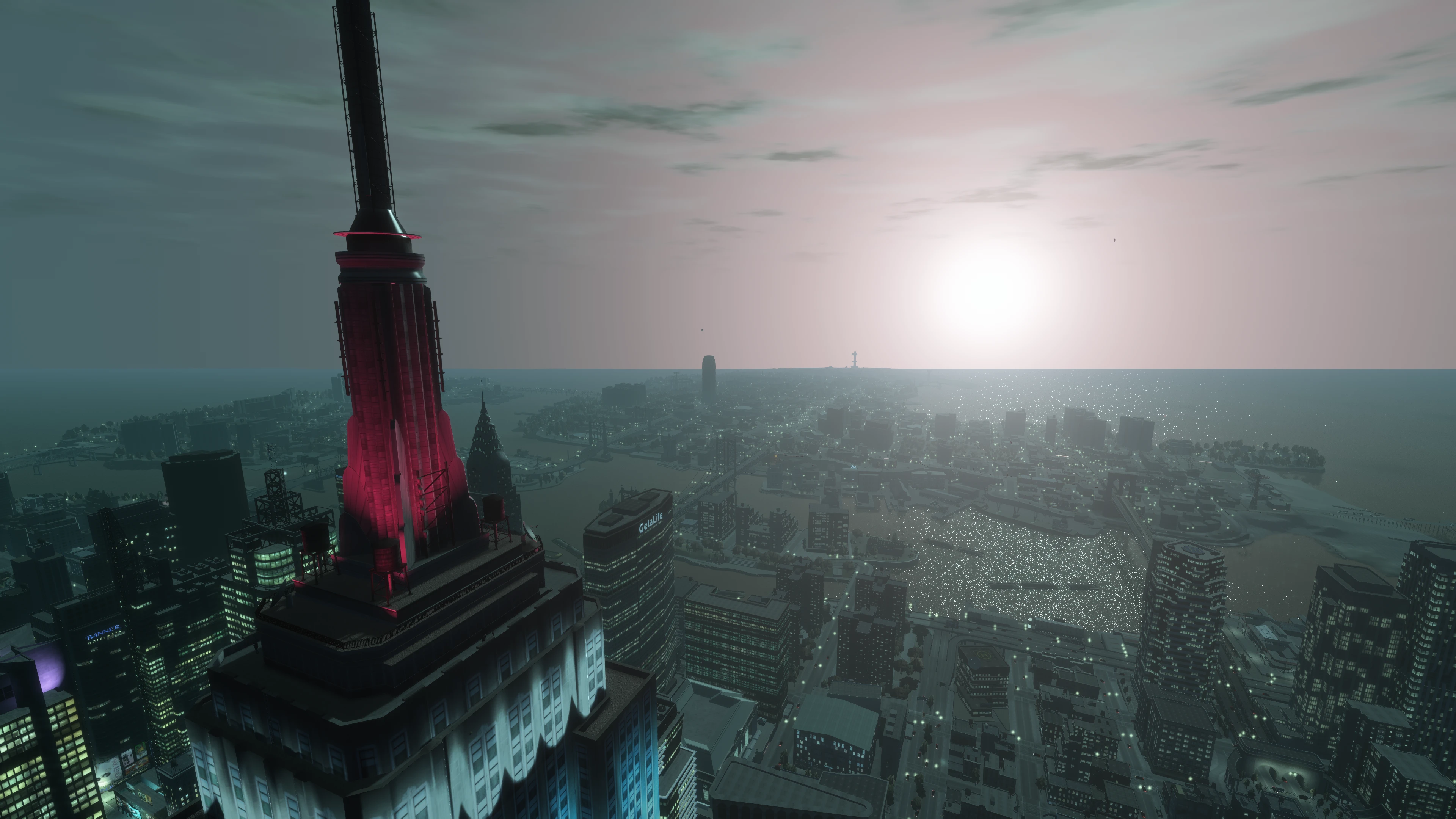
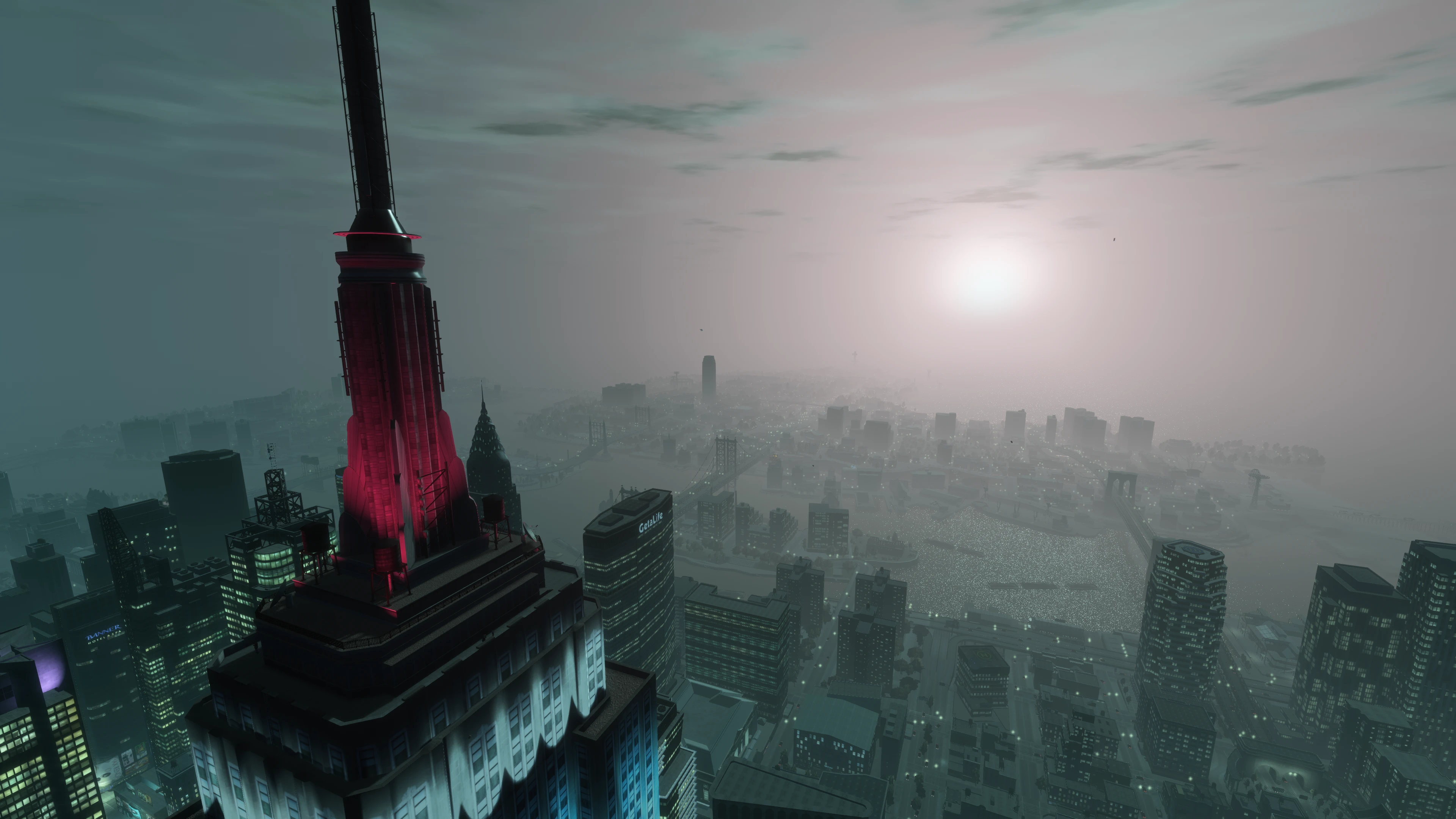
This allows you to enable or disable the new volumetric fog in Fusion Fix. The original game fog moves with the camera position and when the player is up high, you can see the water cut off at the horizon.
Fusion Fix's volumetric fog no longer moves with the camera position, it increases the farclip (draw distance) to 4500 meters, the fog itself blends in with the bottom sky colour seamlessly and the horizon cutting off is no longer visible.
Sun Shafts (New)#
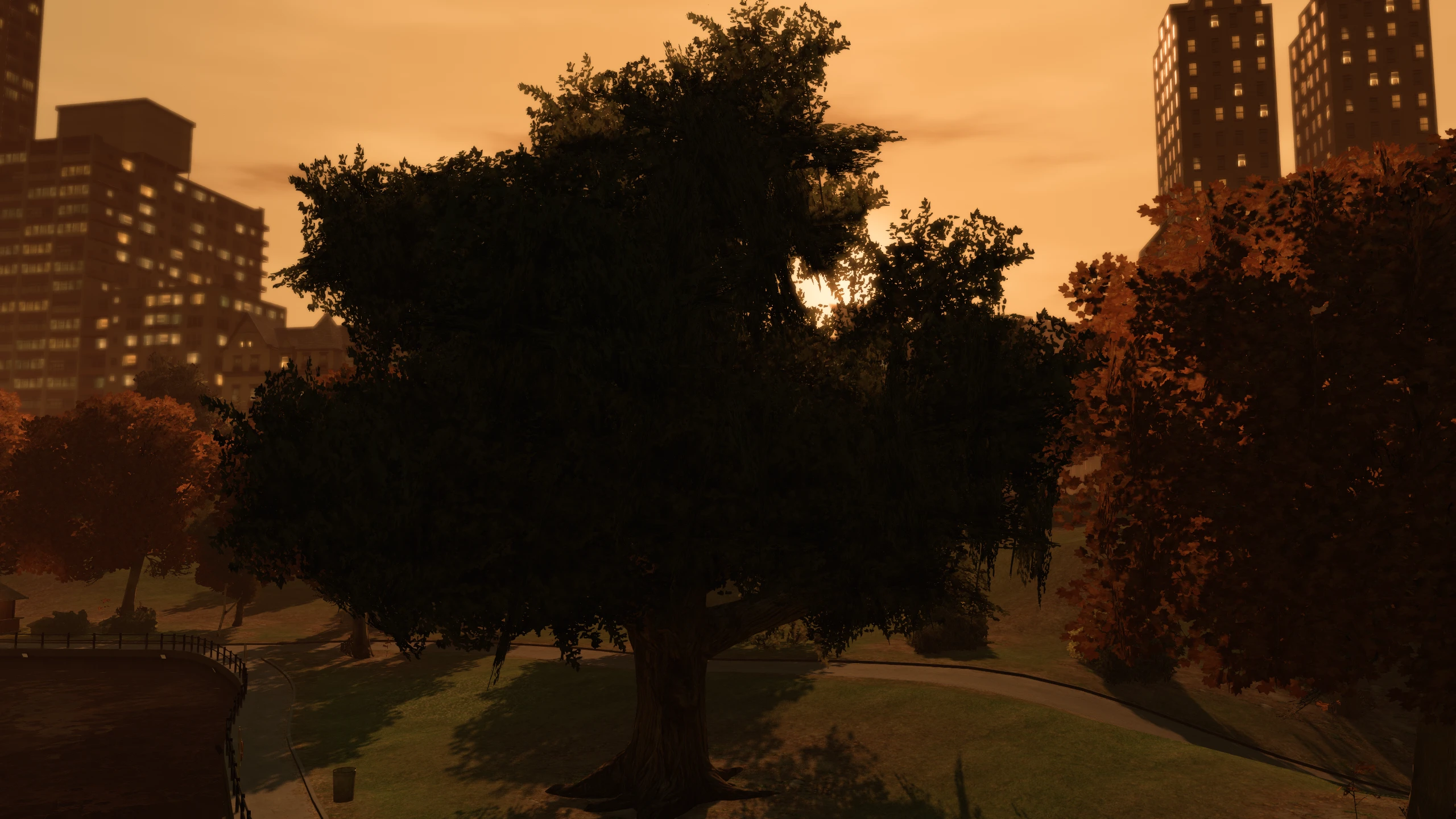
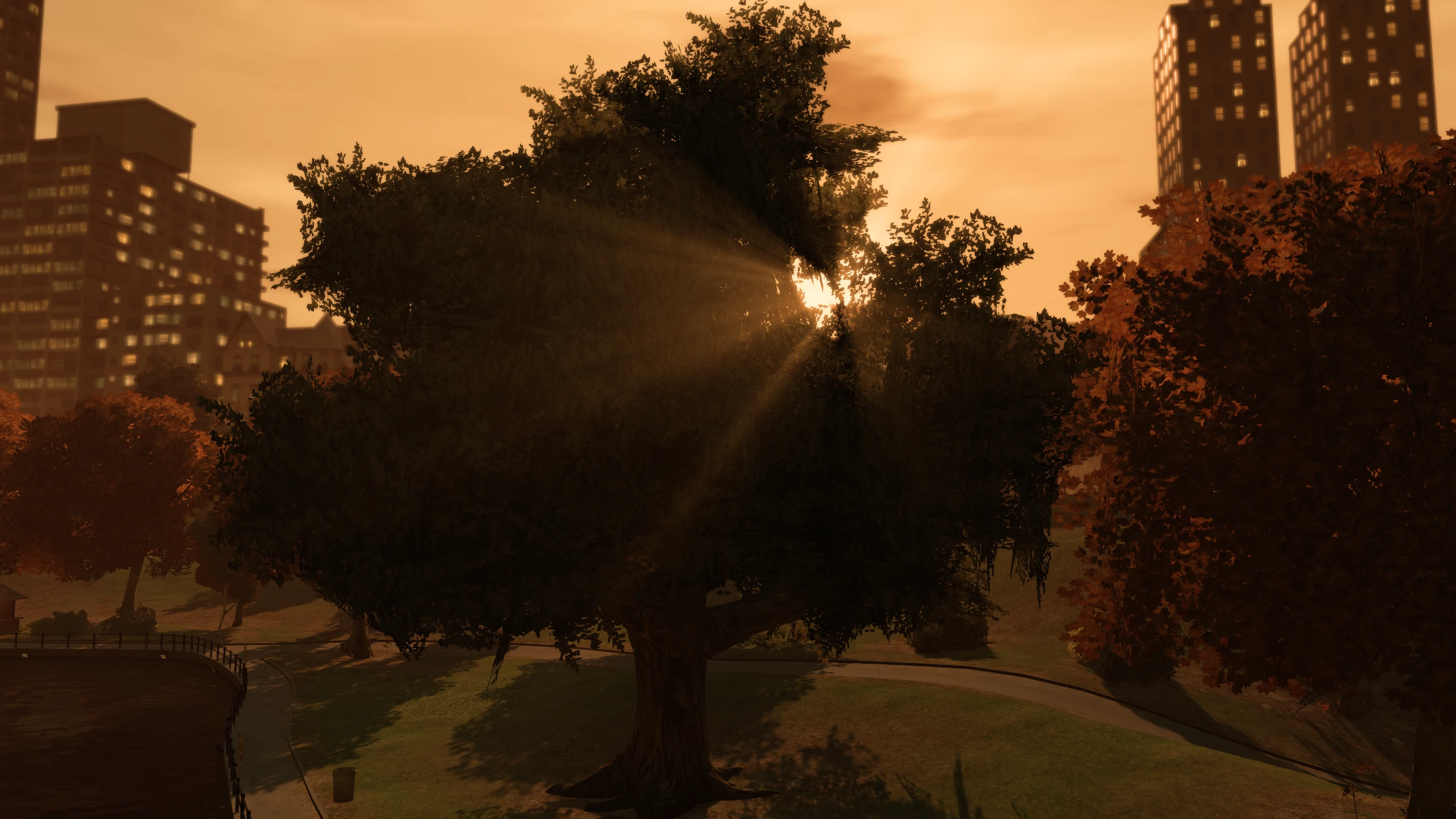
This allows you to enable or disable the new sun shaft effect in Fusion Fix. The original games sun is pretty effectless when compared to every other GTA title, but this options adds god rays coming from the sun which looks excellent.
Extended Sunlight Reach (New)#
This option allows you to enable or disable Fusion Fix's improved sun lighting.
In GTA IV, how much a surface is lit is determined by the angle between the direction it is facing and the direction of the sun. It can be up to 90 degrees, but vanilla GTA IV clamps it at 75 degrees. Enabling this option allows it to reach 90 degrees.
Tone Mapping (New)#
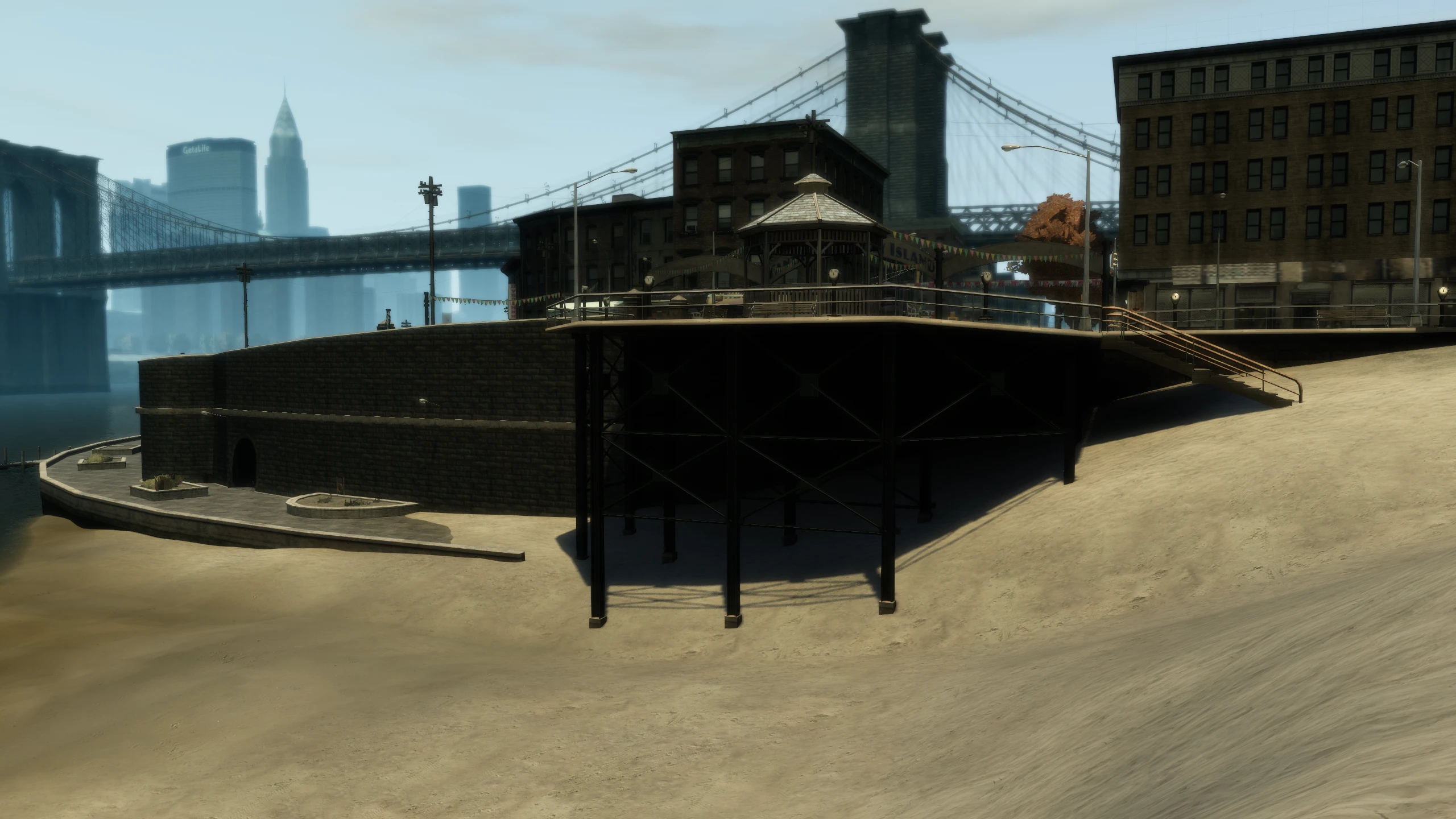
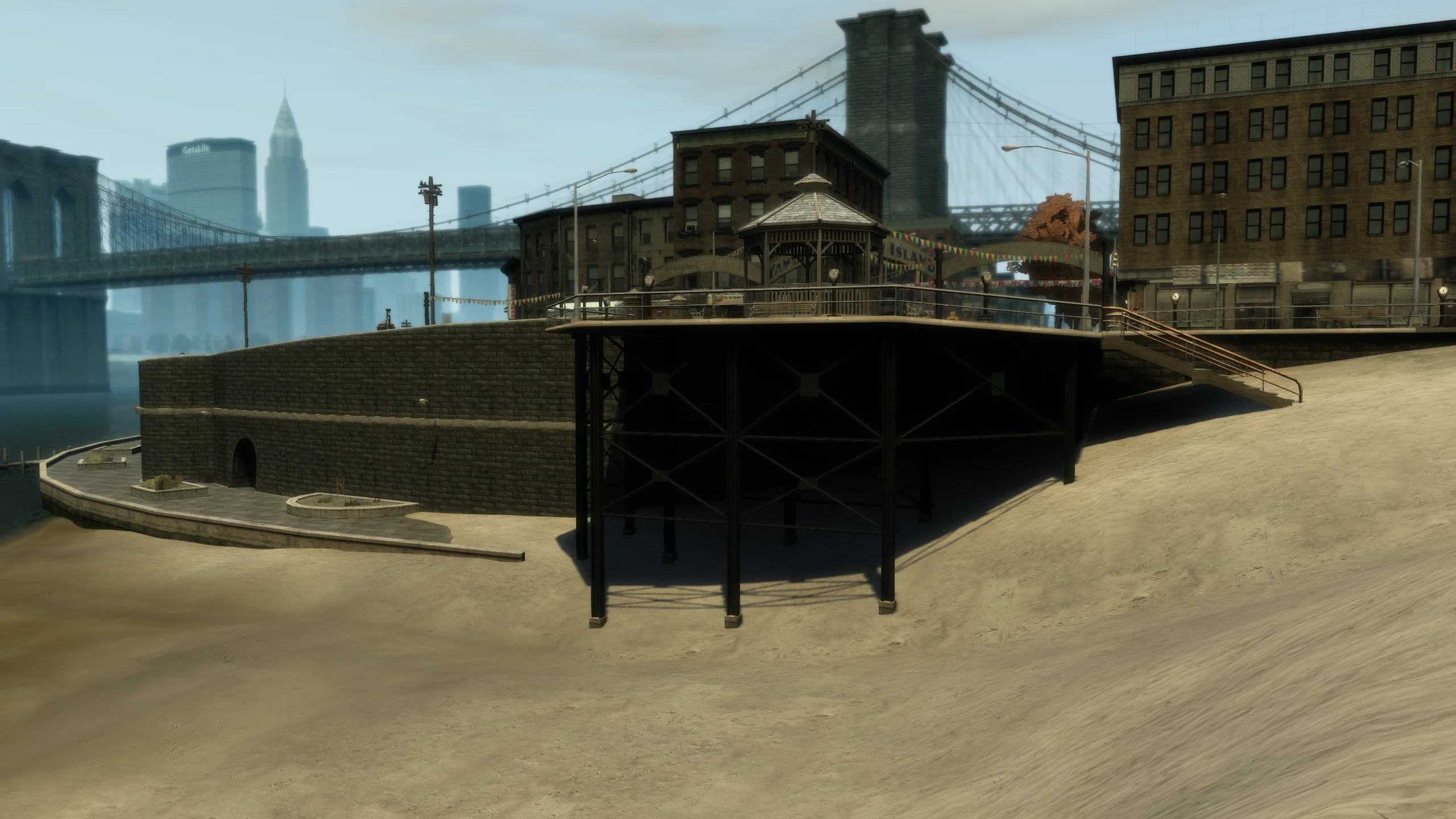
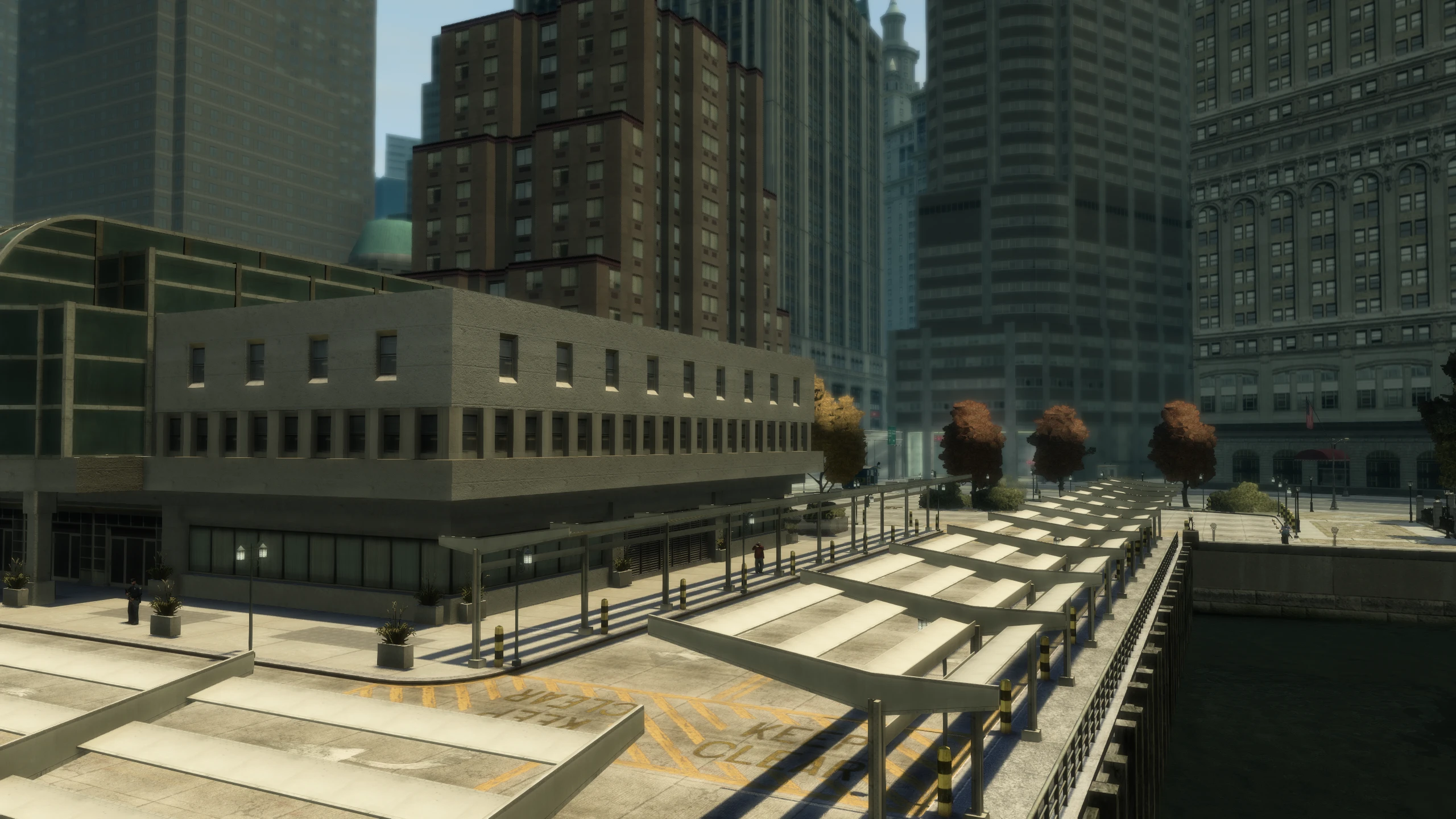
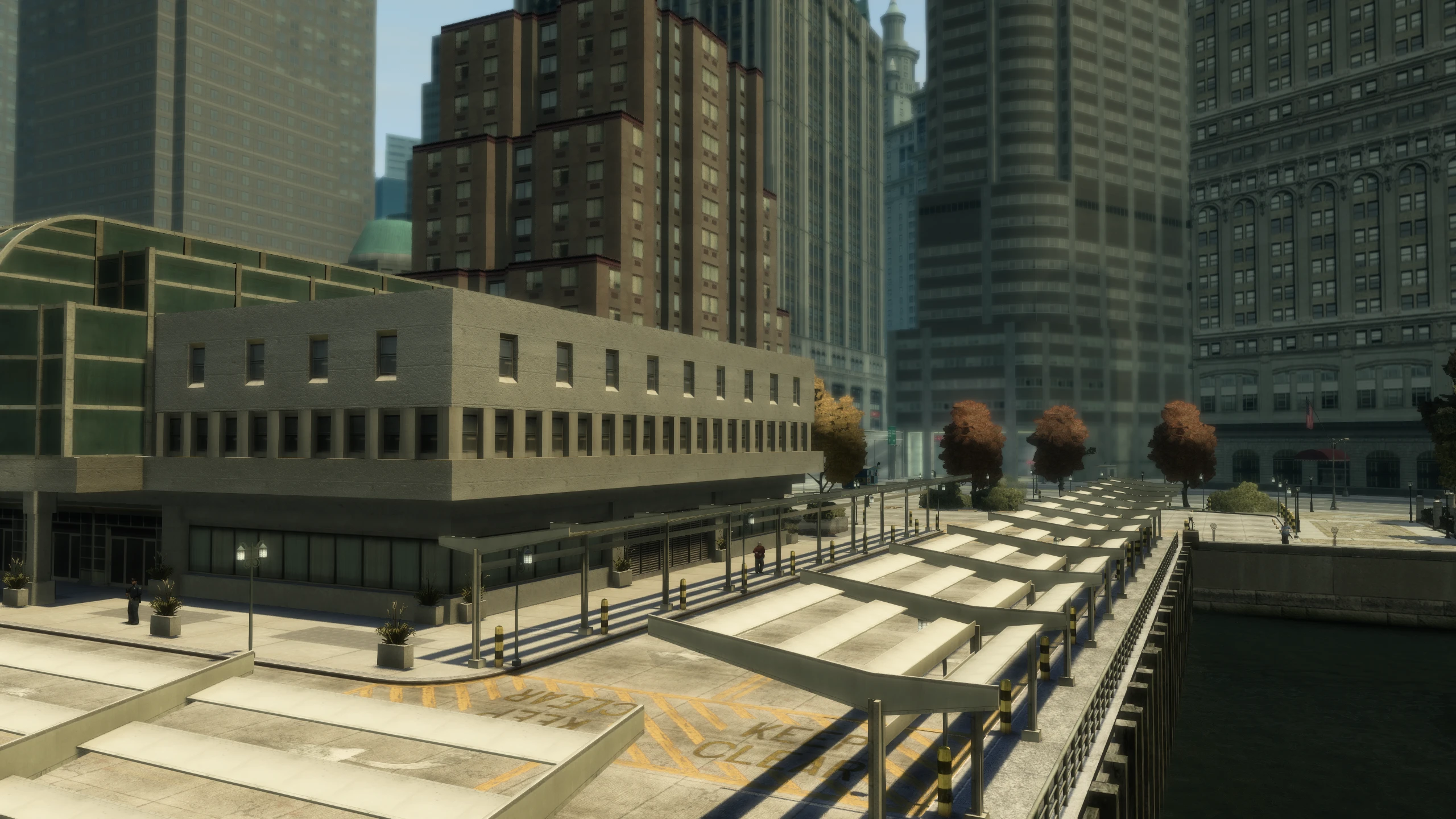
This option allows you to enable or disable tone mapping introduced by Fusion Fix.
This stops highlights from getting blown out and clipping.
You can change the tone map operator by replacing all_stips in GTAIV\update\pc\textures\stipple.wtd. More operators can be found here.
Ambient Occlusion (New)#
This allows you to enable or disable the new ambient occlusion effect in Fusion Fix.
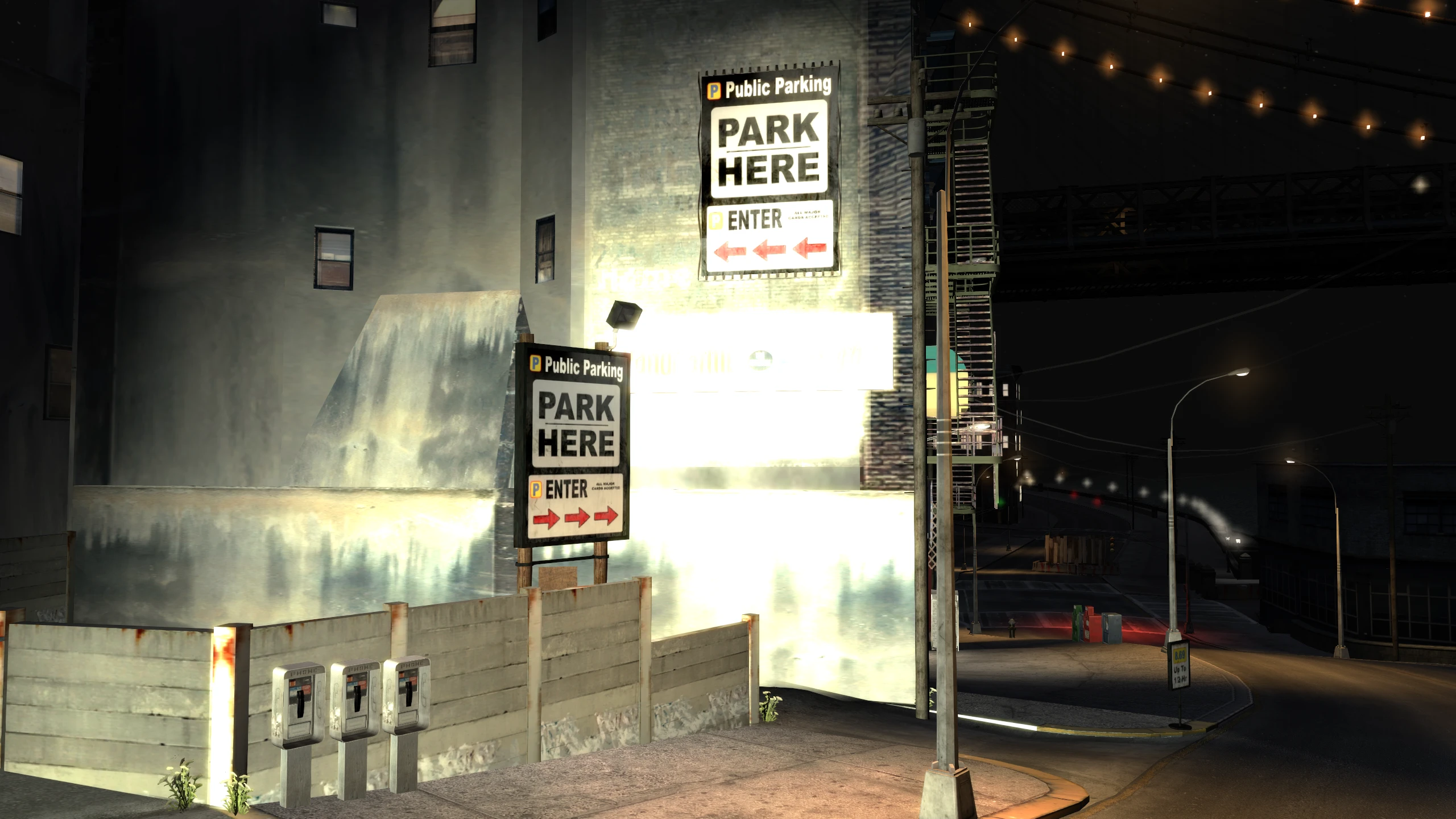
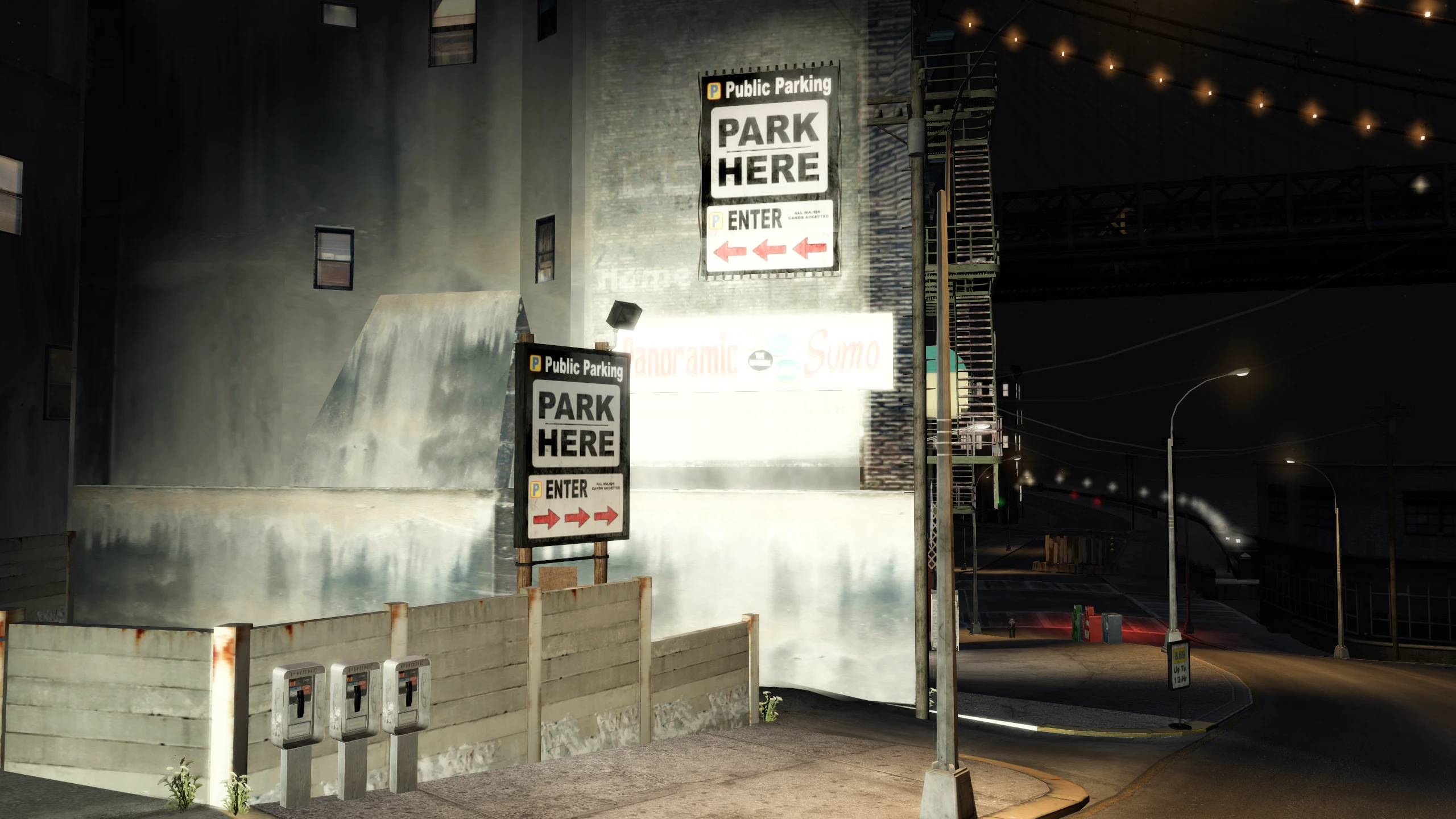
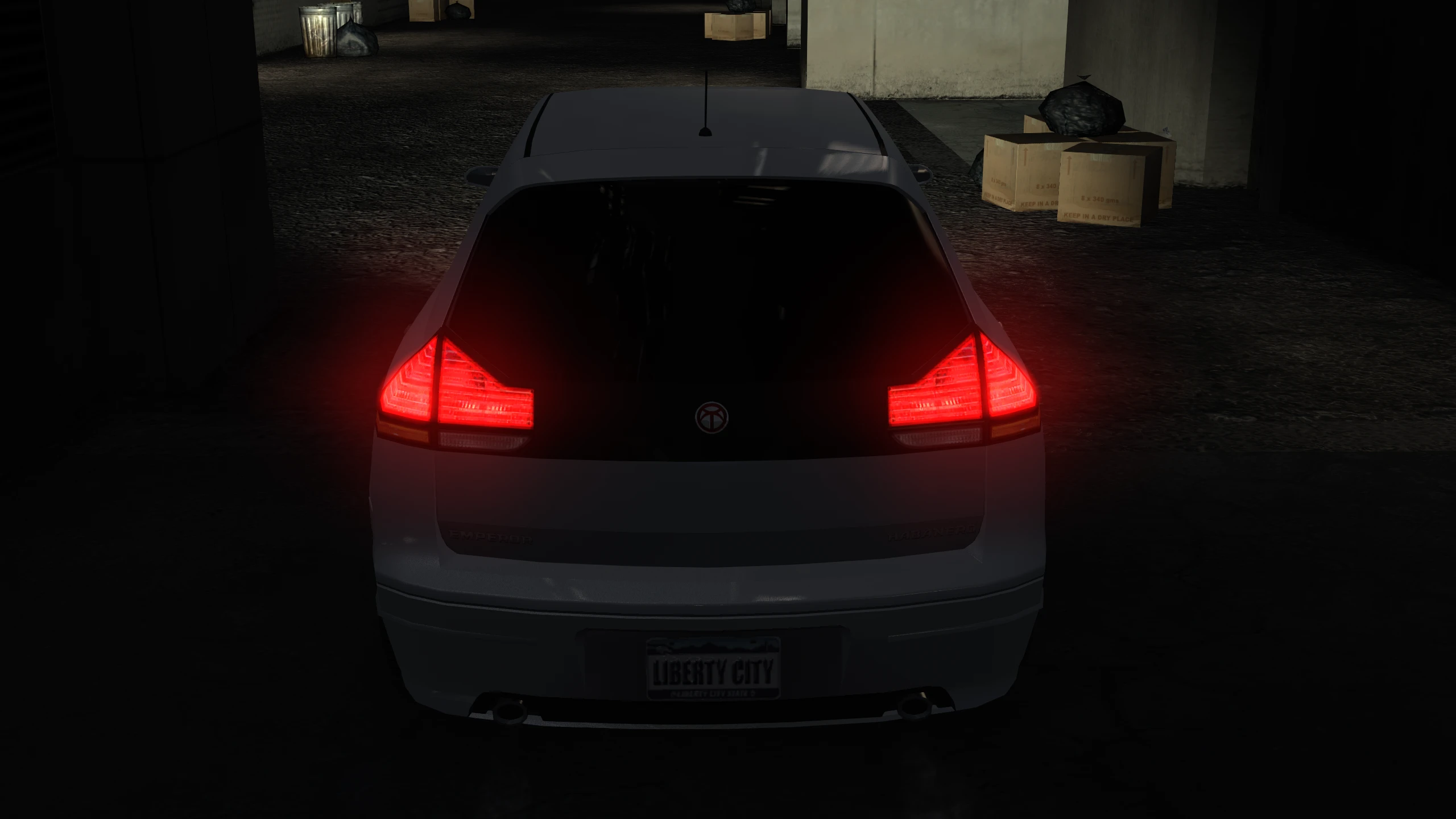
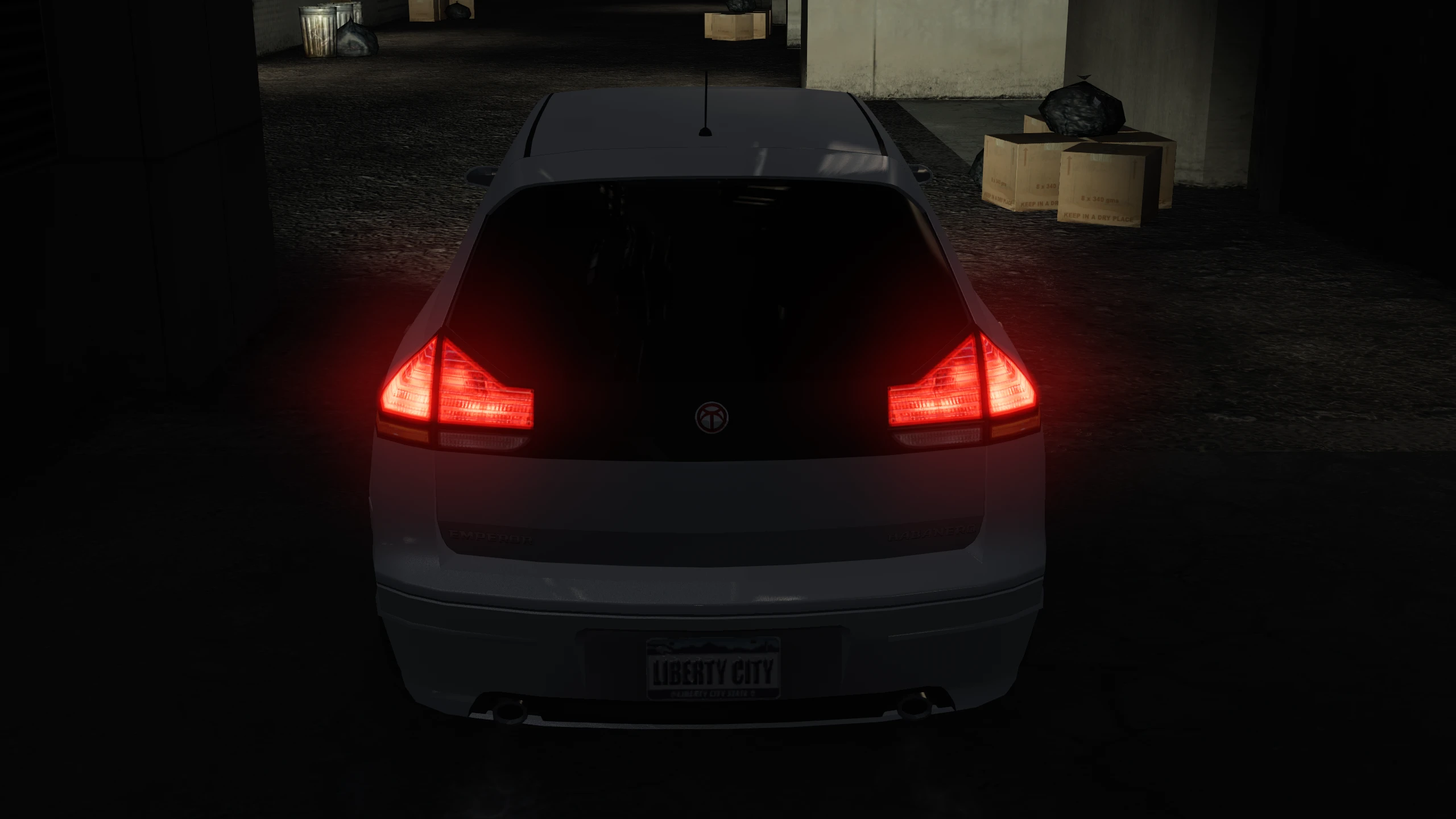
Ambient occlusion simulates light being blocked by objects, giving objects much more depth than before.
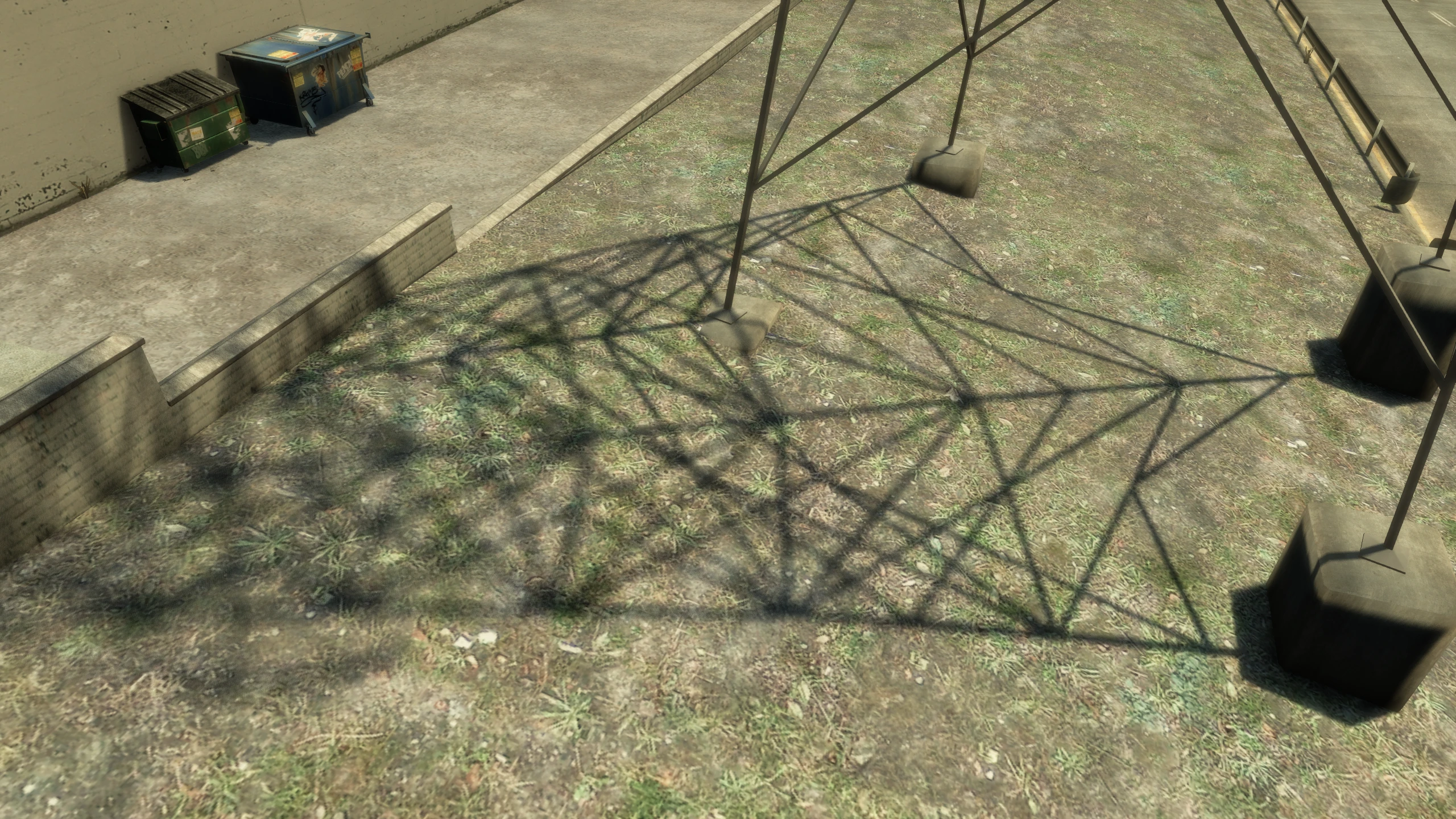
Shadow Filter (New)#
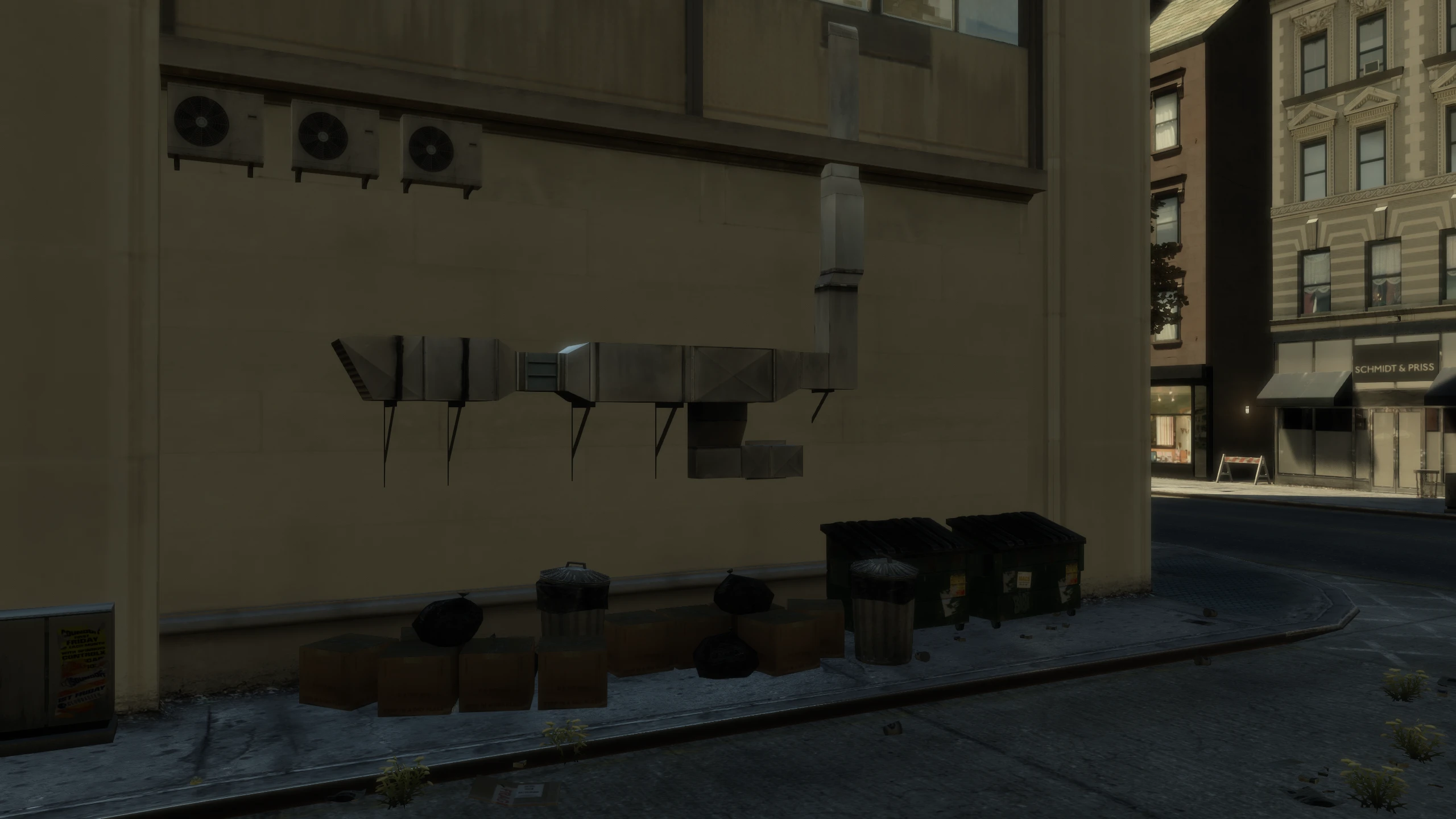
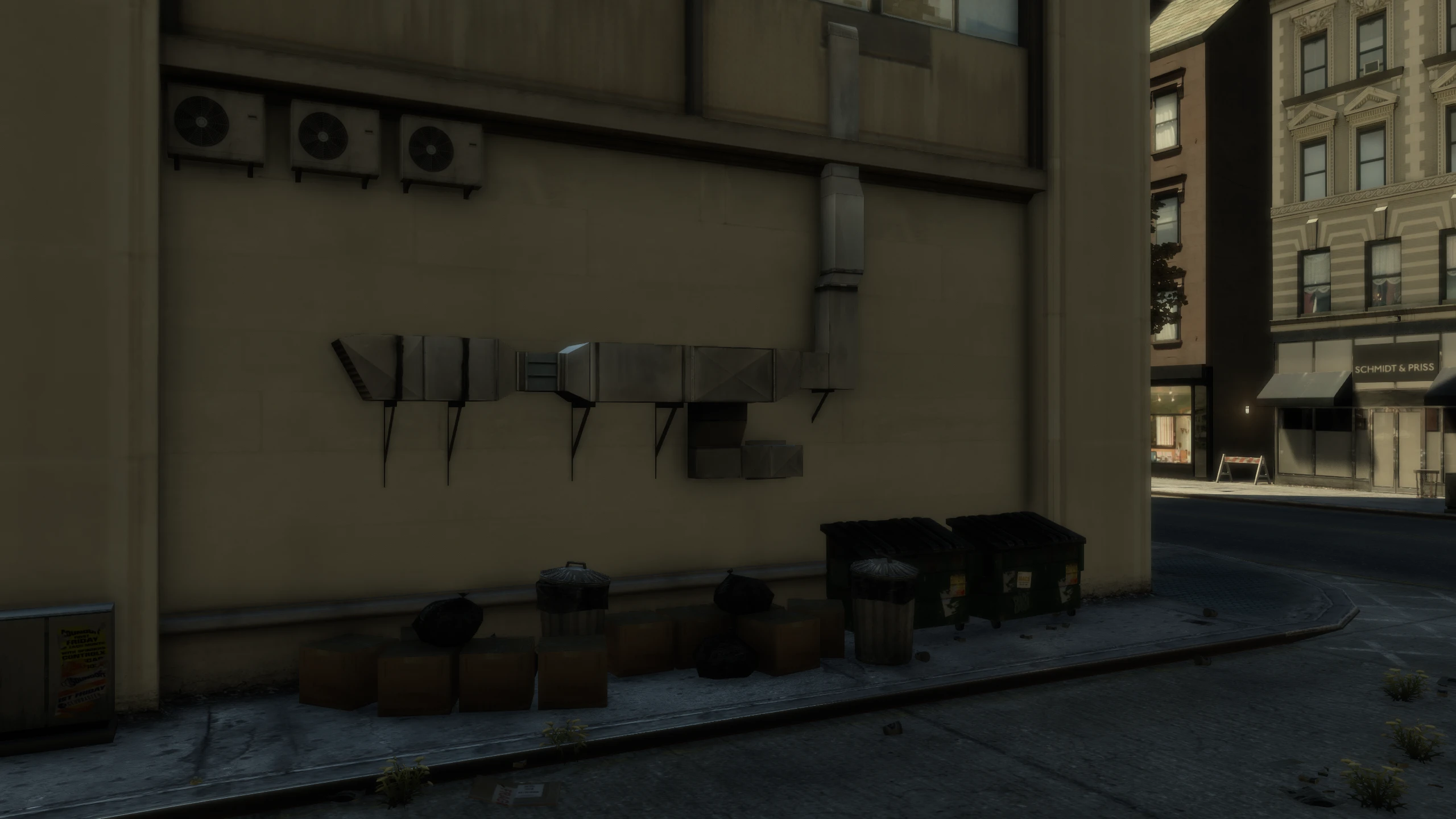
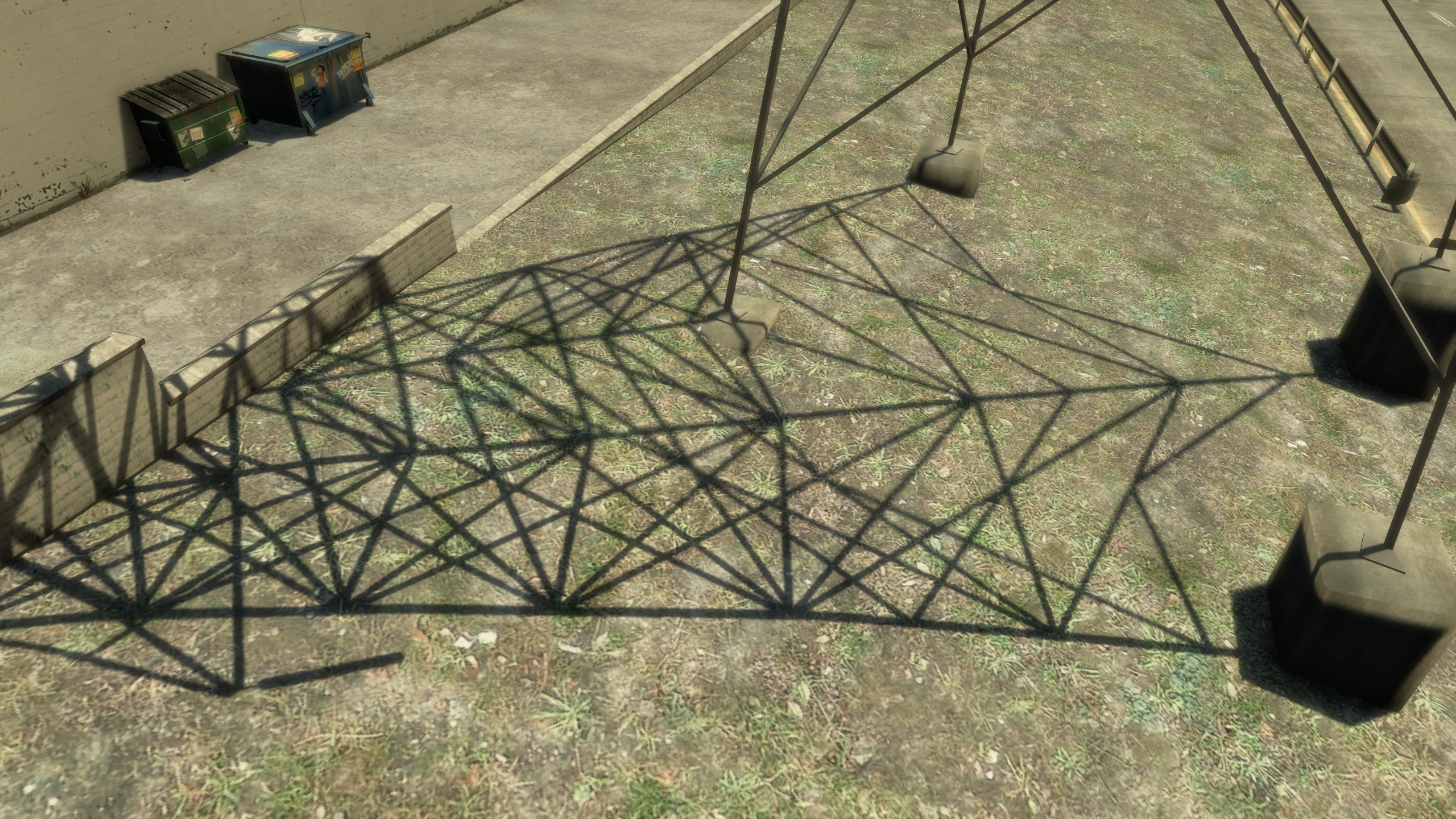
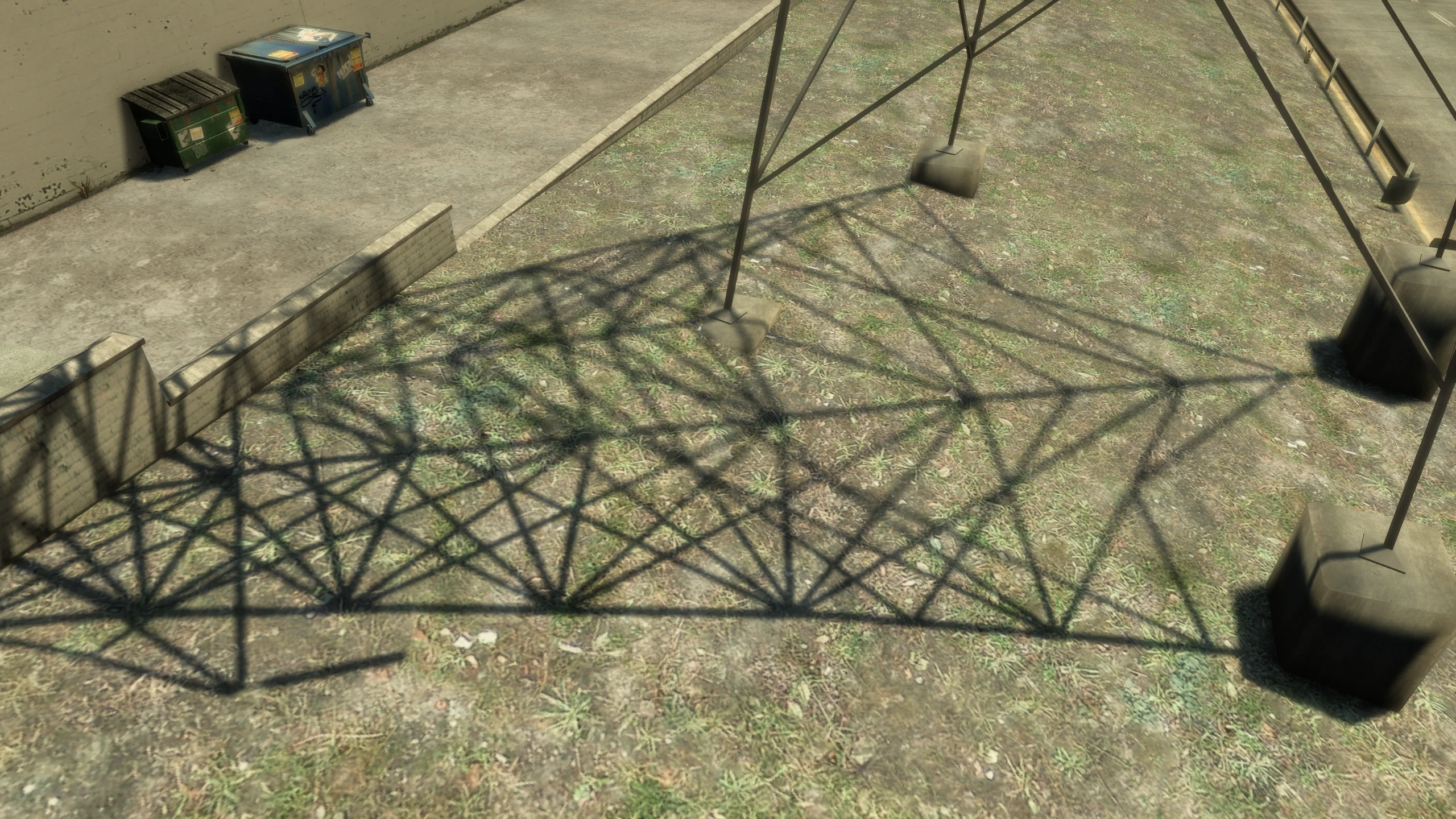
This allows you to switch between various shadow filters - Sharp, Soft and CHSS.
CHSS stands for Contact Hardening Soft Shadows. This makes shadows sharper when they're nearer to the object casting the shadow and softer when the shadow is further away from the object casting the shadow.
You can change the softness values for each shadow filter by editing shadow settings in GTAIV.EFLC.FusionFix.ini.
Graphics API (New)#
This allows you to switch between the games default DirectX9 graphics API or the DXVK Vulkan API, which is integrated directly into Fusion Fix.
Vulkan can often improve performance, but whether the Vulkan option will work for you will completely depend on your hardware. If you switch to Vulkan and the game won't launch afterwards, delete d3d9.cfg to reset the option and just leave the option on DirectX 9.
Before DXVK was integrated into Fusion Fix, I made a video showing the performance improvements it gave me on my old system. The installation instructions are now outdated (since it's not integrated into Fusion Fix), but the performance improvements are still something to look into.
Game Tab#
These are the options added or improved in the "Game" tab.
Skip Intro (New)#
This option skips the intro scenes that appear when launching the game (copyright screens, Rockstar logos, splash screens).
This reduces the time it takes to launch the game significantly.
Skip Menu (New)#
This option skips the main menu when launching the game, instead loading straight into your last save or a new game if no saves exist. This is the same behaviour as on console.
This reduces the time it takes to launch the game significantly.
Cutscene Letterbox (New)#
This option enables and disables the black bars at the top and botton of the screen in cutscenes for 4:3 resolutions.
Cutscene Pillarbox (New)#
This option enables and disables black bars at the sides of the screen in cutscenes for ultrawide monitors.
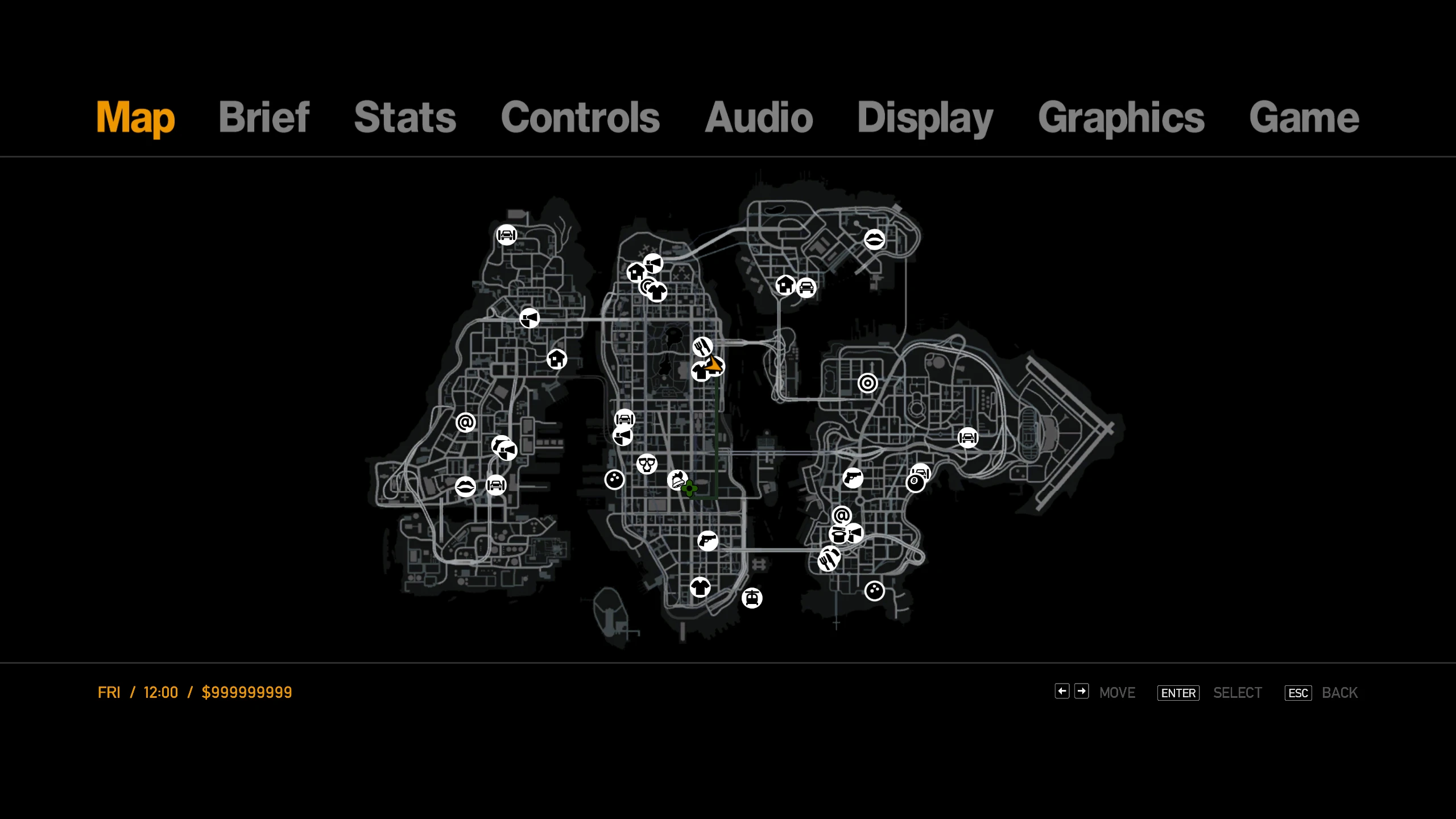
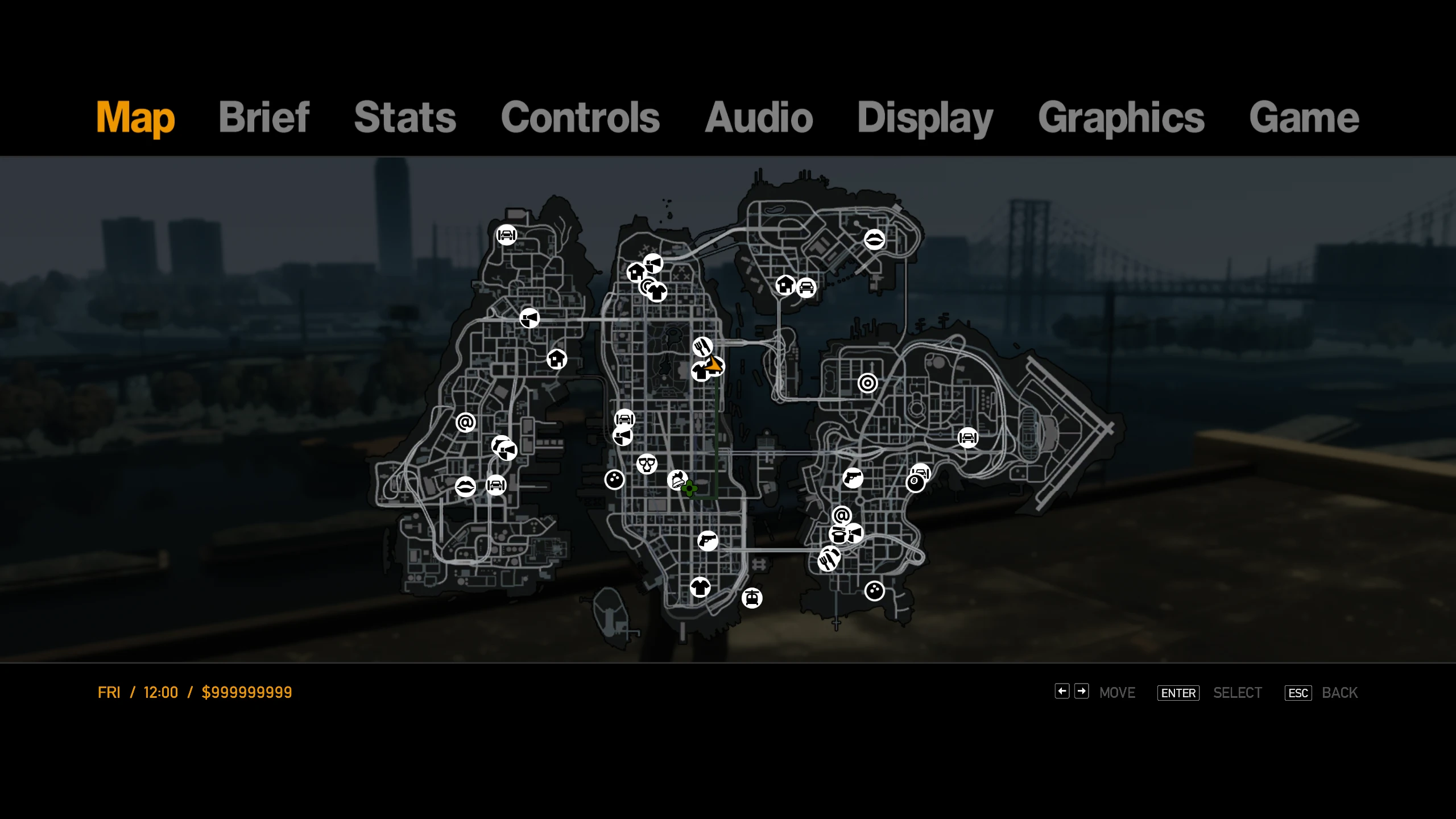
Transparent Map Menu (New)#
This option makes the map menu transparent instead of black.
FPS Counter (New)#
This option enables and disables a new FPS counter in the top right.
Windowed (New)#
This option makes the game play in windowed mode instead of full screen.
Windowed Borderless (New)#
This option makes the game play in windowed mode without any borders (basically full screen with better alt-tabbing).
Pause Game On Focus Loss (New)#
This option enables or disables the game pausing when you move to another window.
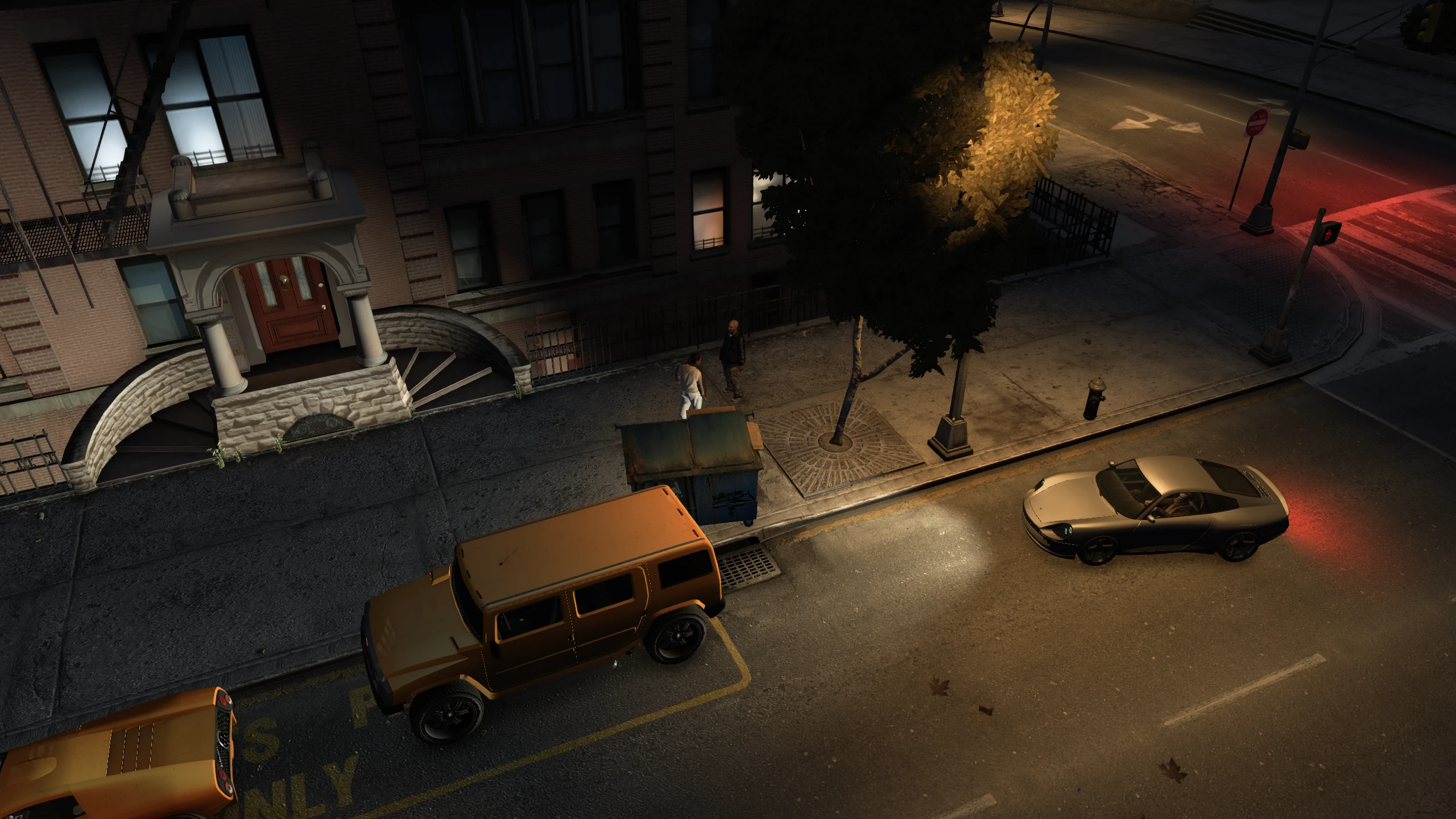
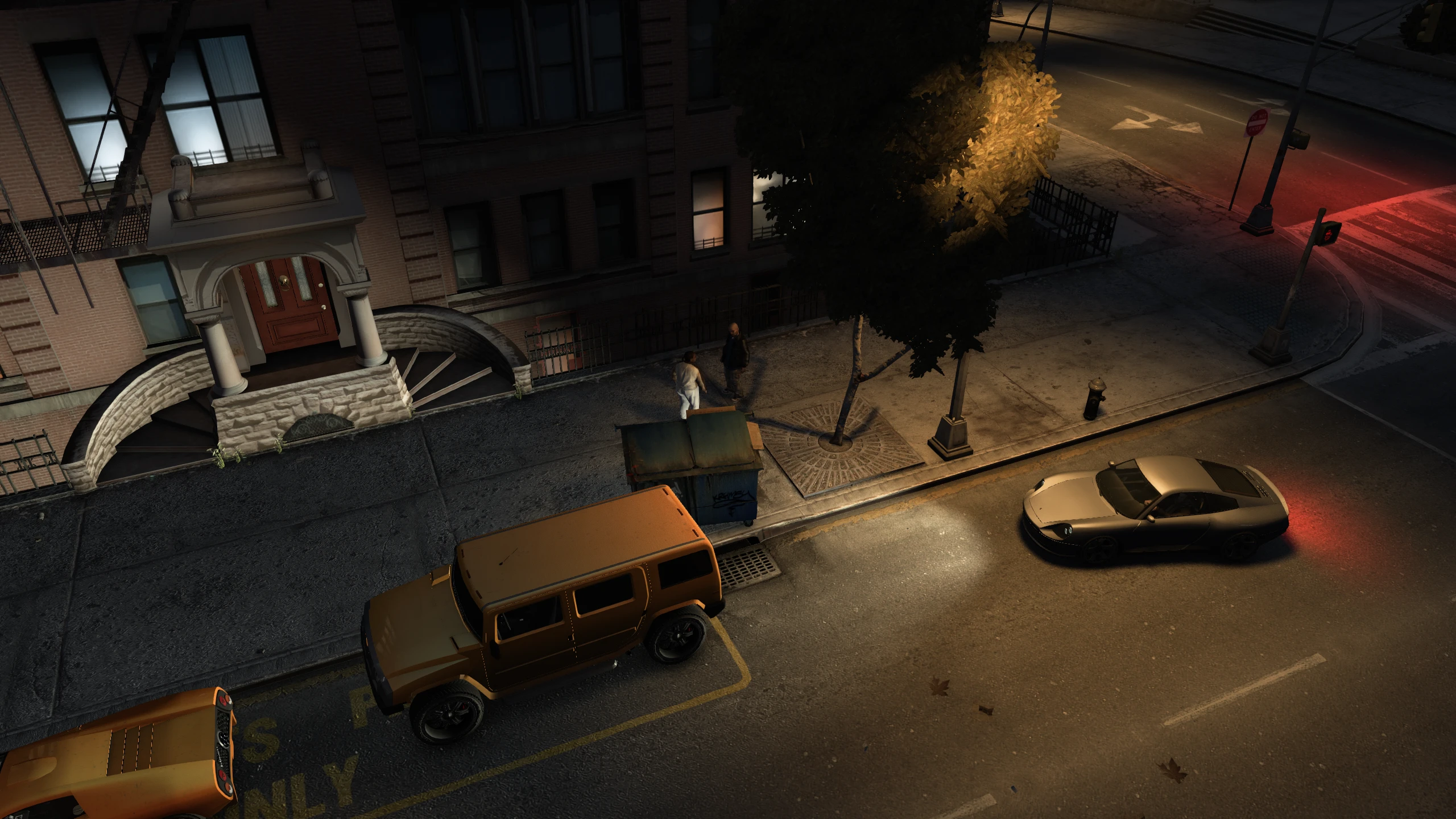
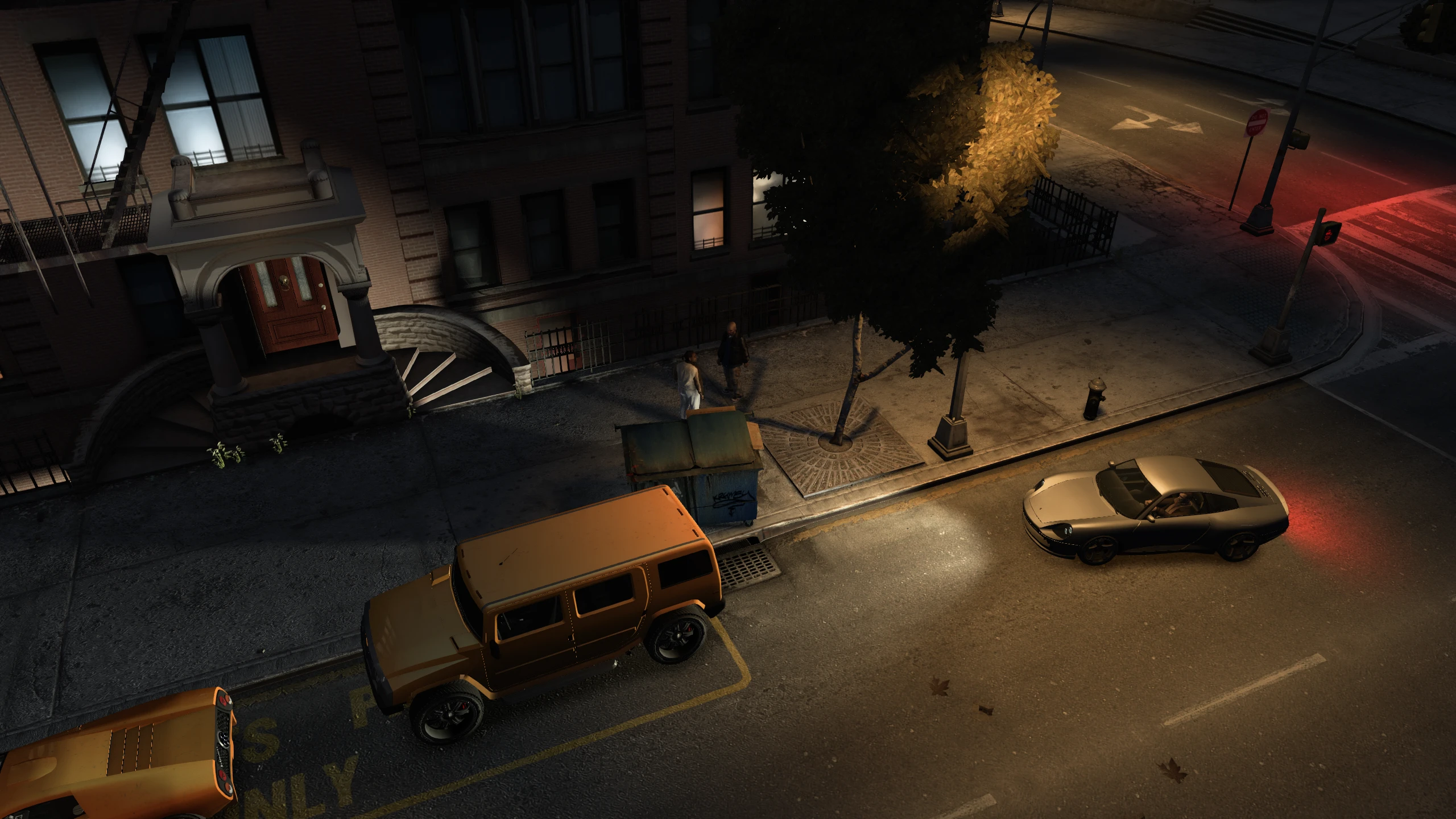
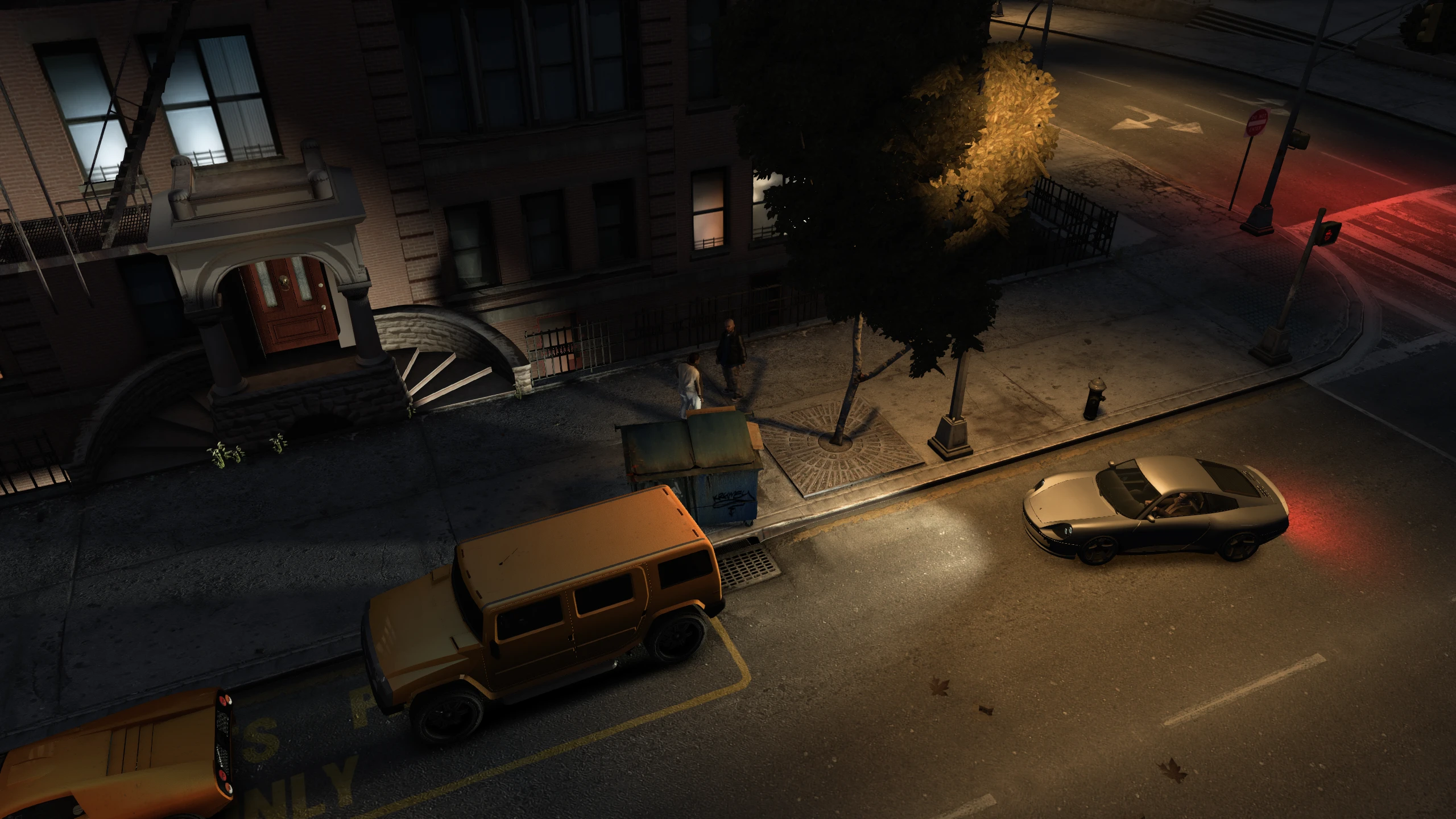
Extra Night Shadows (New)#
This option enables or disables extra night shadows.
Extra night shadows are an original feature added by Rockstar to the PC version of the game which have been seperated from other shadow options by the Fusion Fix team as they're very broken, basically hacked into the game and also massively impact performance.
This option has three settings, here's a breakdown on how they behave.
- Lampposts - Map objects, characters, vehicles and the player vehicle will cast shadows when illuminated by lampposts.
- Lampposts and Headlights - Map objects and characters will cast shadows when illuminated by lampposts and the player's headlights, but ALL vehicles illuminated by lampposts or headlights will no longer cast shadows.
- Lampposts and Headlights + Vehicle Night Shadows - Map objects, characters and vehicles will cast shadows when illuminated by lampposts and the player's headlights, but the player vehicle illuminated by lampposts or headlights will no longer cast shadows.
In these comparisons the player is in the Comet. ENS = Extra Night Shadows.
Logitech LightSync RGB (New)#
This option enables or disables support for custom ambient lighting on Logitech hardware, it requires the Logitech G HUB app.
Different colour schemes for each episode, health indication, police lights and ammo counter.
Seasonal Events (New)#
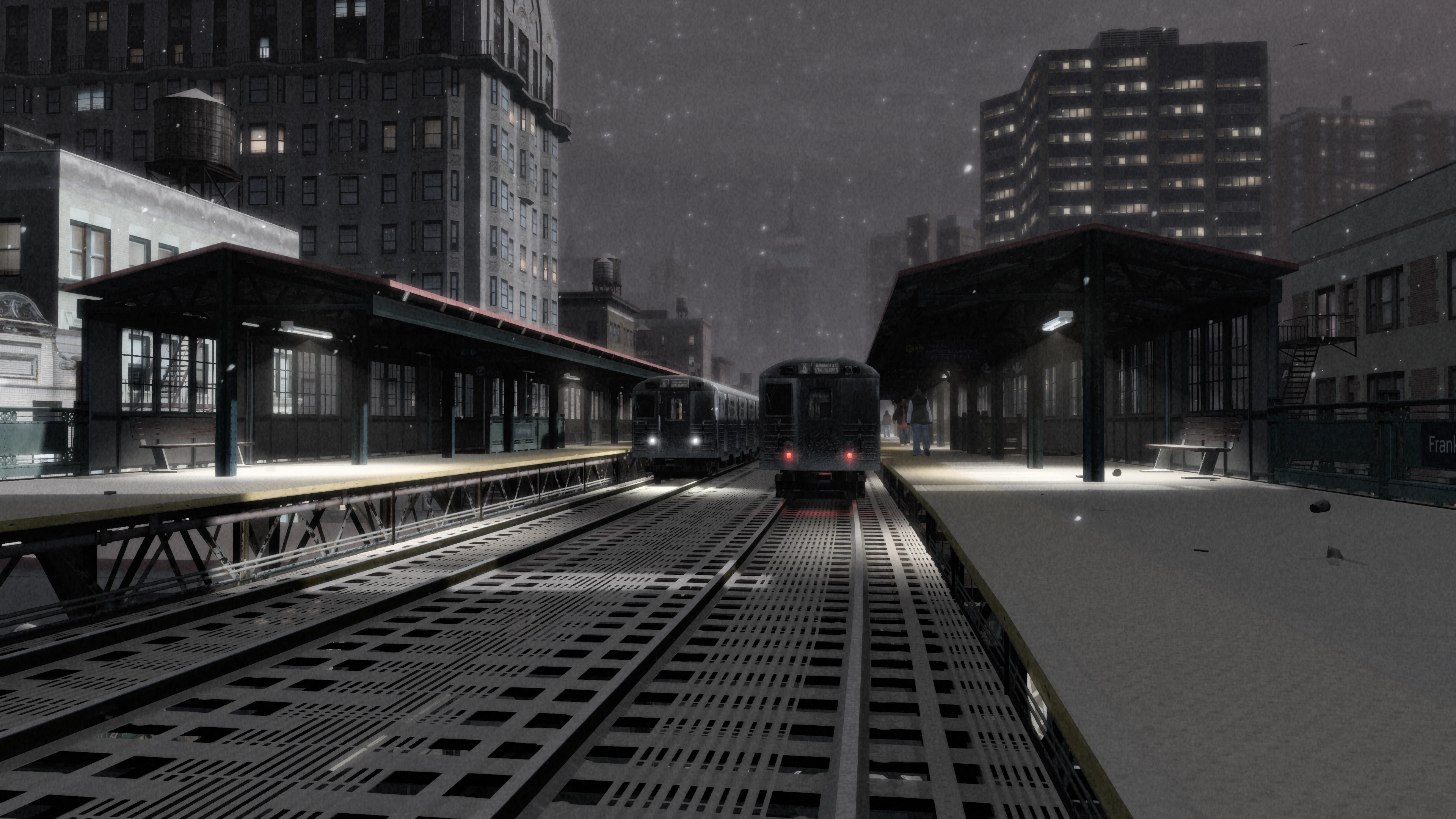
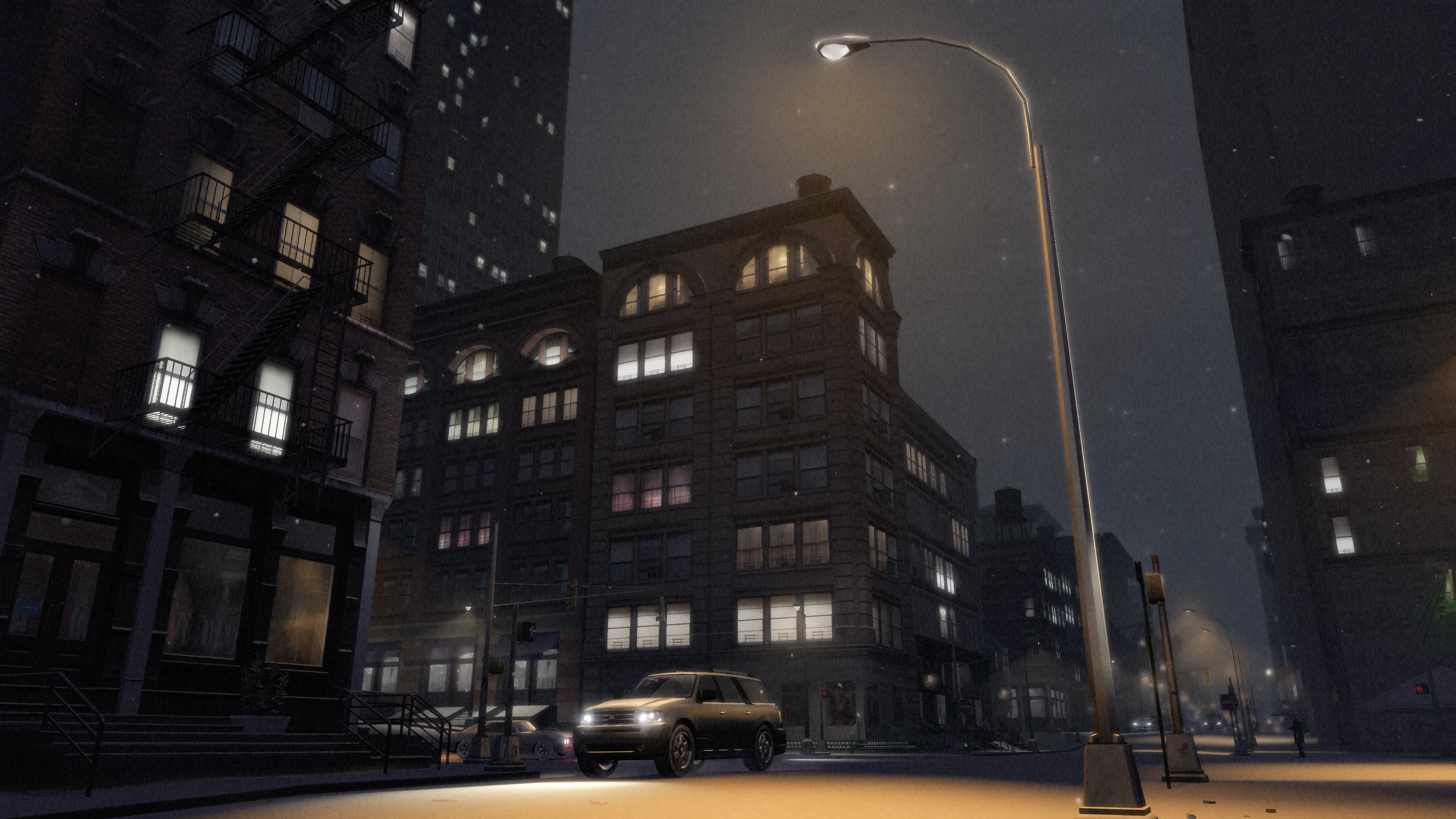
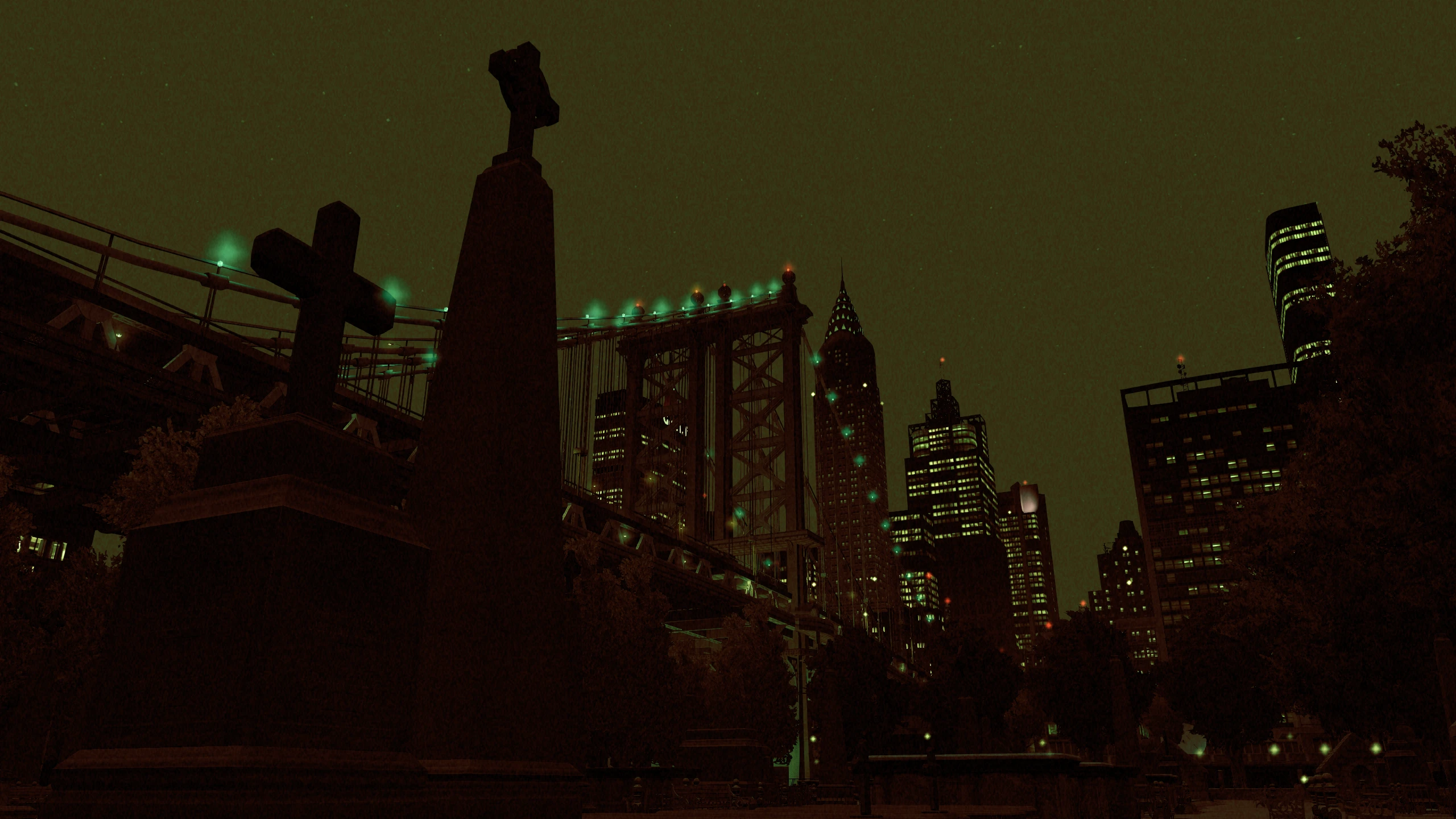
This option enables or disables Fusion Fix's seasonal events. The Halloween event occurs during Halloween day, the snow event starts on the 30th of December and ends on the 3rd of January.
If you don't want to wait for Halloween or Christmas time, you can manually activate seasonal events using these cheats.
Check For Fusion Fix Updates (New)#
This option enables or disables a check for Fusion Fix updates, making it easier to update the mod when new updates come out.
Enjoy my work?
Gain benefits such as shout-outs at the end of videos, early access to TJGM videos, early access to TJGM mods, VIP Discord access and much more by supporting me and my work on Patreon, it's very much appreciated! ❤️
⭐ Support on Patreon